
Knowby
Using NFC Smart Lock
How to use your NFC Smart Lock
1
Step 1 of 11
2
Step 2 of 11
<p>Download &quot;The Storage App&quot; from Apple App Store or Google Play</p>
<p><a href="https://play.google.com/store/apps/details?id=com.amss.americanstoragesouth&amp;hl=en_US&amp;gl=US">Android</a></p>
<p><a href="https://apps.apple.com/us/app/the-storage-app/id1612656134">Apple</a></p>

Download "The Storage App" from Apple App Store or Google Play

Android

Apple

3
Step 3 of 11
<p>Open The Storage App, and enter the Code provider by your facility.</p>
<p>Code should have been received in welcome text/email from the facility you rented from.</p>

Open The Storage App, and enter the Code provider by your facility.

Code should have been received in welcome text/email from the facility you rented from.

4
Step 4 of 11
<p>Login using Current Tenant, and the same credentials you made when renting your storage unit.</p>
<p>If you forgot your password, please select &quot;Forgot password&quot;. If you forgot your username, search for your move in email from the facility you rented at, or contact the facilty.</p>

Login using Current Tenant, and the same credentials you made when renting your storage unit.

If you forgot your password, please select "Forgot password". If you forgot your username, search for your move in email from the facility you rented at, or contact the facilty.

5
Step 5 of 11
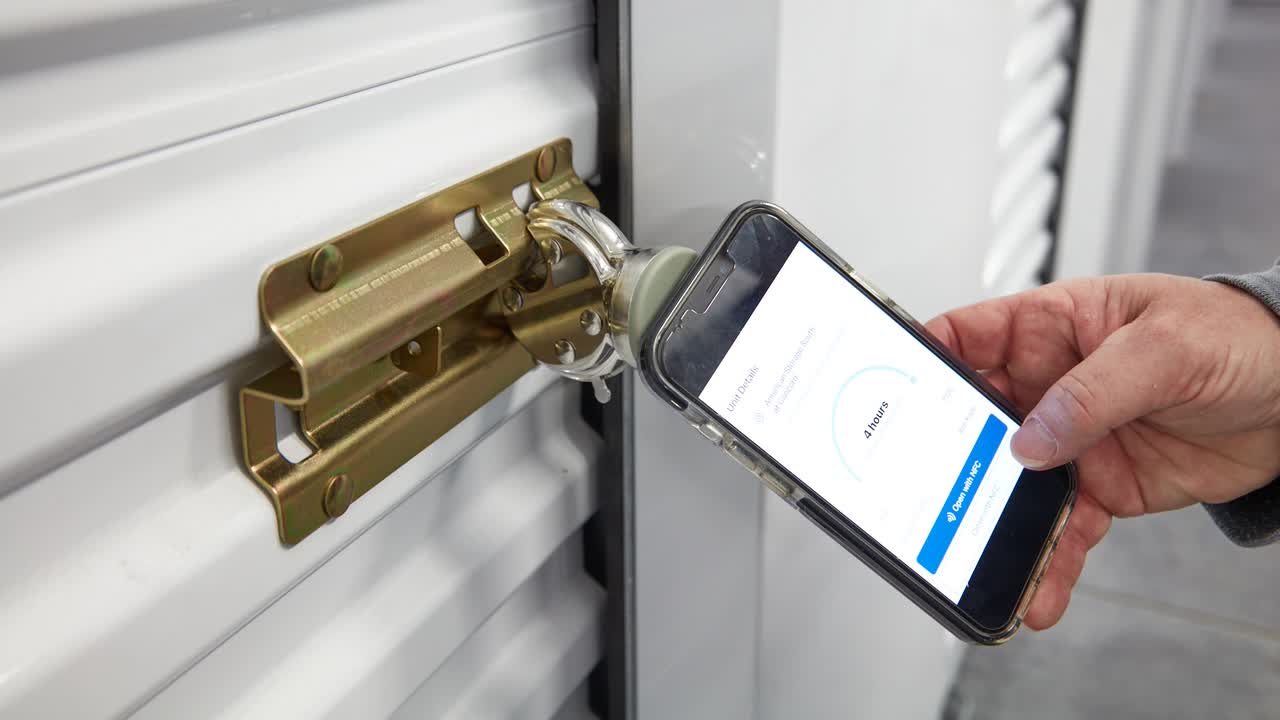
<p>Select the unit that you want to access using NFC Smart lock.</p>
<p>Tap &quot;Open with NFC&quot;</p>

Select the unit that you want to access using NFC Smart lock.

Tap "Open with NFC"

6
Step 6 of 11
<p>Wait for pop up window with 'Ready to Scan' to open before holding your phone to the lock.</p>
<p>Once the phone establishes a connection, HOLD the phone still until you receive a blue checkmark.</p>
<p>If you receive Wrong Code/Tag Connection Lost you are moving your phone after connecting</p>

Wait for pop up window with 'Ready to Scan' to open before holding your phone to the lock.

Once the phone establishes a connection, HOLD the phone still until you receive a blue checkmark.

If you receive Wrong Code/Tag Connection Lost you are moving your phone after connecting

7
Step 7 of 11
<p>For Apple Iphone, Hold the top left of your screen and cover the bottom halve of the antenna circle on the lock.</p>
<p>If you receive Wrong Code/Tag Connection Lost remove your phone from the lock Tap 'Open with NFC' and then locate phone as shown and HOLD phone still.</p>

For Apple Iphone, Hold the top left of your screen and cover the bottom halve of the antenna circle on the lock.

If you receive Wrong Code/Tag Connection Lost remove your phone from the lock Tap 'Open with NFC' and then locate phone as shown and HOLD phone still.

8
Step 8 of 11
<p>Andriod NFC is located in different locations based on the model. If you are unsure of the location, start from the top of your phone and slide the phone down the antenna. Once your phone vibrates, that is where the NFC is located. Hold still until you get the blue check mark.</p>

Andriod NFC is located in different locations based on the model. If you are unsure of the location, start from the top of your phone and slide the phone down the antenna. Once your phone vibrates, that is where the NFC is located. Hold still until you get the blue check mark.

9
Step 9 of 11
<p>To lock your NFC Smart Lock Tap &quot;Close with NFC&quot; under the unit.</p>

To lock your NFC Smart Lock Tap "Close with NFC" under the unit.

10
Step 10 of 11
<p>Wait for pop up window with 'Ready to Scan' to open before holding your phone to the lock.</p>
<p>Once the phone establishes a connection, HOLD the phone still until you receive a blue checkmark.</p>
<p>If you receive Wrong Code/Tag Connection Lost you are moving your phone after connecting</p>

Wait for pop up window with 'Ready to Scan' to open before holding your phone to the lock.

Once the phone establishes a connection, HOLD the phone still until you receive a blue checkmark.

If you receive Wrong Code/Tag Connection Lost you are moving your phone after connecting

11
Step 11 of 11
<p>Confirm you lock is locked. The same way you used it to remove it to open the unit, make sure that it is in the locked position and your unit is closed.</p>

Confirm you lock is locked. The same way you used it to remove it to open the unit, make sure that it is in the locked position and your unit is closed.