View Media Properties in a Step
Learn how to use the Properties panel in a knowby step to view media file details and keep your editing workspace clean and organised.
Learn how to use the Properties panel in a knowby step to view media file details and keep your editing workspace clean and organised.
1
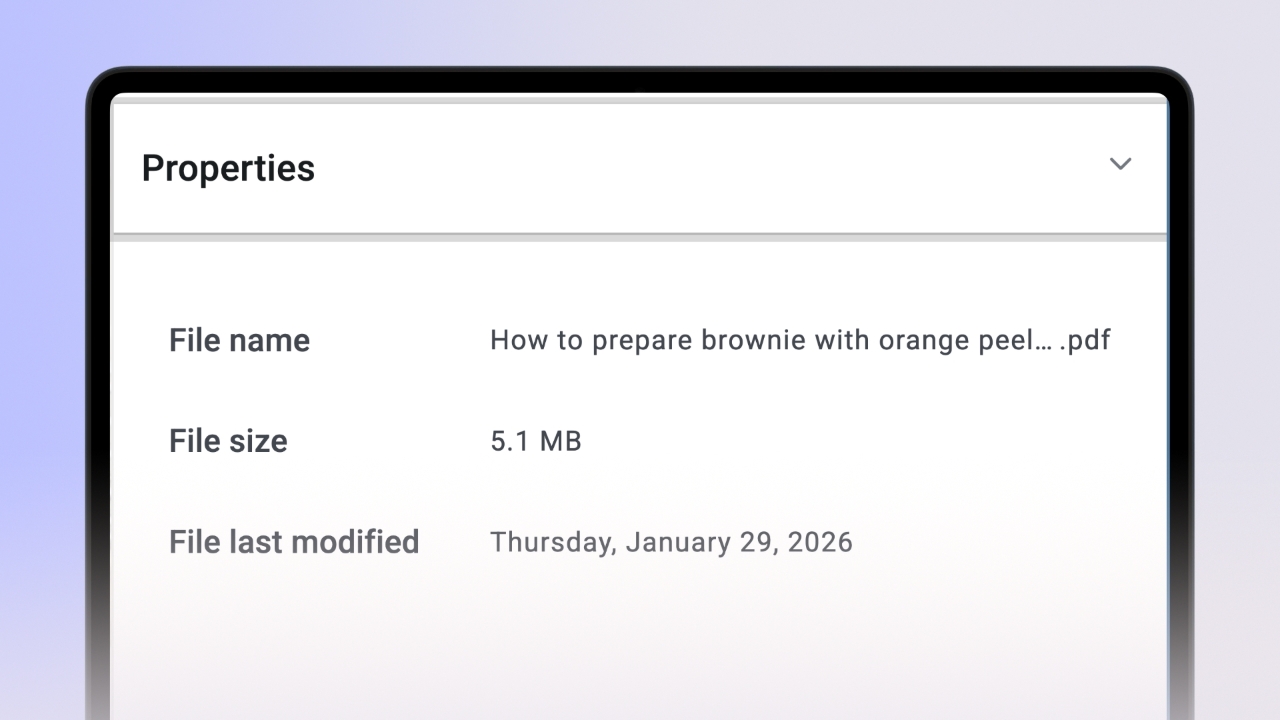
Step 1 of 2At the bottom of the step text input, you’ll find the " Properties" panel.
You can use it to view media metadata for uploaded files. This includes:
Original file name
File size
Last modified date
This helps keep track of media details within your knowby.
2
Step 2 of 2The Properties panel can be collapsed or expanded.
Click the arrow to collapse the panel when working on long text steps
Click the arrow again to expand it when you need to adjust step settings or view media details.
This feature helps keep your workspace clean and organised while editing.