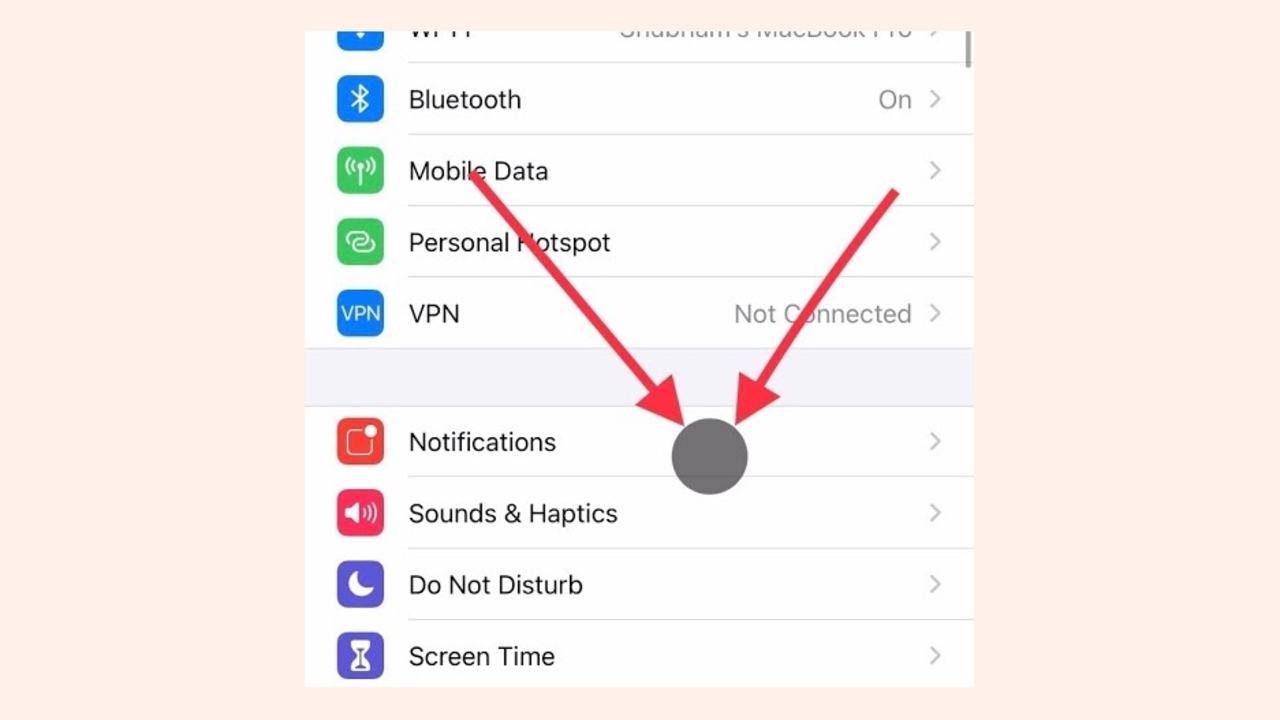
How to Activate a Cursor on Your iPhone
Easily enable a cursor on your iPhone screen for better accessibility and navigation.
Easily enable a cursor on your iPhone screen for better accessibility and navigation.
1
Step 1 of 4Open Accessibility Settings
- Go to Settings on your iPhone.
- Tap on Accessibility.
2
Step 2 of 4Enable AssistiveTouch
- Select Touch under Accessibility.
- Tap on AssistiveTouch and turn it on if it’s not already enabled.
3
Step 3 of 4Customize AssistiveTouch
- Tap on Customize Top Level Menu.
- Select any icon (e.g., Home), then choose Single Tap as the action.
4
Step 4 of 4Use the Cursor
- Now, whenever you tap the AssistiveTouch icon, a cursor will appear on the screen, highlighting where you touch.