
Knowby lets you download a ready-to-use Excel workbook, linked to your live data — open it and click Refresh anytime to pull the latest numbers.
A read-only access token is created automatically and embedded in the file, with one sheet per table wired up to your data. No data is actually stored in the file itself.
To get started, go to Settings, then Reports, and click Open reports.
In the left-hand panel, select Data export.
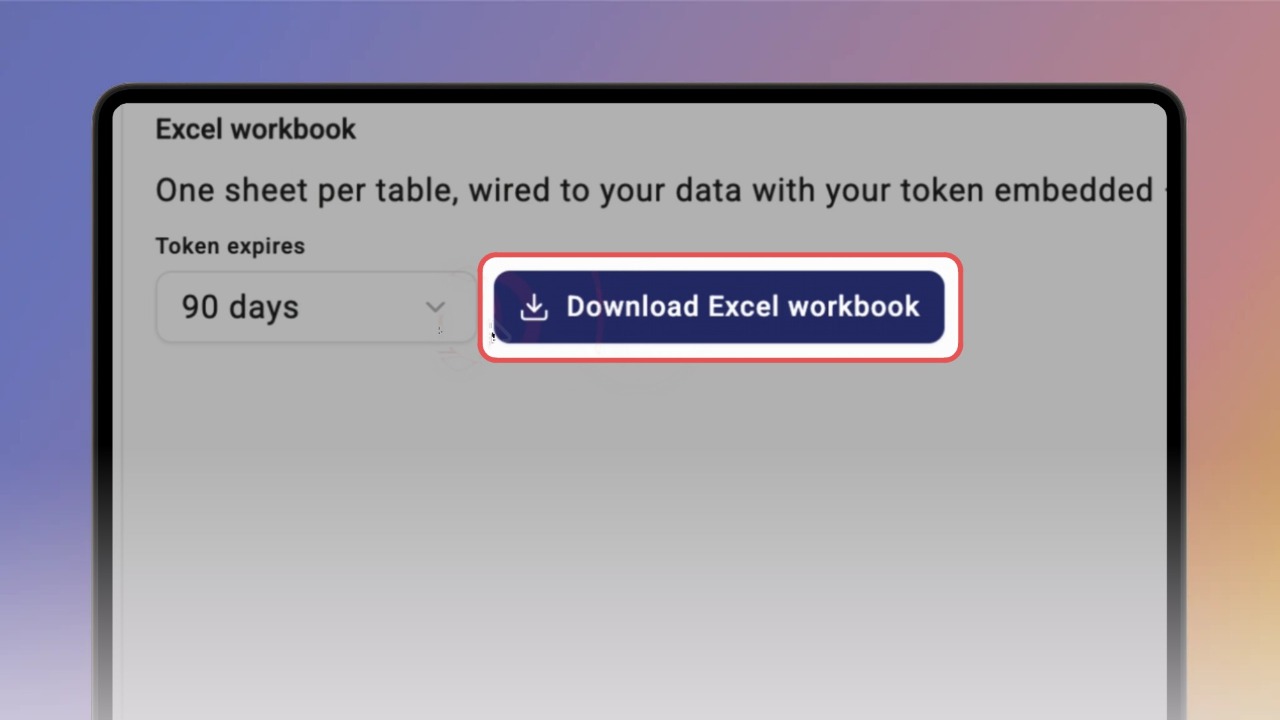
Choose how long the token should stay valid from the Token expires dropdown, then click Download Excel workbook.
Open the downloaded file in Excel. At first, it'll look empty, with a Security warning at the top — click Enable content on the right to continue.
After a moment, Excel starts running a background query, shown in the bottom-left corner of the window. Click that message anytime to check the external data refresh status.
Once it's done — this can take a little longer depending on how much data your organisation has — you'll see everything filled in across separate tabs: Knowbys, Ratings, Completions, and more.
💡 Each time you click Refresh (or Refresh All under the Data tab), Excel uses the token embedded in the file to pull the latest data straight from Knowby — so the workbook stays current without needing a new download, for as long as the token's still valid.
If you want to revoke access, go back to Data export and click Revoke.
Once revoked, the token stops working — any file using it will fail to refresh from that point on, though whatever data was already loaded stays in the file until you clear it yourself.
To get a working file again, download a new workbook with a fresh token.