
Open the Shortcuts app (pre-installed on iOS and MacOS).
Tap the + in the top-right to create a new shortcut.
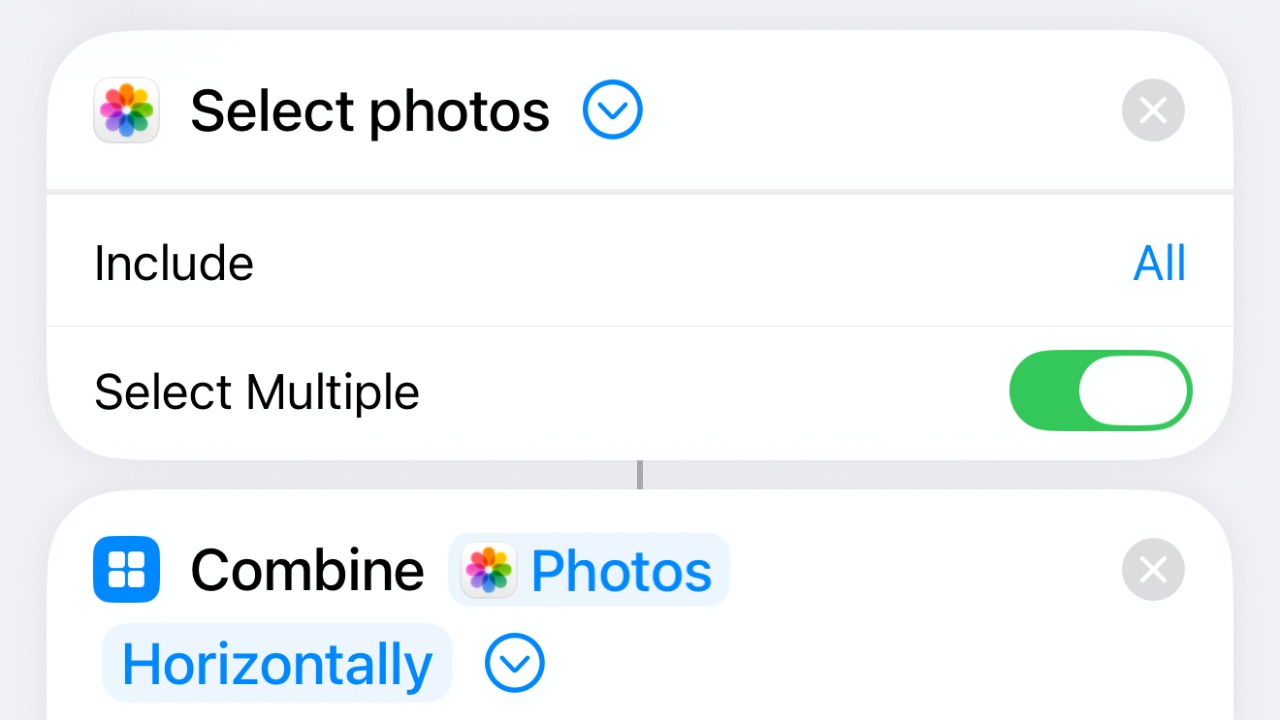
In the search bar, type 'Select Photos' and tap the Select Photos action to add it as the first step of your shortcut.
On the Select Photos action, click on the blue chevron to expand the details.
Leave 'Include' set to All.
Enable the 'Select Multiple' toggle. This lets you pick two or more photos each time you run the shortcut.
Tap 'Search Actions' to add another action, search 'Combine Images', and tap Combine Images.
It appears as 'Combine Photos'.
Choose how the images join — Horizontally (side by side) or Vertically (stacked)
Tap the blue chevron to adjust Spacing as desired.
Add one more action: search 'Save to Photos' and tap it.
Your shortcut now reads: Select Photos → Combine → Save Combined Image to Recents.
Tap the shortcut's name at the top and rename it something clear like 'Combine Images', then confirm.
Your shortcut is now saved and ready to use.
To use it: tap the play (▶) button, select the two photos you want to merge, and the combined image is saved to your Photos.
Open Knowby, add an image to your step, and choose the newly combined photo.