How to Screen Record on Your Android Phone
Learn how to easily record your screen on Android with built-in tools and audio options!
Learn how to easily record your screen on Android with built-in tools and audio options!
1
Step 1 of 5Add the Screen Recording Toggle
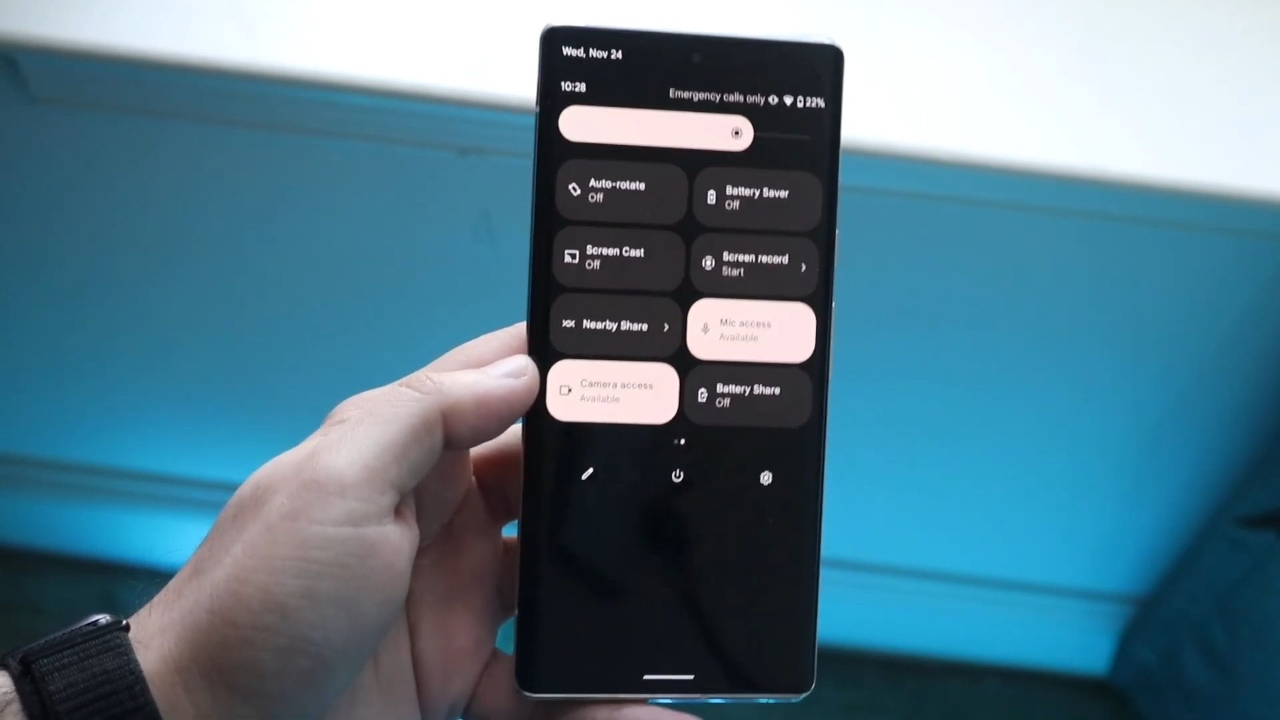
- Swipe down from the top of your screen to open the Quick Settings panel.
- If you don’t see the Screen Recording option, tap the Pencil icon or Edit to customize.
- Find the Screen Recording toggle in the list below and drag it into the main Quick Settings area.
2
Step 2 of 5Start Screen Recording
- Swipe down to access the Screen Recording toggle in Quick Settings.
- Tap the Screen Recording button, then select Start Recording.
3
Step 3 of 5Choose Audio Settings
- Before you start, enable Record Audio if you want sound in your recording.
- Tap the dropdown to choose which microphone to use (e.g., internal, Bluetooth, or external microphone).
4
Step 4 of 5Stop Recording
- To stop recording, tap the Stop button in the notification panel.
5
Step 5 of 5Review Your Recording
- Your video will be saved automatically in the gallery. Open it to review and adjust volume as needed.