How To Screen Record On iPhone
Learn how to use your iPhone’s built-in screen recorder, with options for adding voiceover!
Learn how to use your iPhone’s built-in screen recorder, with options for adding voiceover!
1
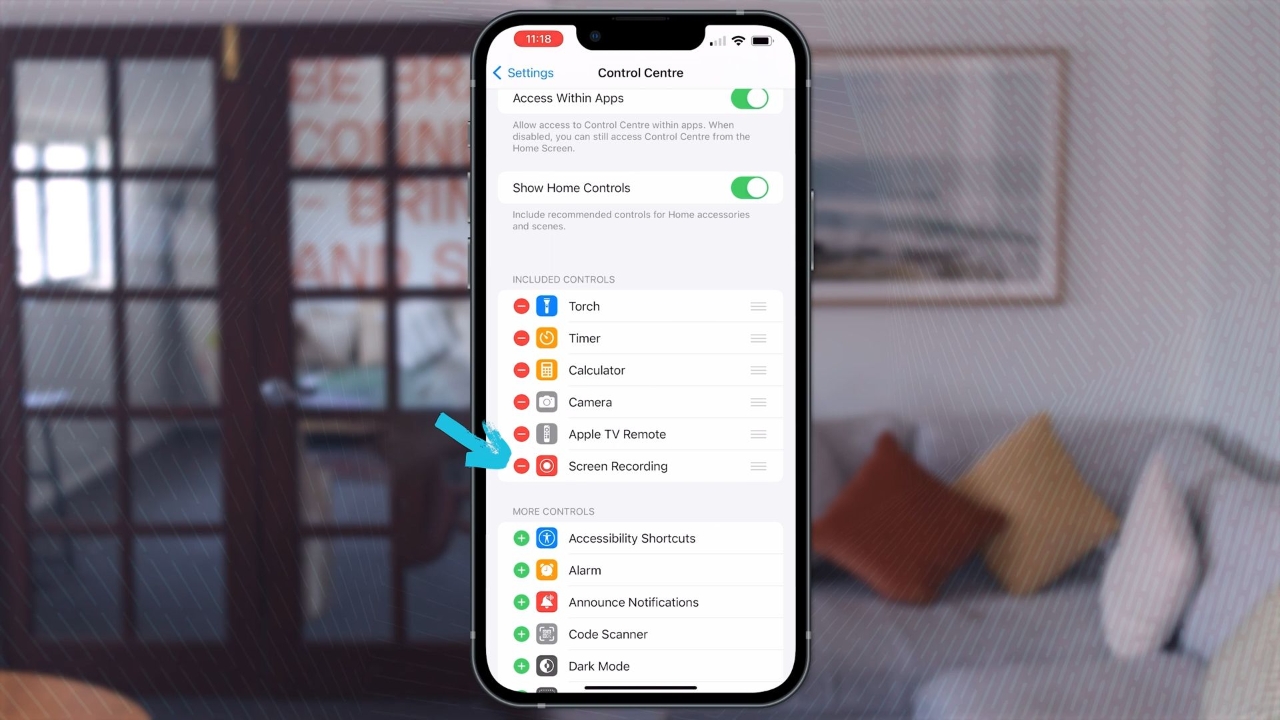
Step 1 of 4Add Screen Recording to Control Center
- Go to Settings > Control Center.
- In More Controls, find Screen Recording and tap the + to add it to your Control Center.
2
Step 2 of 4Start Screen Recording
- Open Control Center – swipe down from the top-right corner of the screen.
- Tap the Gray Record Button and wait for the 3-second countdown to start recording.
3
Step 3 of 4Stop Screen Recording
- Open Control Center again and tap the Red Record Button, or tap the Time in the top-left corner to stop recording.
- Your video will be saved automatically in the Photos app.
4
Step 4 of 4Record with Voiceover
- Long-Press the Record Button in Control Center to access additional options.
- Toggle on the Microphone to record your voice while screen recording.