
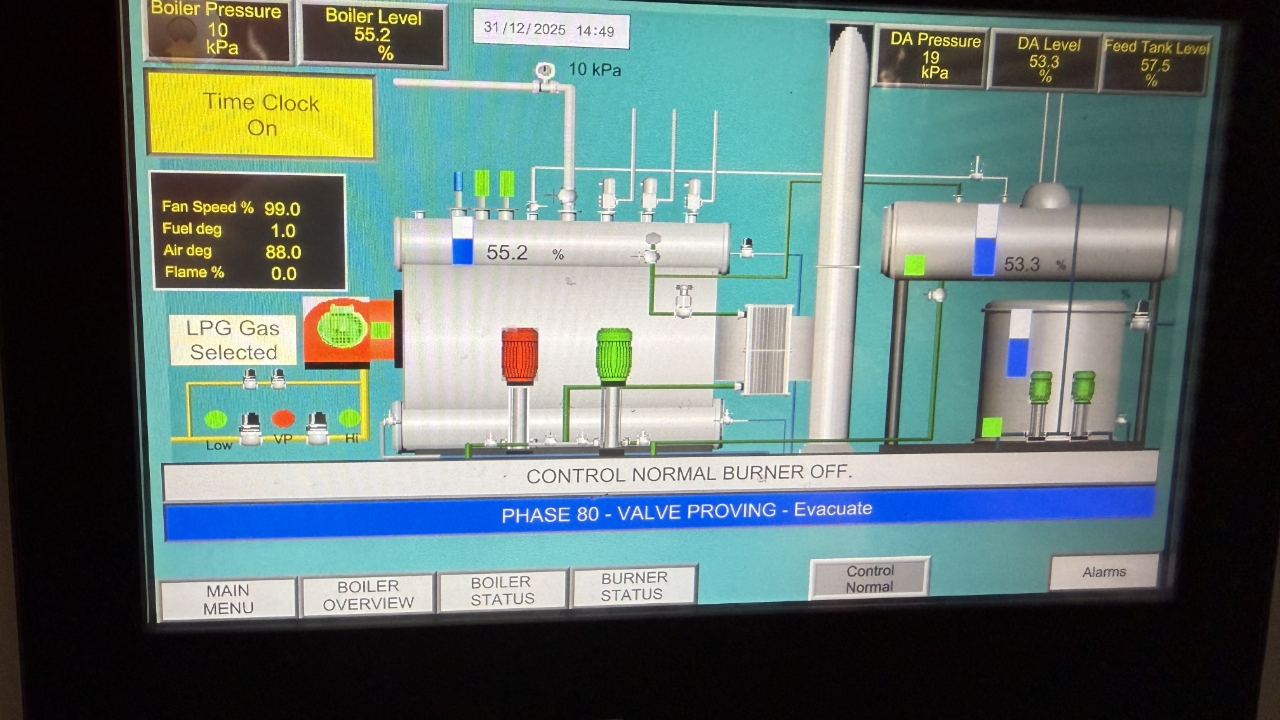
Brewery boiler clock functions
Guide to the boiler timer functions and disablement of the clock function
Guide to the boiler timer functions and disablement of the clock function
1
Step 1 of 5
Open the main menu
2
Step 2 of 5
Select time clock
3
Step 3 of 5
Screen elements
Start time - boiler start enabled
Stop time - boiler start disable
Day control - indicates if the clock functions is active for the day. Green active blue inactive
Day status - indicates the boiler status now, future periods will indicate off as default they will update to on when the boiler time is active. In the image it was Wednesday and the boiler was in the active time range.
Time Clock Override On - this function ignores start end times and day functions. When Yellow override is active.
4
Step 4 of 5
To edit start end time select the hour or minute cell and input the new time.
5
Step 5 of 5
Time clock functions disabled