
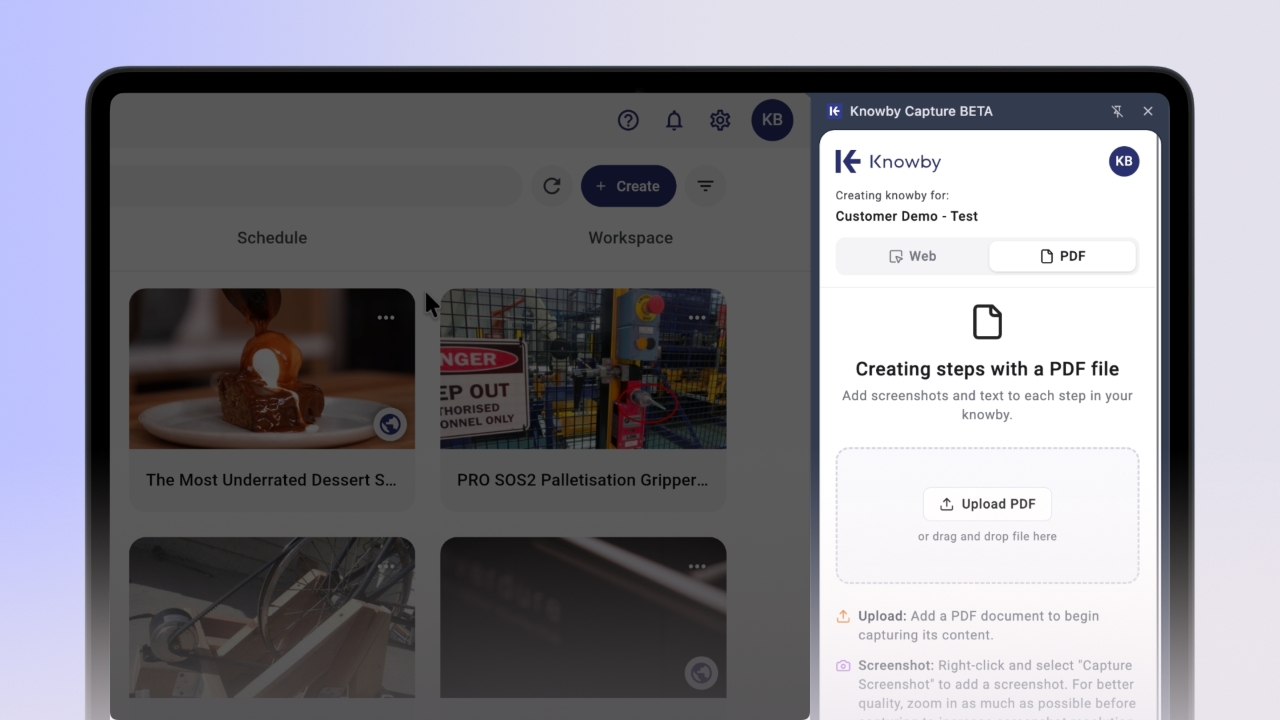
Open the Knowby Capture extension and select the "PDF" tab. You can upload a PDF by dragging and dropping your local file directly into the dashed gray area, or by clicking "Upload PDF".
If you already have a PDF open in Chrome, the extension will automatically detect it. Simply click "Start PDF Capture" to begin immediately.
In the blank step, click the "Add screenshot" button to manually select an area on your screen.
Note: Increasing your browser's zoom level produces clearer screenshots.
Type or paste your instructions into the step text area below the captured media.
To add another step, scroll to the bottom of the plugin window and click "Add Blank Step" to insert a completely new, empty card where you can manually add media and text.
You can also right-click directly on the webpage and select "Capture Screenshot" to manually select an area. This action automatically adds a new step card with your custom image.
Click "Done" when you are finished. Please keep the plugin open while it saves.
Once completed, you will be automatically redirected to the Knowby Studio to manage your draft knowby.