Knowby Sculptform
Knowby
Comparison Report - (SF, MYOB, Xero) Process
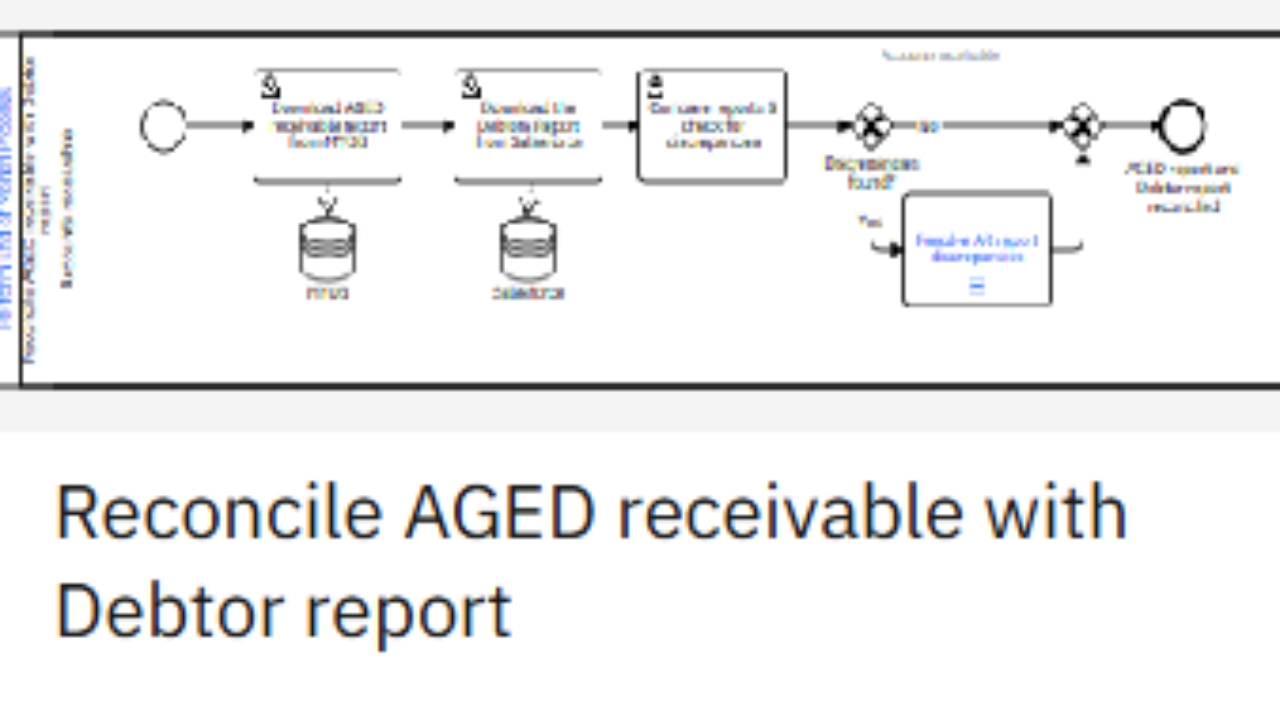
Reconcile AGED receivable with Debtor report
1
Step 1 of 16
<p><strong>Reconcile AGED receivable with Debtor report (Comparison report)</strong></p><p></p><p>This report must be completed <strong>weekly</strong>, and <strong>especially at month‑end</strong>, to minimise any discrepancies.</p><p></p><p>SFM uses different accounting software across regions, from which the reports can be extracted:</p><ul><li><p><strong>MYOB:</strong> AU &amp; NZ</p></li><li><p><strong>Xero:</strong> USA &amp; UK</p></li></ul><p>All reports are saved in:<br><strong>Finance → Reports → Fiscal Year</strong><br><br>Copy paste Comparison Format (always update the file name with date)</p><p></p>

Reconcile AGED receivable with Debtor report (Comparison report)

This report must be completed weekly, and especially at month‑end, to minimise any discrepancies.

SFM uses different accounting software across regions, from which the reports can be extracted:

  • MYOB: AU & NZ

  • Xero: USA & UK

All reports are saved in:
Finance → Reports → Fiscal Year

Copy paste Comparison Format (always update the file name with date)

2
Step 2 of 16
<p><strong>Download AGED receivable report from MYOB (AU &amp; NZ)</strong></p><p></p><p>Go to Dashboard</p><p>&gt;Reports</p><p>&gt;Sales</p><p>&gt;Aged Receivables [Summary]</p><p>-Set the report date to Today’s Date</p><p>&gt;Export to Excel.</p><p></p><p>The extracted report will automatically open as an Excel file.</p>

Download AGED receivable report from MYOB (AU & NZ)

Go to Dashboard

>Reports

>Sales

>Aged Receivables [Summary]

-Set the report date to Today’s Date

>Export to Excel.

The extracted report will automatically open as an Excel file.

3
Step 3 of 16
<p>Copy and paste the extracted report into the<strong> AU or NZ sheet.</strong></p>

Copy and paste the extracted report into the AU or NZ sheet.

4
Step 4 of 16
<p><strong>Download AGED receivable report from XERO (USA &amp; UK)</strong></p><p></p><p>Go to Report</p><p>Select Aged Receivables Summary</p>

Download AGED receivable report from XERO (USA & UK)

Go to Report

Select Aged Receivables Summary

5
Step 5 of 16
<p>Set <strong>Date</strong> to Today.</p><p>Click <strong>Contact</strong> to sort the list A–Z.</p><p>Click <strong>Reorder Columns</strong>, then <strong>drag Total</strong> to the second column.</p><p>Click<strong> Update</strong> to apply the changes.</p><p></p><p>Click <strong>Export</strong>, then select <strong>Excel</strong> to extract the report.</p><p></p><p>The extracted report will go to your Downloads folder.</p>

Set Date to Today.

Click Contact to sort the list A–Z.

Click Reorder Columns, then drag Total to the second column.

Click Update to apply the changes.

Click Export, then select Excel to extract the report.

The extracted report will go to your Downloads folder.

6
Step 6 of 16
<p>Copy and paste the extracted report into the <strong>USA or UK sheet.</strong></p>

Copy and paste the extracted report into the USA or UK sheet.

7
Step 7 of 16
<p><strong>Download the Debtors Report from Salesforce</strong></p><p></p><p>Open the <strong>Debtors Report</strong> in Salesforce (SF).</p><ul><li><p>Click the <strong>arrow down beside Edit</strong></p></li><li><p>Select <strong>Export</strong>.</p></li></ul><p>The extracted file will automatically be saved to <strong>Downloads</strong> folder.</p><p></p>

Download the Debtors Report from Salesforce

Open the Debtors Report in Salesforce (SF).

  • Click the arrow down beside Edit

  • Select Export.

The extracted file will automatically be saved to Downloads folder.

8
Step 8 of 16
<p>From the <strong>Debtors Report</strong> data, <strong>summarise the total balance due per customer and by region</strong>.</p><p></p><p>May use PivotTable.</p>

From the Debtors Report data, summarise the total balance due per customer and by region.

May use PivotTable.

9
Step 9 of 16
<p><strong>Each region has its own sheet for comparing</strong> the MYOB/Xero report with the SF Debtors Report.</p><p></p><p>After running the comparison, <strong>copy all items marked as “False” into the <em>False Results</em> sheet.</strong></p>

Each region has its own sheet for comparing the MYOB/Xero report with the SF Debtors Report.

After running the comparison, copy all items marked as “False” into the False Results sheet.

10
Step 10 of 16
<p>In the <strong>Notes</strong> column, state the reason for each discrepancy. Some common reasons may include:</p><ul><li><p><strong>MYOB‑only invoices</strong>, such as <em>Studio Rental income</em> and <em>Region loan invoices for marketing</em>, which are not recorded in SF.</p></li></ul><p>However, some <strong>discrepancies can be resolved </strong>once the correct data has been identified and updated.<br><br>Some are:</p><ul><li><p>Received money instead of payment</p></li><li><p>Cent(s) discrepancies – requires changing the figure on the invoice in MYOB as the payment amount received should equal same as the invoice.</p></li></ul><p></p>

In the Notes column, state the reason for each discrepancy. Some common reasons may include:

  • MYOB‑only invoices, such as Studio Rental income and Region loan invoices for marketing, which are not recorded in SF.

However, some discrepancies can be resolved once the correct data has been identified and updated.

Some are:

  • Received money instead of payment

  • Cent(s) discrepancies – requires changing the figure on the invoice in MYOB as the payment amount received should equal same as the invoice.

11
Step 11 of 16
<h3><strong>FIXING: “Received Money” Instead of “Receive Payment”</strong></h3><p></p><p>When <strong>“Receive Money”</strong> is used, the payment is posted to a <em>liability account</em></p><p><em>(2-8832)&nbsp;</em>rather than being applied to the customer’s invoice, causing the MYOB invoice to remain <strong>open</strong>.<br><br><strong>Example: Durnco</strong></p><p></p><p></p>

FIXING: “Received Money” Instead of “Receive Payment”

When “Receive Money” is used, the payment is posted to a liability account

(2-8832) rather than being applied to the customer’s invoice, causing the MYOB invoice to remain open.

Example: Durnco

12
Step 12 of 16
<p><strong>To fix this:</strong></p><ol><li><p>Go to <strong>Sales Register</strong>.</p></li><li><p>Search for the <strong>company</strong>.</p></li><li><p><strong>Open Invoices</strong> tab.</p></li><li><p>Click the <strong>arrow</strong> to open the transaction.</p></li></ol><p></p>

To fix this:

  1. Go to Sales Register.

  2. Search for the company.

  3. Open Invoices tab.

  4. Click the arrow to open the transaction.

13
Step 13 of 16
<ol start="5"><li><p>Click the <strong>Payment</strong> button.</p></li></ol><p></p>
  1. Click the Payment button.

14
Step 14 of 16
<ol start="6"><li><p>Change the <strong>Deposit Account</strong> to <strong>“2-8832 SF-Customer Deposits.”</strong></p></li><li><p>Change the <strong>Date</strong> to the actual deposit date.</p></li><li><p>Enter the <strong>Amount Applied</strong>.</p></li><li><p>Click <strong>Record</strong>.<br><br>Going back to the Sales Register, it will show that the invoice is now closed.</p></li></ol><p></p>
  1. Change the Deposit Account to “2-8832 SF-Customer Deposits.”

  2. Change the Date to the actual deposit date.

  3. Enter the Amount Applied.

  4. Click Record.

    Going back to the Sales Register, it will show that the invoice is now closed.

15
Step 15 of 16
<p>Since the payment was previously allocated to the <strong>2‑8832 SF‑Customer Deposits</strong> account using <strong><em>Receive Money</em></strong>, and the <strong>correction</strong> has now been completed to <strong>close the invoice</strong>, the transaction can now be <strong>reconciled</strong>.<br></p>

Since the payment was previously allocated to the 2‑8832 SF‑Customer Deposits account using Receive Money, and the correction has now been completed to close the invoice, the transaction can now be reconciled.

16
Step 16 of 16