
Knowby
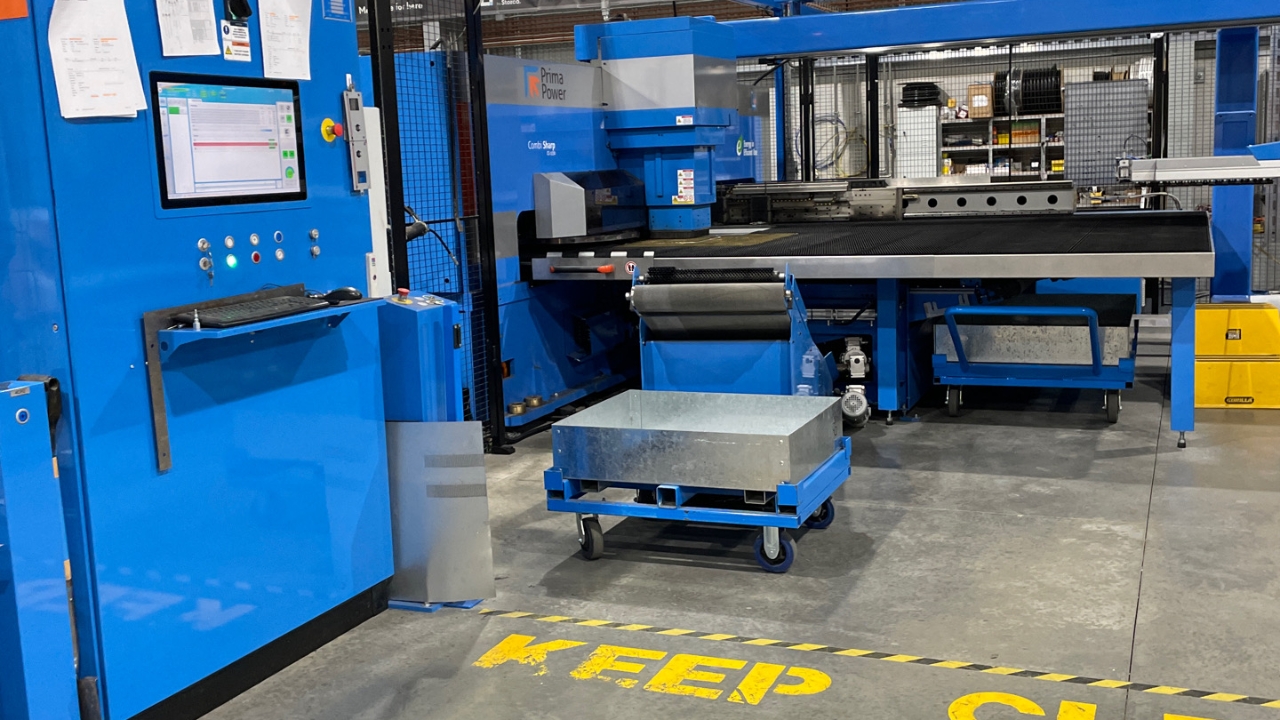
Combi turret program.
How to select a program on the Combi Turret.
1
Step 1 of 16
<p>Personal Protective Equipment (PPE). Gloves and Safety Glasses. If you don’t already have a pair of gloves and safety glasses, please see the store worker.</p>

Personal Protective Equipment (PPE). Gloves and Safety Glasses. If you don’t already have a pair of gloves and safety glasses, please see the store worker.

2
Step 2 of 16
<p>QA Sheet. You will find a QA sheet at the machine, if there is no QA sheet there see the team leader or production. A QA sheet will need to be completed at the start, through out and at the end of the day.</p>

QA Sheet. You will find a QA sheet at the machine, if there is no QA sheet there see the team leader or production. A QA sheet will need to be completed at the start, through out and at the end of the day.

3
Step 3 of 16

No tools required.

4
Step 4 of 16
<p>Find your R&amp;D production slip. Sometimes you might not get one, so ask if there is on or if there is some kind of paperwork to go by.</p>

Find your R&D production slip. Sometimes you might not get one, so ask if there is on or if there is some kind of paperwork to go by.

5
Step 5 of 16
<p>Find the information you need for the job. Sometimes there will be multiple parts for the job. E.g swing doors has one part but wine lockers have multiple different parts.</p>

Find the information you need for the job. Sometimes there will be multiple parts for the job. E.g swing doors has one part but wine lockers have multiple different parts.

6
Step 6 of 16
<p>Click on the files button.</p>

Click on the files button.

7
Step 7 of 16
<p>If there is any jobs left over, click the remove button. To add a job click the add button.</p>

If there is any jobs left over, click the remove button. To add a job click the add button.

8
Step 8 of 16
<p>Click on the file you need.</p>

Click on the file you need.

9
Step 9 of 16
<p>Click on the database button and click the browse button.</p>

Click on the database button and click the browse button.

10
Step 10 of 16
<p>Click on the file you need.</p>

Click on the file you need.

11
Step 11 of 16
<p>Then click open.</p>

Then click open.

12
Step 12 of 16
<p>There are more files in this file, open it.</p>

There are more files in this file, open it.

13
Step 13 of 16
<p>Then click open.</p>

Then click open.

14
Step 14 of 16
<p>Add in all the information into this page. e.g. how many sheets you need. Have a Quick Look at it to see if the console matches up with the paperwork, if it all matches up then you can proceed.</p>

Add in all the information into this page. e.g. how many sheets you need. Have a Quick Look at it to see if the console matches up with the paperwork, if it all matches up then you can proceed.

15
Step 15 of 16
<p>To start the job press the green start button.</p>

To start the job press the green start button.

16
Step 16 of 16
<p>Press start button under the console.</p>

Press start button under the console.