
Knowby
Navigate the Knowby Home Screen
Everything in Knowby is just a few clicks away. Here's a quick tour of the home screen and its left-hand navigation, which adapts to your role.
1
Step 1 of 14

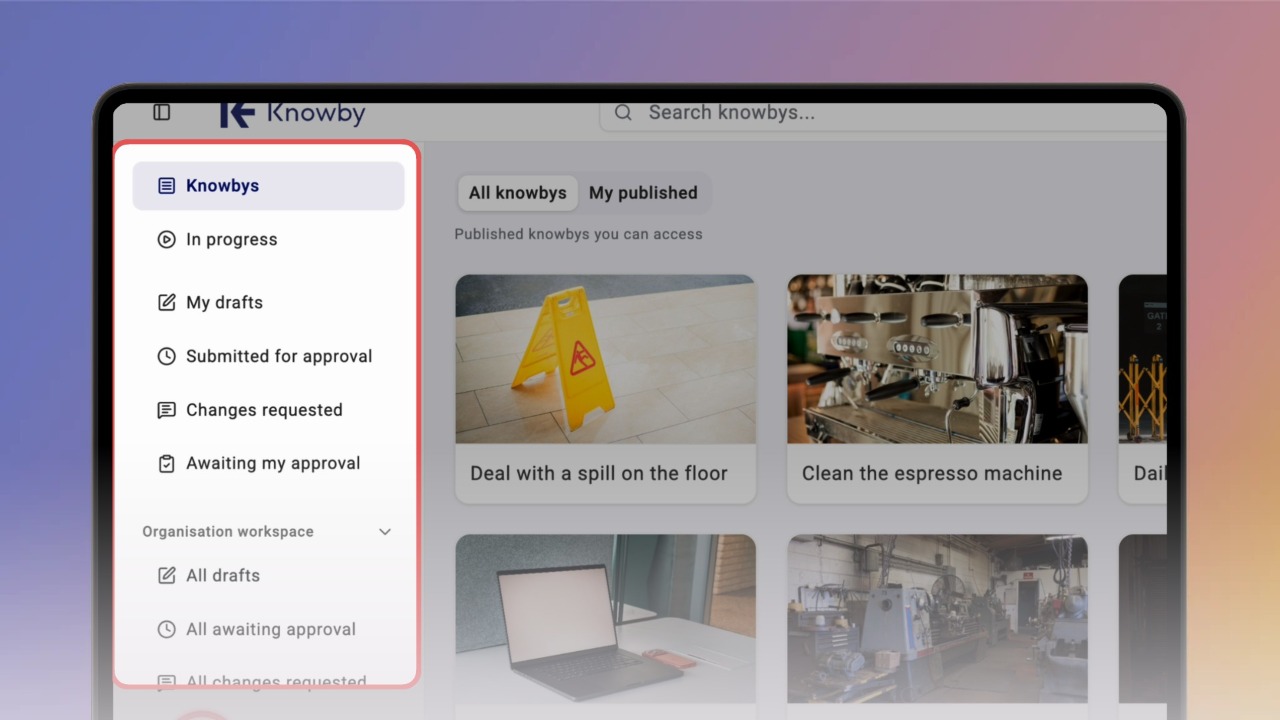
The left navigation panel changes based on your role. Every user has a Knowbys library with all published knowbys, plus sections that show up depending on what you're working on:

  • In progress — knowbys you've started but haven't finished

  • My drafts — knowbys you own that haven't gone through approval yet

  • Submitted for approval — knowbys you've sent to an approver

  • Changes requested — knowbys an approver sent back, with comments on what to fix

  • Awaiting my approval — knowbys waiting on you to approve or send back

Admins get a bird's-eye view too, with an Organisation workspace covering every draft, approval, and change request across the org.

You'll also spot Schedule and Teams.

2
Step 2 of 14

On the main Knowbys screen, switch between All knowbys and My published to see only the ones you own.

3
Step 3 of 14

The Category filter sits on the right, letting you group your knowbys.

💡 See the Create Categories guide → to learn more.

4
Step 4 of 14

Next to Category, Sorting options let you choose how your knowbys are ordered — by Last updated or Title, in either direction.

5
Step 5 of 14

At the top, use Search to find a knowby by title or description — type 3 or more letters and matching results appear.

6
Step 6 of 14

Next to Search, the New knowby button holds every way to start creating a knowby.

7
Step 7 of 14

The question mark icon opens Tutorials — built-in, step-by-step help you can follow without leaving the app.

💡 See the Use Knowby's Built-in Tutorials guide →

8
Step 8 of 14

The bell icon opens your notifications — anything related to knowbys or users.

Clicking a notification takes you straight to the relevant action.

9
Step 9 of 14

The gear icon opens Settings, where you manage your organisation — from teams and categories to brand colours and report access.

10
Step 10 of 14

Click your avatar to switch the app's theme or open your Profile.

11
Step 11 of 14

Hovering over a knowby card shows two actions — Share and the three-dot menu.

Share options depend on the knowby's access level.

12
Step 12 of 14

The three-dot menu shows actions that match the knowby's current status.

13
Step 13 of 14

Inside a knowby, you can hide the side thumbnail panel, share the knowby, switch its language, or open the three-dot menu for more actions. Y

ou can also switch between Slide mode and Scroll mode.

💡 See the Change the view mode guide →

14
Step 14 of 14

Every knowby also has Knowby Details — a control centre with full details, version history, feedback, advanced sharing options like PDF and embed code, and analytics on views and completions.