
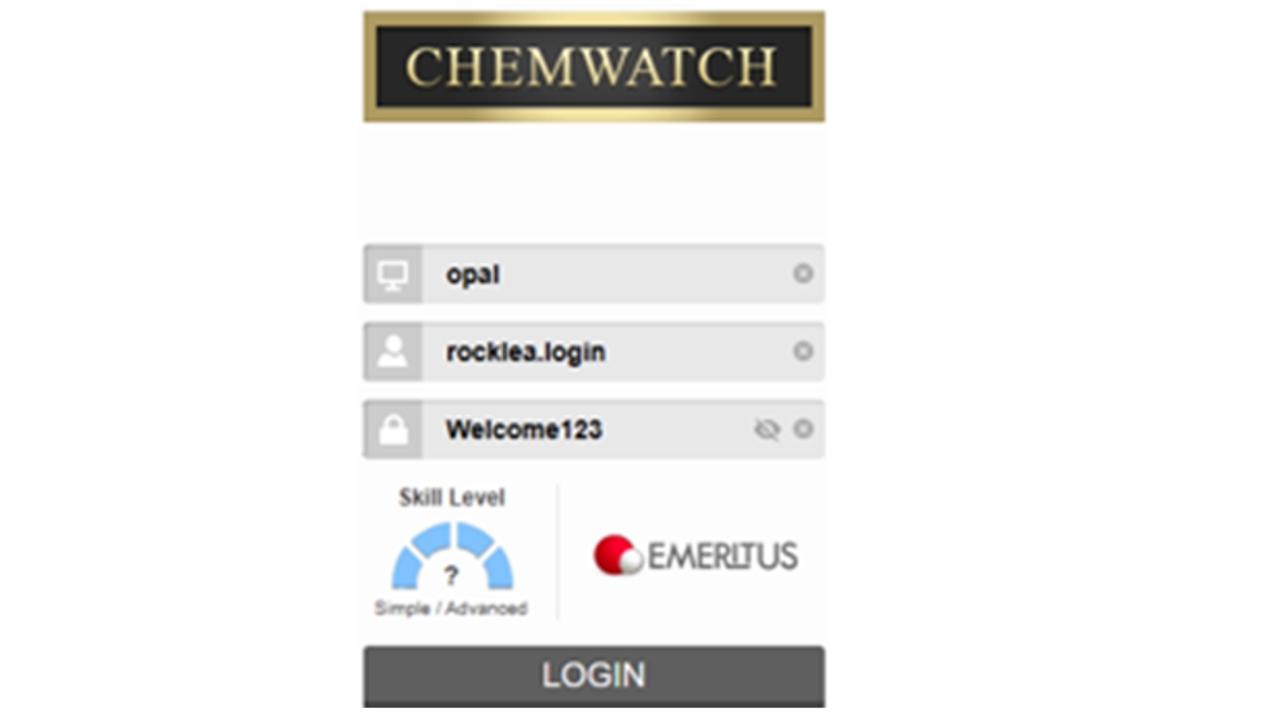

To log in to Chemwatch, click on the Chemwatch Icon on the compuer Desktop. Type opal in the top 'Account' field, rocklea.login for the log in and then Welcome123 for the password (ensure you use upper case/capital for the W).
You are now in Chemwatch. Go to the left hand menu, you see 'Enterprise' has 3 folders - open Manifest by clicking on the arrow and this will expand the folder. Click on 'New' - Opal Fibre Packaging Aust - Corrugated - Rocklea. You will then see all the departments listed. Click on the relevant department.
Select the Safety Data Sheet (SDS) you need. Click on the Blue underlined name of the substance and the SDS will open.

Click on the Download button - see red circled ara top right of screen. It will then open up the document and it will be available in your computer downloads folder. You can access this via the 'File explorer' program when you right click on the windows start button bottom left of your screen.