
Knowby
PM Eleven- Work Order Scanning-Clean Documents to Ext. DMS
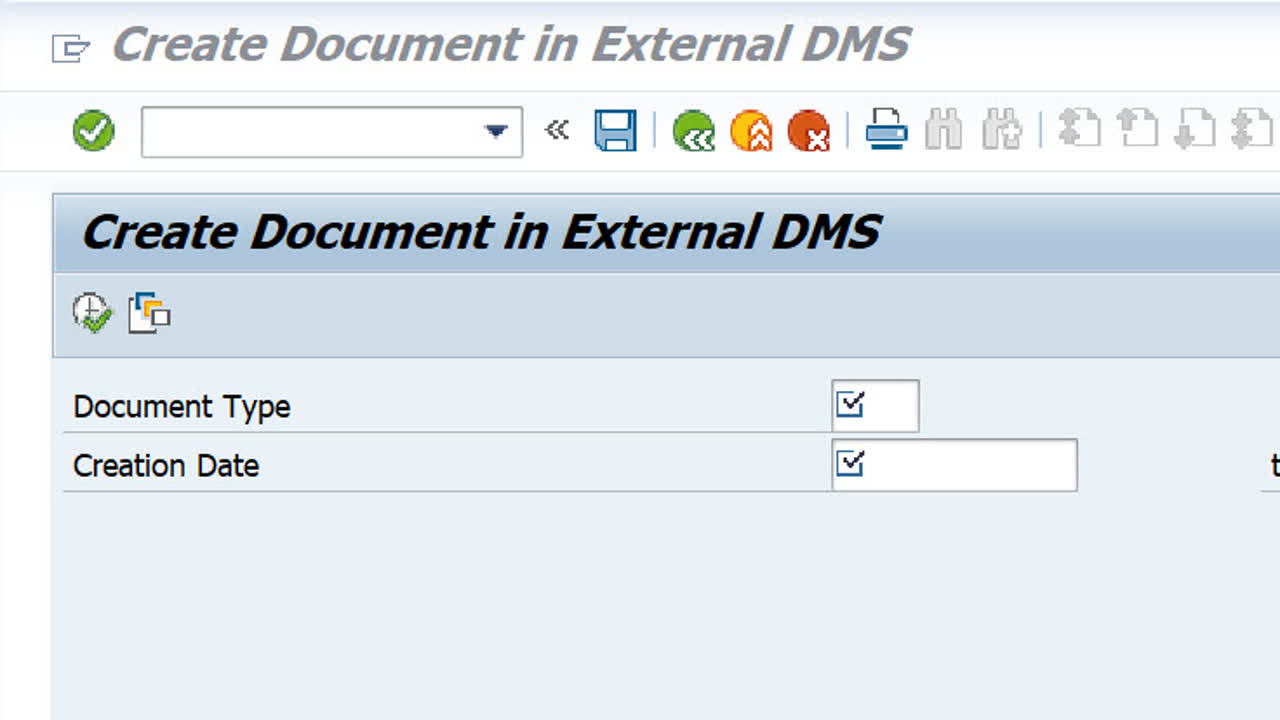
The PM Eleven Work Order Scanning tool uploads pdf documents to SAP and links them to WOs and other SAP objects. Customers not wishing to store these documents in SAP can run the /PM11/SAPDMS transaction to move these documents to an external DMS system keeping the object links.
1
Step 1 of 7
<p>Run transaction /PM11/SAPDMS
Steps 2 to 3 show how to execute the process once off.
Steps 4 to 6 show how to save selections as a variant and then set up a background batch job to be run at a regular interval.</p>

Run transaction /PM11/SAPDMS Steps 2 to 3 show how to execute the process once off. Steps 4 to 6 show how to save selections as a variant and then set up a background batch job to be run at a regular interval.

2
Step 2 of 7
<p>Follow this step and the following step when executing this transaction in the foreground as a once off process.</p>
<ol>
<li>Enter document type</li>
<li>Creation date range</li>
<li>Execute</li>
</ol>

Follow this step and the following step when executing this transaction in the foreground as a once off process.

  1. Enter document type
  2. Creation date range
  3. Execute
3
Step 3 of 7
<p>The process is complete and a log will be provided of the documents transferred.</p>

The process is complete and a log will be provided of the documents transferred.

4
Step 4 of 7
<p>To set-up this process a scheduled background job (recommended):</p>
<ul>
<li>Save the selections in step 2 as a variant.</li>
</ul>

To set-up this process a scheduled background job (recommended):

  • Save the selections in step 2 as a variant.
5
Step 5 of 7
<ol>
<li>Provide a name for the variant.</li>
<li>Enter a description.</li>
<li>Make the 'Creation Date' field a dynamically calculated date range. (Appropriate range to be determined by the user).</li>
<li>Save the variant.</li>
</ol>
  1. Provide a name for the variant.
  2. Enter a description.
  3. Make the 'Creation Date' field a dynamically calculated date range. (Appropriate range to be determined by the user).
  4. Save the variant.
6
Step 6 of 7
<p>Set up the batch job to run on a regular basis using the background print option within the /PM11/SAPDMS transaction
or by using the SM36 transaction.
Set the period for the batch job to be at least half the duration of the creation date range set in step 5.</p>

Set up the batch job to run on a regular basis using the background print option within the /PM11/SAPDMS transaction or by using the SM36 transaction. Set the period for the batch job to be at least half the duration of the creation date range set in step 5.

7
Step 7 of 7

Refer SAP Help for detailed instruction on setting up and scheduling the background job. https://help.sap.com/saphelp_ewm900/helpdata/en/4b/2b2954365474fee10000000a421937/content.htm?no_cache=true