
Using Full-Screen Mode
View any knowby's media in full screen for a distraction-free, immersive look — with panning, zooming, and, in Slide mode, step navigation built right in.
View any knowby's media in full screen for a distraction-free, immersive look — with panning, zooming, and, in Slide mode, step navigation built right in.
1
Step 1 of 4
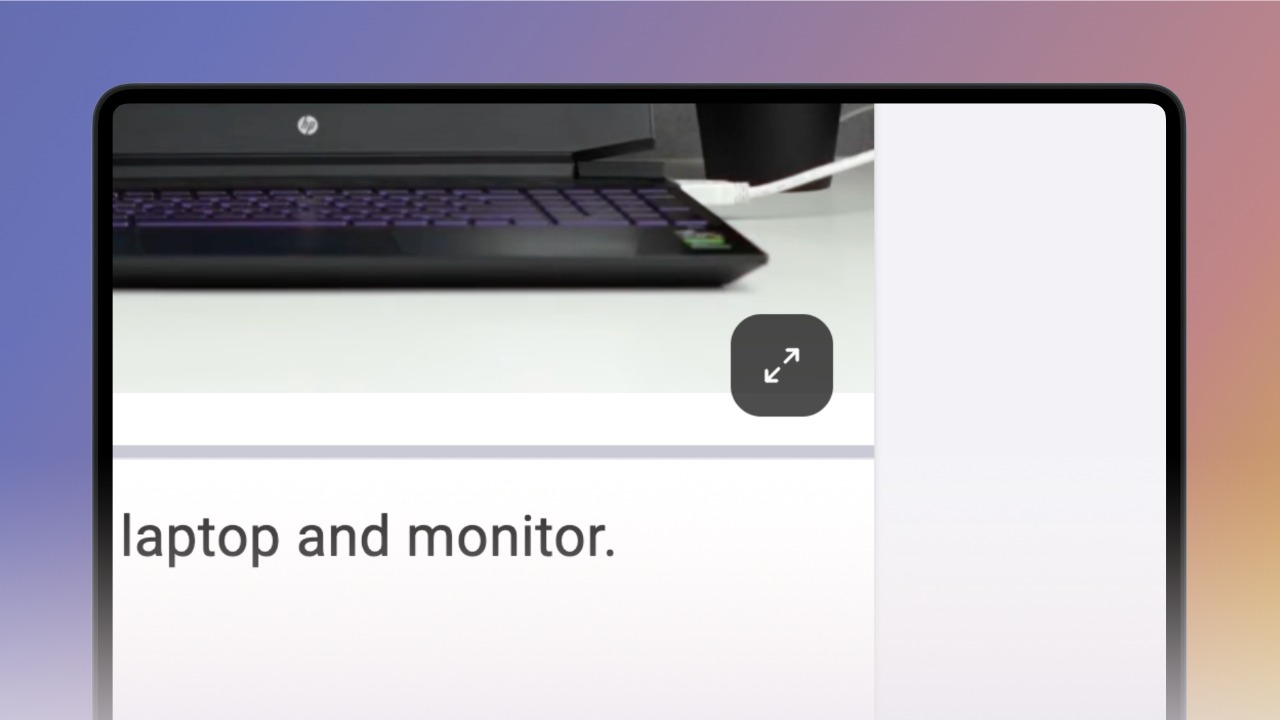
Open the knowby you want to view. In Scroll mode, hover over a step and the Full-Screen button appears in the bottom-right corner — click it to fill the screen with that step's media.
2
Step 2 of 4
In full screen, Scroll mode lets you move around the media and zoom in or out using the buttons at the top.
3
Step 3 of 4
In Slide mode, the Full-Screen button is always visible in the bottom-right corner, whether or not you're hovering.
4
Step 4 of 4
In full screen, Slide mode gives you the same moving and zoom controls, plus the ability to move between steps — click the arrow buttons, or use your keyboard's left and right arrow keys.
To exit Full-Screen Mode, press Esc or click the Exit Full-Screen button.