
Knowby Sculptform
Knowby
Bank Feeds Processing - MYOB (AU, Global, NZ) & Xero (US & UK)
1
Step 1 of 17
<p>Bank Feeds – MYOB Account Right</p><p></p>

Bank Feeds – MYOB Account Right

2
Step 2 of 17
<p>Bank Feeds – Bank Transactions in WEB</p>

Bank Feeds – Bank Transactions in WEB

3
Step 3 of 17
<p>Bank Feeds – Bank Transactions in WEB view.</p><p>Change status to Unallocated.</p>

Bank Feeds – Bank Transactions in WEB view.

Change status to Unallocated.

4
Step 4 of 17
<p>Change status to Unallocated and the Date to the current Date.</p>

Change status to Unallocated and the Date to the current Date.

5
Step 5 of 17
<ul><li><p>Where there is a Matched transaction / Recurring just click the approve button to process</p></li><li><p>Bank Rule has been created in background for recurring transactions.</p></li><li><p>Then open each transaction and make sure it is linked to the correct account &amp; check tax and change if necessary (refer receipt &amp; attached it to the transactions )</p></li></ul><p></p>
  • Where there is a Matched transaction / Recurring just click the approve button to process

  • Bank Rule has been created in background for recurring transactions.

  • Then open each transaction and make sure it is linked to the correct account & check tax and change if necessary (refer receipt & attached it to the transactions )

6
Step 6 of 17
<p></p>

7
Step 7 of 17
<p>Note- Check Bank Register if you are not sure what account to be allocated to, check here, type
description. (always refer past transactions as guide) if you didn't find anything in bank register
then email Ken/Jeremy or the Credit card holder & request receipt/invoice & ask them which
account it will go to. (Ask Mei for the copy of receipt to put in tray)</p><p>Credit Card Lists</p>

Note- Check Bank Register if you are not sure what account to be allocated to, check here, type description. (always refer past transactions as guide) if you didn't find anything in bank register then email Ken/Jeremy or the Credit card holder & request receipt/invoice & ask them which account it will go to. (Ask Mei for the copy of receipt to put in tray)

Credit Card Lists

8
Step 8 of 17
<h1>Credit Card Lists</h1><p>Note traveling expenses don't have a receipt but always check the bank registered past transaction.</p><p></p><ul><li><p>Card Ending 6322 – Michelle used for 6-7144 Admin staff Amenities</p></li><li><p>Card Ending 6314 – Barnaby (Mostly Travelling Accommodation 6-7701 &amp; 67702 Travelling expenses + Motor vehicle expense 6-7300) - Don't have a receipt.</p></li></ul><ul><li><p>Card Ending 7187 – Ken (Everything) Always check the GST or N-T on past bank registered.</p></li></ul><ul><li><p>Card Ending 1323 – Joerg (6-6450 Studio Amenities (request a receipt from Joerg &amp;, linked the receipt) &amp; 6-7702 Travelling expense (Joerg)</p></li></ul><ul><li><p>Card Ending 7179– Jeremy Napier (Travelling expenses + Motor vehicle expense &amp; can be personal use sometimes)</p></li></ul><ul><li><p>Card Ending 5841 - David (Travelling expenses + 6-8600 Product dev expense+ Marketing expenses)</p></li></ul><ul><li><p>Card Ending 3726 – Mark (Travelling Accommodation 6-7701 &amp; 67702 Travelling Fares) - Don't have a receipt.</p></li></ul><ul><li><p>Card Ending 2380 – Bradley Schwartz</p></li></ul><ul><li><p>Card Ending 3896 – Barnaby Napier</p></li></ul><ul><li><p>Card Ending 2779 – Kara Foulsham</p></li></ul><ul><li><p>Card Ending 5366 – Bexley Napier</p></li></ul><ul><li><p>Card Ending 9491 – Barnaby Napier</p></li></ul><p></p>

Credit Card Lists

Note traveling expenses don't have a receipt but always check the bank registered past transaction.

  • Card Ending 6322 – Michelle used for 6-7144 Admin staff Amenities

  • Card Ending 6314 – Barnaby (Mostly Travelling Accommodation 6-7701 & 67702 Travelling expenses + Motor vehicle expense 6-7300) - Don't have a receipt.

  • Card Ending 7187 – Ken (Everything) Always check the GST or N-T on past bank registered.

  • Card Ending 1323 – Joerg (6-6450 Studio Amenities (request a receipt from Joerg &, linked the receipt) & 6-7702 Travelling expense (Joerg)

  • Card Ending 7179– Jeremy Napier (Travelling expenses + Motor vehicle expense & can be personal use sometimes)

  • Card Ending 5841 - David (Travelling expenses + 6-8600 Product dev expense+ Marketing expenses)

  • Card Ending 3726 – Mark (Travelling Accommodation 6-7701 & 67702 Travelling Fares) - Don't have a receipt.

  • Card Ending 2380 – Bradley Schwartz

  • Card Ending 3896 – Barnaby Napier

  • Card Ending 2779 – Kara Foulsham

  • Card Ending 5366 – Bexley Napier

  • Card Ending 9491 – Barnaby Napier

9
Step 9 of 17
<p>SPEND MONEY – Payroll Payment</p><p></p>

SPEND MONEY – Payroll Payment

10
Step 10 of 17
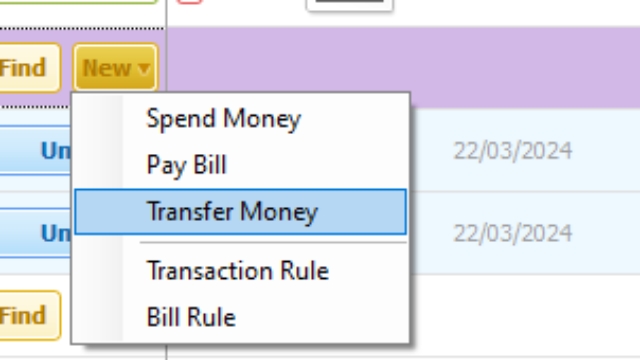
<p>Transferring money from Cheque a/c to Income tax (ending 3511),</p><p> Warchest (ending7738) &amp; Company card (ending 2485) or Income tax (23511) &amp; Warchest (7738) to Cheque A/C</p><p>Transferring from Income tax (3511) to Cheques A/C</p><p>Transferring from Cheques A/C to company card (2485)</p>

Transferring money from Cheque a/c to Income tax (ending 3511),

Warchest (ending7738) & Company card (ending 2485) or Income tax (23511) & Warchest (7738) to Cheque A/C

Transferring from Income tax (3511) to Cheques A/C

Transferring from Cheques A/C to company card (2485)
11
Step 11 of 17
<p>Transferring money from Cheques A/C to Warchest A/C(7738)</p>

Transferring money from Cheques A/C to Warchest A/C(7738)

12
Step 12 of 17
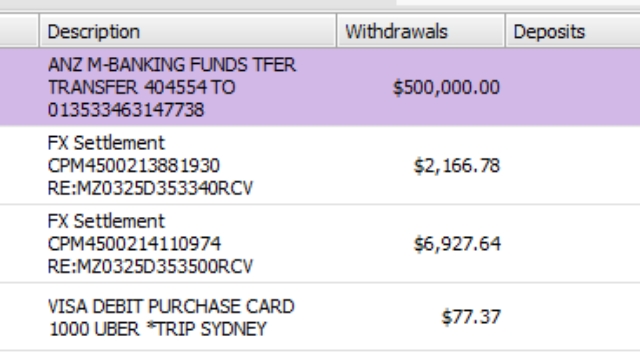
<p>Transferring money from Cheques A/C to Warchest A/C(7738)</p>

Transferring money from Cheques A/C to Warchest A/C(7738)
13
Step 13 of 17
<p>Transferring money from Cheques A/C to Warchest A/C(7738)</p>

Transferring money from Cheques A/C to Warchest A/C(7738)

14
Step 14 of 17
<p>After finishing allocating all the transactions Hit Reconcile button.</p>

After finishing allocating all the transactions Hit Reconcile button.

15
Step 15 of 17
<p>After finishing allocating all the transactions Hit Reconcile button.</p><p>Check that there is not out of balance, Then Hit Reconcile button again.</p>

After finishing allocating all the transactions Hit Reconcile button.

Check that there is not out of balance, Then Hit Reconcile button again.

16
Step 16 of 17
<p>Note if pay Credit Card need to change the amount of to AUD if Currency is US</p>

Note if pay Credit Card need to change the amount of to AUD if Currency is US

17
Step 17 of 17
<p>Checking credit card balances.
2-8835 Account</p>

Checking credit card balances. 2-8835 Account