
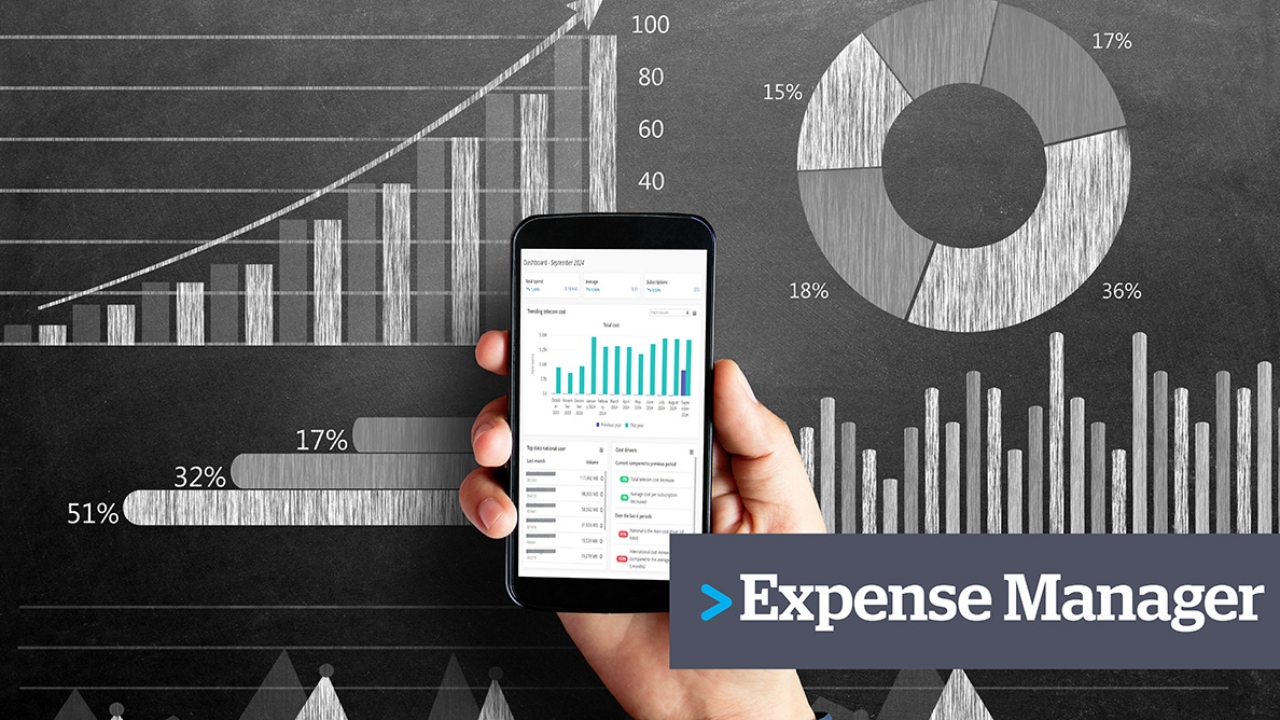
Log in to the imei Expense Manager portal to analyse and view your Telstra invoices in a user-friendly format.
Main Dashboard
View the initial dashboard to see trends and insights into the costs associated with the current monthly bill.
Users
A user is created using the end user’s email address from iControl. This groups all associated services together to show the total cost of ownership for that employee.
Drilldown
Drag and drop users into specific widgets to trend their data to show historic usage from when they were activated.
Export Data
Click the hamburger menu in the top-right corner of any widget to export the data or adjust settings.
Spend Breakdown
Drill into a user’s services by clicking the “i” icon to view a breakdown of their spend, including non-usage costs and other listed charges.
Customise Dashboard
Customise the dashboard by clicking the hamburger icon to remove dashlets, or drag and drop them to rearrange the layout.
Add Dashlets
Add new dashlets by selecting them from the available list at the top of the page and clicking Apply.
Company Cost Analysis
Cost Per Hierarchy Level
Access the Cost per Hierarchy View by navigating to Company Cost Analysis → Cost per Hierarchy View to see your business structure and charges per cost centre.
Cost Per Hierarchy Level cont'd
Review the hierarchy levels, user view, and phones and services view to see high-level costs for each allocation.
Division
Drill down into cost centres by clicking the hierarchy levels. If no further levels exist, the user details view will display.
User
Review employee numbers, phone numbers, and associated service costs. Click hyperlinks on charges to view further charge details.
Phones (Services)
Use the Phones and Services view to see all services under the account, their associated charges, and the charge categories.
Advanced Search
Use the Advanced Search function to filter by node, change total categories, or search for specific services or users.
Cost Categories
Change cost categories to show only mobile services, fixed phones, data networks, or account-level overhead charges.
Export
Export the Phones and Services view to Excel by selecting Export XLS. If the report exceeds 1,000 lines, retrieve it from the Downloads tab once ready.
Usage Cost - All Usage
Access Call Records to extract usage for a service within a specific month, including charges for international calling or roaming.
Filter Usage
Search call records by entering a user’s name (e.g., “Guy”), then click Search to view all related records with session details, dates, and times.
Filter Usage cont'd
Filter call records further by country of origin/destination, call category, or usage category.
Other cost details
Open Other Cost Details to view plan costs, add-ons, and account-level overhead charges applied to the bill.
Filter Cost Details
Search for a specific service to view its plan and add-ons. For example, see if the service is on an Adaptive Essential Plan with additional mobility care charges. Export the data if required.
Contact the imei Customer Service team or your Service Delivery Manager for further assistance with using the Expense Manager portal.