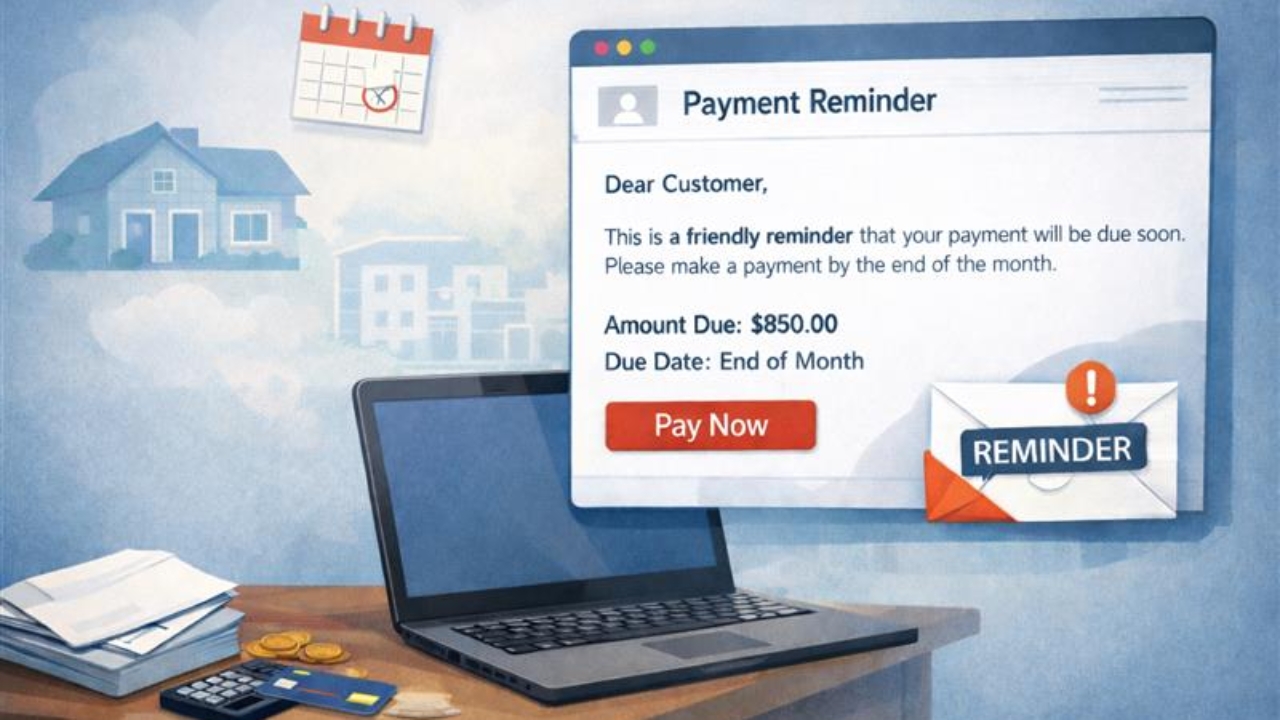


Sending Reminder Emails to Debtors
All reports are saved in:
Finance → Reports → Fiscal Year
Copy and paste the Reminder Email Report (always update the file name with the date).
Sending reminder emails is done one week before the invoice due date, usually on the 25th of the month.

Download the Debtors Report from Salesforce
Open the Debtors Report in Salesforce (SF).
Click the arrow down beside Edit
Select Export.
The extracted file will automatically be saved to Downloads folder.

Arrange them by each region and by payment terms, as we only send EOM statements to debtors that have a 30‑day EOM account.
Highlight the EOM debtors that are due at EOM.
This will be the final look of the report after sending the reminder email, as we add notes such as “Reminder email sent” and include any responses from the debtors, including reasons for delay or their promised payment date.

After highlighting the Debtors Report, check each Sales Order to ensure the despatch dates do not conflict with the invoice date.
The despatched or delivery dates must be within the same month as the invoice date. If they do not match, email the report to Trevor to confirm whether we can proceed with sending the reminder email to each debtor.

Format of Reminder Email.

Single Invoice
When sending a reminder email for a single invoice, we reply or chain it to the first email previously sent to the customer, since there is only one invoice for the month.
Search for the invoice in:
AccountsAR / INVOICES – Sales Orders
AccountsAR is always CC’d in the email sent to the debtor.
![<p><strong>Copy and paste the email format for a single invoice, making sure the due date is correct.</strong></p><p></p><p><strong>Send To:</strong> Debtor’s Accounts email address<br><strong>CC:</strong> AccountsAR</p><p></p><p>Ensure the <strong>correct invoice is attached</strong>.</p><p></p><p><strong>Email Subject: SFM Invoice [Invoice Number] / [Debtor Company Name]</strong></p><p></p>](https://knowby.show/media/fdc8a103-a0b7-4a01-91b2-7cd0b1656c76/knowbys/cd0f9495-0dd7-4b9e-afa6-7dd6f6f9d341/steps/8dda3392-0ae4-4bcc-987a-695fe8f4abb4/4b48eb9f-8cd3-4c45-98ff-141dd2a25166-web.jpg)
Copy and paste the email format for a single invoice, making sure the due date is correct.
Send To: Debtor’s Accounts email address
CC: AccountsAR
Ensure the correct invoice is attached.
Email Subject: SFM Invoice [Invoice Number] / [Debtor Company Name]

Make a visit to the debtor’s company card in SF.
Check this especially if the invoice was sent to an email address other than the customer’s Accounts email address.
There may also be special account notes related to the customer.

Before sending the reminder email, check that all information matches the Tax Invoice attached, SF Sales Order, and the Debtors Report.
Verify the following:
Sold To
Balance Due
Payment Terms
Due Date
Special Notes

If the invoice cannot be found in AccountsAR, the invoice can be downloaded from SF.
Go to SF, search for the Sales Order number, open the Sales Invoices section, and then select the invoice name.

Click Email Tax Invoice, then click the PDF icon below.
The invoice copy will be saved in Downloads folder.

For debtors that have multiple invoices in the month, check the total balance.

Create a new email, as we cannot chain multiple emails for invoices that have already been sent.
You may search for all invoice copies in AccountsAR / INVOICES – Sales, or download them from SF.
Attach all invoice copies to the email, then copy and paste the multiple‑invoice reminder email format.
Make sure the total balance and the due date are correct.

Can obtain the debtor’s account information from the Debtor’s Company Card in SF.
Open all invoice copies to verify that all the details are correct and that the total balance is accurate.

After sending the reminder email, transfer all correspondence in the AccountsAR → DEBTORS folder.

After sending the reminder email, make a note that the reminder has been sent.
Always include the current date when creating the note.
If there are special instructions from Trevor, include them in the note as well.
For example:
Some orders may not be despatched but are already invoiced.
Trevor may advise to move the due date.
→ In this case, make the necessary adjustment by selecting Override Due Date.
Some debtors will reply and advise that they will make payment on a specific date.
→ Record this under Promised Date.
Others may reply explaining delays in payment.
→ Record these details under Notes.

Send the reminder email report to Trevor, especially if there are any clarifications needed.
Then put this email at accountsAR Report/Information Folder.