
When you create a knowby, Knowby asks you to confirm its base language — the language you'll write and record your steps in.
Click New knowby and choose how to start, for example Create from scratch.
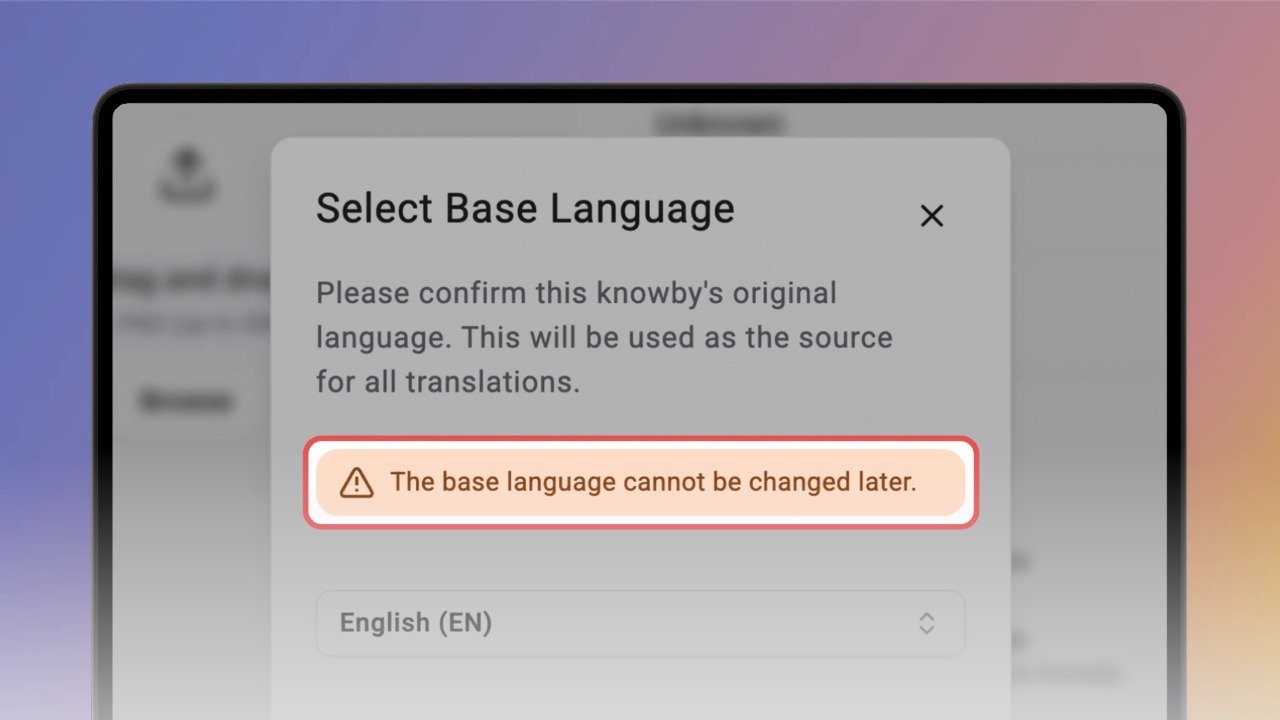
Before you build any steps, the Select Base Language dialog opens with a suggested language already filled in.
The base language cannot be changed later — every translation is made from it.
Check the suggestion. Pick the language you'll actually write your steps in, not the language of the Knowby interface.
To change it, click the language field and type to search, then pick yours from the list.
Click Confirm to set the base language.
Good to know:
You'll find the base language under Default Language in the knowby's Details.
Picked the wrong one? Create the knowby again with the right base language.
Other languages come from verified translations you add in the Languages tab, or from automatic translations your team can turn on when viewing.