
Knowby
Assign and schedule knowbys for completion
Assign knowbys to your team with deadlines, reminders, and calendar invites — then track progress until everyone's done.
1
Step 1 of 13

You'll find this under Schedule in the left-hand navigation. What you see there depends on your role:

  • MembersMy Schedule and Scheduled by Me

  • AdminsMy Schedule, Scheduled by Me, and All Schedules

Each screen gives you quick access to what you've created and what's been assigned to you.

2
Step 2 of 13

To create a schedule, go to one of these screens and click Add Schedule.

Enter a title so assignees immediately know what it's about, then choose the knowbys to include — you can add more than one.

3
Step 3 of 13

Select one or more assignees. The Requester field defaults to you, but you can change it to someone else if needed.

4
Step 4 of 13

Set the start date and time — this defaults to today, but any future date works.

Set the Duration to define how long assignees have to complete everything, defaulting to 15 minutes, with a maximum of 23 hours.

5
Step 5 of 13

⏱️ If your team spans time zones, adjust the time zone field by typing a city, country, or continent name.

By default, the system uses your device’s time zone.

6
Step 6 of 13

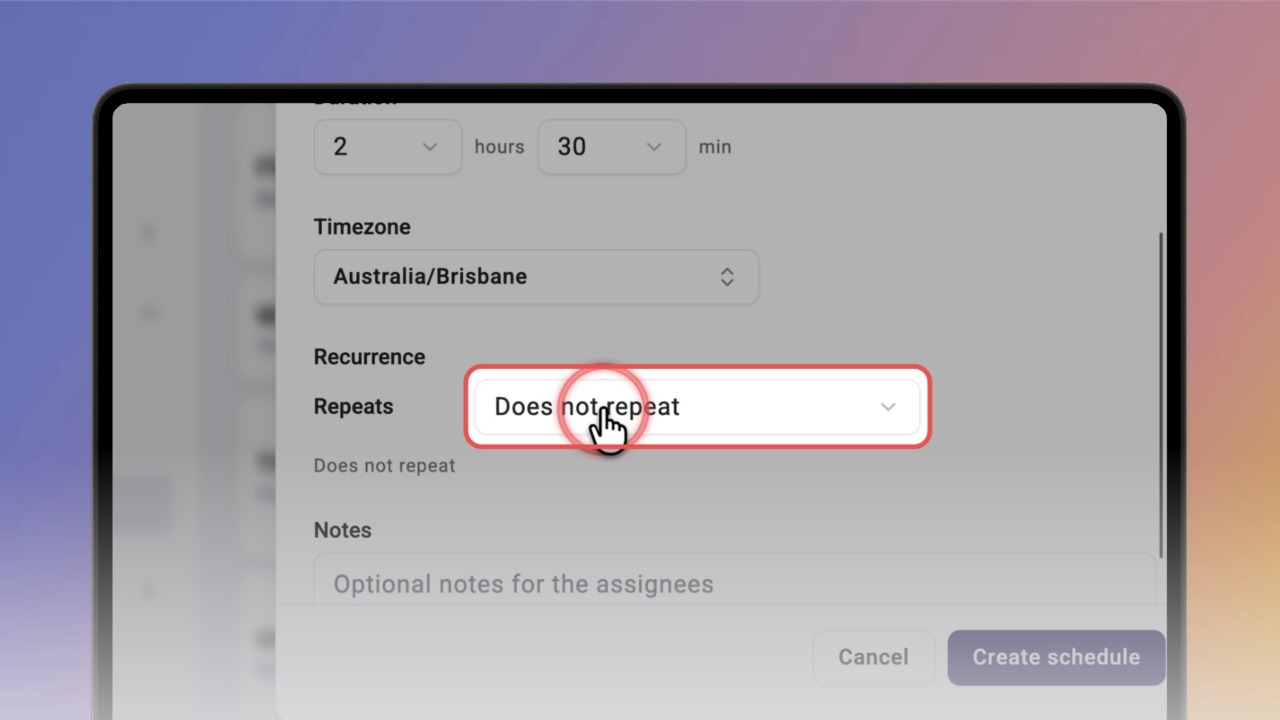
To repeat the schedule automatically, add a recurrence rule — choose from Daily, Weekly, Weekdays, Monthly, or Annually.

You can customise the recurrence however you like.

7
Step 7 of 13

Add an optional note (up to 280 characters) — it'll show up in notifications and schedule details.

Click Create to finish. Knowby generates one task per assignee, and everyone gets an email with the start time, assigned knowbys, assignees, recurrence details, and your note.

8
Step 8 of 13
<p>The email also includes an <strong>ICS calendar attachment</strong>, so assignees can add the event to Google Calendar, Outlook, or any other calendar app. </p><p>For recurring schedules, the ICS file includes every repeating occurrence.</p>

The email also includes an ICS calendar attachment, so assignees can add the event to Google Calendar, Outlook, or any other calendar app.

For recurring schedules, the ICS file includes every repeating occurrence.

9
Step 9 of 13

Once created, both the requester and the assignees see the schedule on their boards.

Requesters and Admins can check each assignee's status, edit or cancel the schedule, filter by assignee, status, or knowby, and expand individual occurrences for recurring schedules.

💡 These boards are for managing only — tasks are actually started from My Schedule.

10
Step 10 of 13

To start a task, the assignee opens My Schedule and clicks the schedule to open its pop-up.

This shows the title, note, full schedule details, and the list of knowbys with two options: Start or Preview.

11
Step 11 of 13

Choosing Preview opens the knowby in read-only mode — you can fill in fields to see how they work, but nothing will be saved and there's no way to mark it complete.

It's just a way to look through the knowby before you actually start it.

12
Step 12 of 13

Choosing Start opens the knowby in completion mode.

💡 If you've already started this knowby before, Knowby will ask whether you want to abandon it and start a new session, or cancel.

While the task's underway, its status shows as In Progress for both the assignee in My Schedule and the requester or admin in Scheduled by Me or All Schedules.

You can pause and resume the task at any time.

13
Step 13 of 13

Once the knowby's fully completed, the schedule screens show the updated status after refreshing.

The status becomes Completed — or Completed Late if it was finished after the deadline.

A View Completion button then appears for both the assignee and the requester, along with the completion date and time.