
Knowby
How to approve a sales order.
How to approve a sales order so you can make a production order.
1
Step 1 of 24
<p>There is three ways you can check to see if you have a sales order awaiting approval.</p><p>1-Go into your emails and check if you have received an email from Storco AU Notifications.</p>

There is three ways you can check to see if you have a sales order awaiting approval.

1-Go into your emails and check if you have received an email from Storco AU Notifications.

2
Step 2 of 24
<p>Click on the email. Click on the sales order number.</p><p></p>

Click on the email. Click on the sales order number.

3
Step 3 of 24
<p>Please keep in mind that you will also receive an email if a sales order has been approved so make sure it says requires your approval and not has been approved.</p>

Please keep in mind that you will also receive an email if a sales order has been approved so make sure it says requires your approval and not has been approved.

4
Step 4 of 24
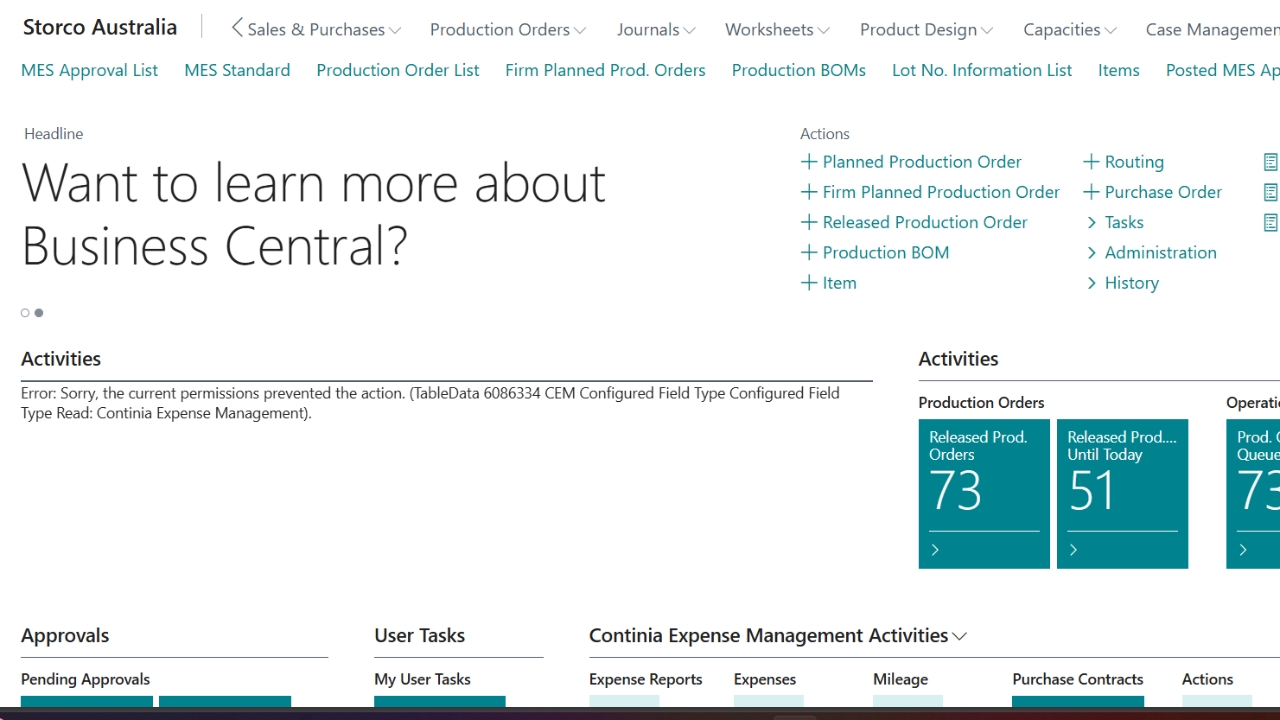
<p>2- Go to Business Central and scroll down to the Approvals tile and click on it.</p>

2- Go to Business Central and scroll down to the Approvals tile and click on it.

5
Step 5 of 24
<p>Select the sales order (it will come up blue if its selected) and click open record.</p><p>Don't click approve at this stage because there could be a mistake in the sales order.</p>

Select the sales order (it will come up blue if its selected) and click open record.

Don't click approve at this stage because there could be a mistake in the sales order.

6
Step 6 of 24
<p> 3 -You will receive an email (like in the photo), but it won't need approving. What you'll need to do is look up the sales order number on the Sales Orders and check to see if everything is right then print out the order.</p>

3 -You will receive an email (like in the photo), but it won't need approving. What you'll need to do is look up the sales order number on the Sales Orders and check to see if everything is right then print out the order.

7
Step 7 of 24
<p>Go to B.C and click on Sales &amp; Purchases.</p>

Go to B.C and click on Sales & Purchases.

8
Step 8 of 24
<p>Click on Sales Orders.</p>

Click on Sales Orders.

9
Step 9 of 24
<p>Click on the magnifying glass to search for the sales order number.</p>

Click on the magnifying glass to search for the sales order number.

10
Step 10 of 24
<p>Type in your number and click on the sales order.</p>

Type in your number and click on the sales order.
11
Step 11 of 24
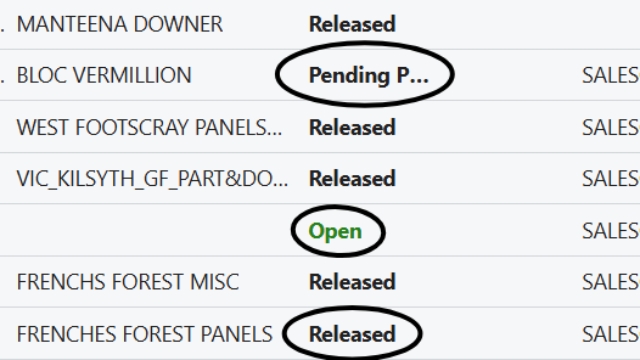
<p>Make sure the sales order is released or else you won't be able to make a production order and the logistics team won't be able to ship it.</p>

Make sure the sales order is released or else you won't be able to make a production order and the logistics team won't be able to ship it.

12
Step 12 of 24
<p>Make sure the sales order says pending approval and not open or pending prepayment.</p><p></p><p>If it is open or pending prepayment, you will not be able to approve the order.</p><p></p><p>If you are the sole approver then all you'll have to do is approve the sales order but, if someone approves part of the order before you just double check that you can approve the sales order as it might still be awaiting the other persons approval.</p>

Make sure the sales order says pending approval and not open or pending prepayment.

If it is open or pending prepayment, you will not be able to approve the order.

If you are the sole approver then all you'll have to do is approve the sales order but, if someone approves part of the order before you just double check that you can approve the sales order as it might still be awaiting the other persons approval.

13
Step 13 of 24
<p>Check the date and see if it is a reasonable future date to be able to make the product they want.</p><p>e.g. 2000 safeguard in 2 days is not reasonable.</p><p>2000 safeguard in 2 weeks is reasonable.</p><p>If the date is reasonable then make sure the requested delivery date and the due date match.</p><p>If the date is not reasonable you can reject the sales order.</p>

Check the date and see if it is a reasonable future date to be able to make the product they want.

e.g. 2000 safeguard in 2 days is not reasonable.

2000 safeguard in 2 weeks is reasonable.

If the date is reasonable then make sure the requested delivery date and the due date match.

If the date is not reasonable you can reject the sales order.

14
Step 14 of 24
<p>Check if it has a 100% discount line.</p><p>Not every job will have a 100% discount.</p><p>e.g. Storco NZ or anyone not on the project team, also bit and pieces such as a box of screws.</p><p></p><p>If the 100% discount is incorrect for the job, then you can reject the sales order.</p>

Check if it has a 100% discount line.

Not every job will have a 100% discount.

e.g. Storco NZ or anyone not on the project team, also bit and pieces such as a box of screws.

If the 100% discount is incorrect for the job, then you can reject the sales order.

15
Step 15 of 24
<p>Check that the address is correct.</p><p>If it's a Miranda job, make sure the address is for Miranda.</p><p>If it is not correct, then reject the sales order.</p>

Check that the address is correct.

If it's a Miranda job, make sure the address is for Miranda.

If it is not correct, then reject the sales order.

16
Step 16 of 24
<p>Check to see if there is a contact name and number.</p><p>The name and number have to go into the bottom line, so the logistics team can see it and ring the contact number if there is any issues.</p><p>If there is no name or number or only one or the other, then you can reject the sales order.</p>

Check to see if there is a contact name and number.

The name and number have to go into the bottom line, so the logistics team can see it and ring the contact number if there is any issues.

If there is no name or number or only one or the other, then you can reject the sales order.

17
Step 17 of 24
<p>Check the product.</p><p>Make sure everything is correct.</p><p>from sizes, amounts, colour. If you are given a roller door sheet or a swing door sheet, make sure the sales order matches the sheet.</p><p>If there is a freight line, delete it as the logistics team won't be able to ship the order.</p><p>If something is incorrect, then you can reject the sales order.</p>

Check the product.

Make sure everything is correct.

from sizes, amounts, colour. If you are given a roller door sheet or a swing door sheet, make sure the sales order matches the sheet.

If there is a freight line, delete it as the logistics team won't be able to ship the order.

If something is incorrect, then you can reject the sales order.

18
Step 18 of 24
<p>Talk to person who submitted the order before rejecting it, as it may be a quick fix</p><p>e.g. adding in the name and phone number. Rejecting a sales order opens it up again and will have to go through the entire process again.</p><p></p><p>Click reject.</p><p>Leave comment on why you are rejecting the sales order and send an email, text or phone call asking to change the date, add a phone number or any other changes that need to be made.</p>

Talk to person who submitted the order before rejecting it, as it may be a quick fix

e.g. adding in the name and phone number. Rejecting a sales order opens it up again and will have to go through the entire process again.

Click reject.

Leave comment on why you are rejecting the sales order and send an email, text or phone call asking to change the date, add a phone number or any other changes that need to be made.

19
Step 19 of 24
<p>Once everything is correct, click Approve.</p>

Once everything is correct, click Approve.

20
Step 20 of 24
<p>Click Approve again and that will release the sales order.</p>

Click Approve again and that will release the sales order.

21
Step 21 of 24
<p>Print Sales order confirmation and once a production order is made put the sales order on the logistics team's desk.&nbsp;</p><p></p><p>See link to How to create a production order knowby.<klink id="d0d9b730-80f8-404d-ac67-acb6309c9c4d" step-id="6c32200d-cb37-4fca-ac22-0d3f295a8213">How to create a production order.</klink>​</p>

Print Sales order confirmation and once a production order is made put the sales order on the logistics team's desk. 

See link to How to create a production order knowby.How to create a production order.

22
Step 22 of 24
<p>Click print Confirmation.</p>

Click print Confirmation.

23
Step 23 of 24
<p>Click print.</p>

Click print.

24
Step 24 of 24
<p>Print Sales order confirmation and once a production order is made put the sales order on the logistics team's desk.</p><p></p><p>Make sure if it is multiple pages that you staple them together.</p>

Print Sales order confirmation and once a production order is made put the sales order on the logistics team's desk.

Make sure if it is multiple pages that you staple them together.