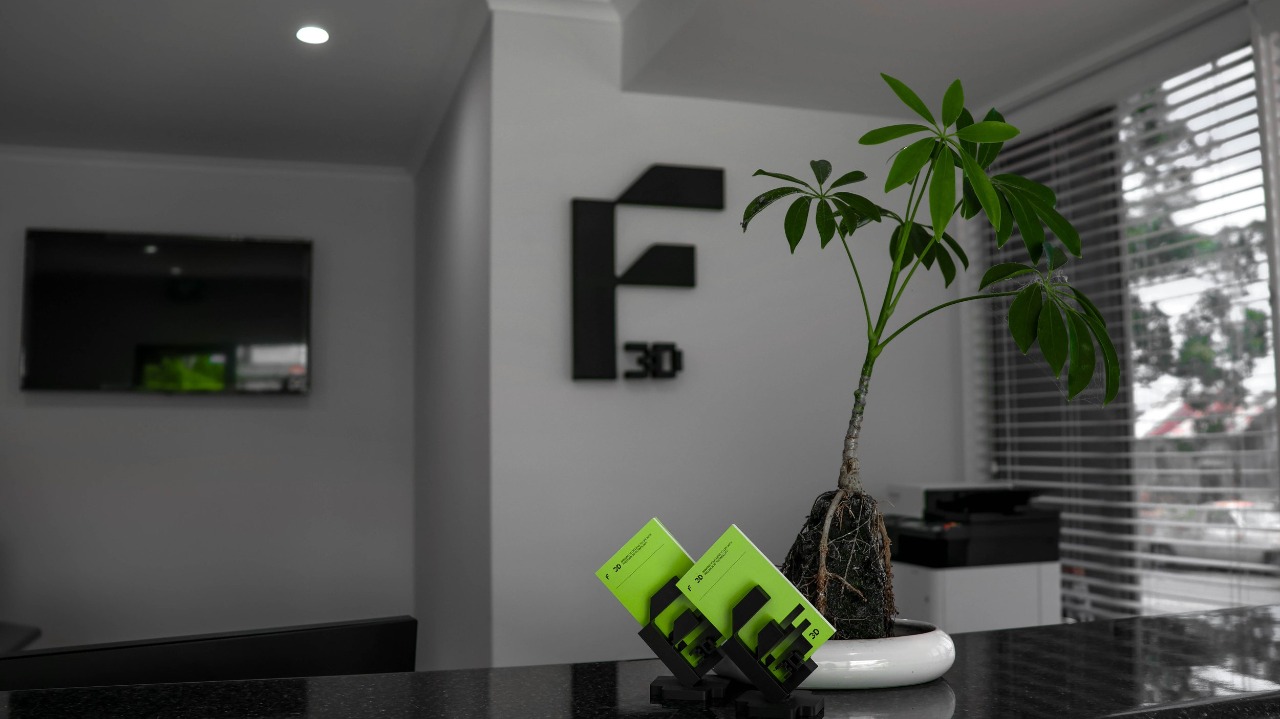
Arrive at the front entrance
Enter through the front entrance
Check the entrance and car park for anything out of place (deliveries left out, damage, rubbish).
Turn on the lights
Switch on the office, showroom and print room lights if they aren't already on.
If lights were left on overnight, note it at pre-start.
Turn on the PC
Power on the front PC and log in.
Open the programs you need for the day (email, Odoo).
Turn on the TV and start the display
Turn the TV on and switch the input to the USB connection.
Select the display file and press play. Check it is playing full screen and looping.
Put the flags out
Set the flags up out the front of the site.
Check they're secure and standing upright.
View the print room and check prints
Walk through the print room and look at every printer.
Note which prints finished, which are still running, and any that failed (spaghetti, layer shift, detached from the bed, error on screen).
Don't start removing parts yet — this is a status check so you can report it at pre-start.

Quickly check emails
Scan the inbox for anything urgent: customer issues, same-day jobs, supplier delivery notices.
Flag items to raise at pre-start. Leave full replies until step 10.

Pre-start
Meet with the team at the scheduled pre-start time.
Cover: print room status from step 6, urgent emails from step 7, today's jobs and priorities, who is doing what, and any safety issues.

Attend to prints
Remove finished prints, clean beds and reload filament or resin as needed.
Clear and restart any failed prints, and log the failure.
Start the next jobs in the print queue as agreed at pre-start.

Attend to enquiries and CRM
Work through emails, phone messages and web enquiries.
Log every new enquiry and update existing opportunities in Odoo CRM, following the Forma 3D CRM SOP.
Pass quote requests to the person who prepares quotes