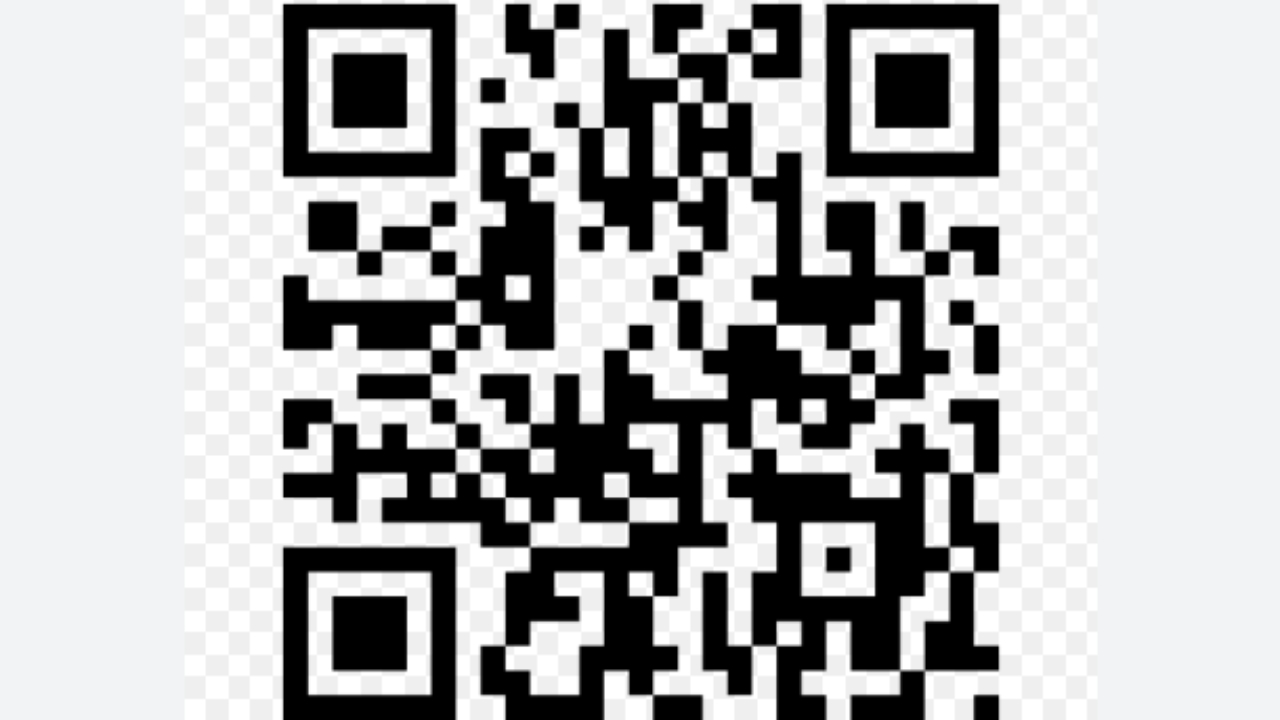
First step is for the Estimator to move the Project folder to the correct Won folder eg !Projects Won 2025, Then copy a link to the Operations folder in the Project Folder and paste into the Sales Order as per video.
All info the customer needs like MUPS, Install manuals, custom drawings, cutting lists etc must be uploaded to the folder.
Logistics need to upload delivery dockets to the folder and then generate the QR code by following steps in the video, print 1-2 labels per pack.
If you don't have the Zebra Despatch printer available go to step 3.
If you have installed it but the excel sheet isn't printing to the full label go to step 5.
To add the Zebra Despatch printer go to Start > type printer > click printers and scanners > add Printer > Add Manually > Decive type TCP/IP Device > IP address is 192.168.1.111 > Next (go to Step 4)
Follow steps in video:
Click Next > Click ZDesigner > Find Zebra printer ZD421-203dpiZPL > Select this then click next > Click Next > name your printer so you know it is the Despatch one and you are done - if you have issues with print size see step 5.
If the excel sheet isn't printing to the full label follow steps in video > Find printer > open printing preferences > make sure paper format is Landscape, Width is 10 and Height is 15 > print label and check > If you are still having issues contact IT.