
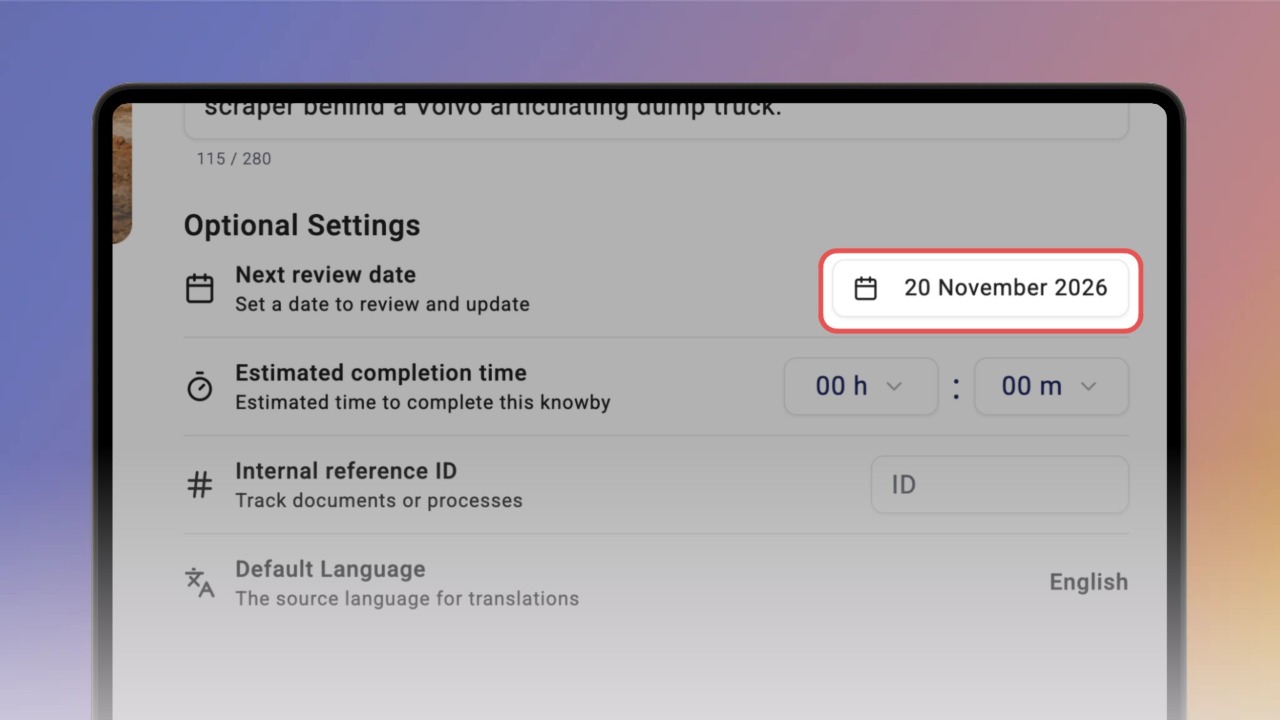
Procedures change — a next review date reminds you when a knowby is due for a check. In the Create/Edit screen, go to Details.
Under Optional Settings, find Next review date and click Pick a date.
Use the arrows to move between months, then click the day you want. The date appears in the field right away.
Your team can see the date too.
On a knowby card, click the three-dot menu and select Details — Next review date is in the Overview.
Admins can track review dates across the organisation. Click the Reports icon at the top of the screen.
Set the date range so it includes the review date — the knowby then shows in Expiring knowbys on the Organisation Dashboard.
For the full list, click Next Review Dates in the Reports menu. Each knowby is listed with its review date.