Troublshooting Lock Issues
How to troubleshoot tenants issues using ONE Lock
How to troubleshoot tenants issues using ONE Lock
1
Step 1 of 4
If you have an iPhone
- The model is iPhone 7 or later/ iPhone SE (2nd Gen)
- It is not an iPad, which do not have NFC
- It is running iOS 15 or later
If you have an Android phone
- It supports NFC (You can use contactless Payments with Google or Samsung Pay)
- You can install apps from the Google Play Store
- It is running Android 13 or later
2
Step 2 of 4Common Tenant Issues
- Not being able to Login to app
- Not knowing where NFC Antenna is (Explained below)
- Not holding phone Long enough
- Not holding phone still until blue check mark is received
- Not establishing connection (Completely close app & try again)
- Case on phone causing issues (Remove Case)
3
Step 3 of 4
Iphone Issues Explain
- Antenna is always located the same on Iphone models
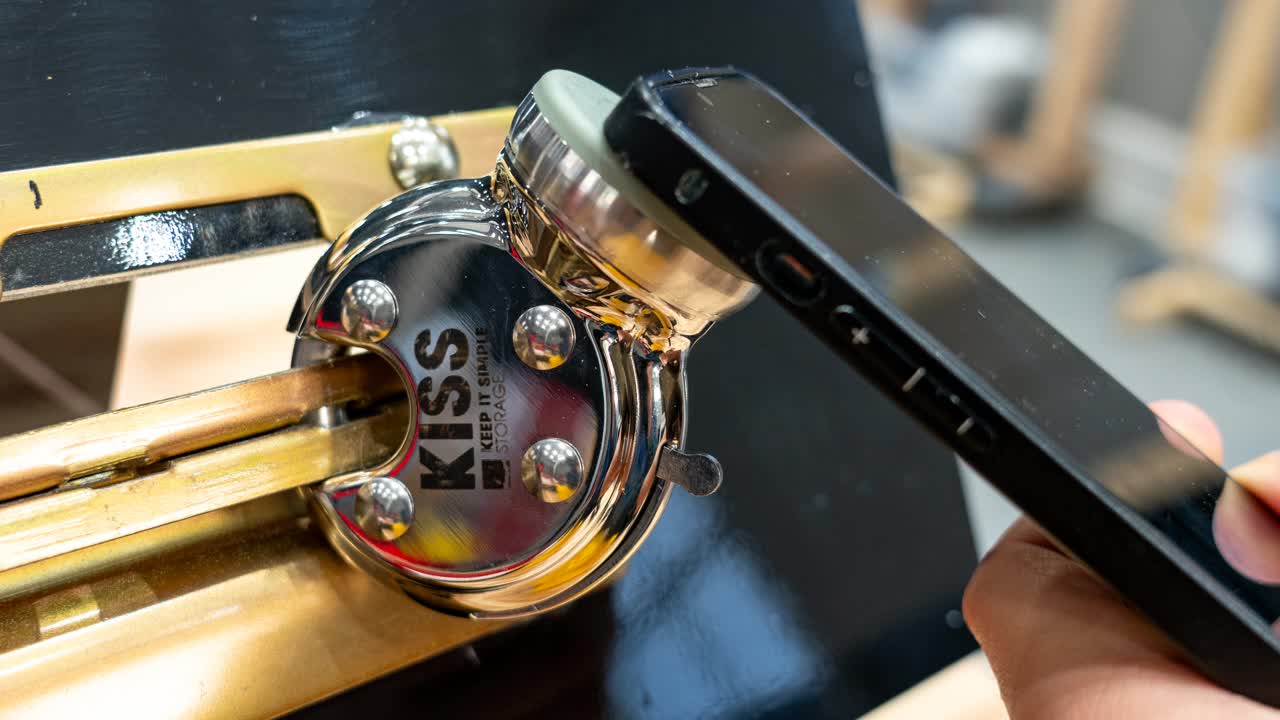
- Hold the top left of the phone to cover the bottom half of circle on the lock
- If not connection is established, Close app completely and try again
- If issues continue, hold phone on lock then tap Open/Close with NFC
- Thick Cases can cause connection issue
4
Step 4 of 4Android
- Antenna locations on Android phones change depending on the model
- Best starting point is to start with the top of the phone at the bottom of the circle
- Slowly move phone up unit it Vibrates
- If Wrong Code Error, Try to tap Open/Close with NFC where it vibrated and hold still under blue check mark received