
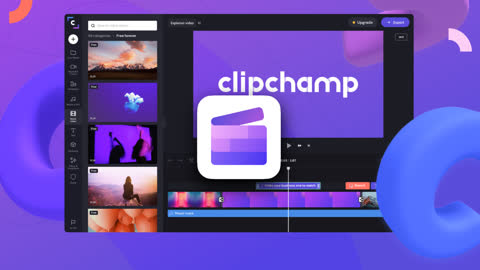
Click on the button "Create video" in the top right-hand corner, and this will allow you to start with a blank slate. This now drops in the main video editor.
Over on the right-hand side, you can see all of my different dimension options, and when you hover over each one, you can see different video size previews.
You can click on the plus icon to start adding some media to your project. You can simply drag and drop files over from my computer. Also you can pull in content from various cloud providers like Box, Drive, or OneDrive, and you can even fetch content directly from your phone.
So you're going to drag and drop some files over from my computer. Within media, you can now see your files and currently it's set to show you all of your different files.
You can also filter this view. You can click up above to filter it just to video, or just to audio, or just to images.
To add one of these files to your timeline, you can hover over it and then click on the plus icon.
Alternatively, you could select one of the videos and then simply drag and drop it onto the timeline.
Down at the bottom, you'll see that we've added a few clips to the timeline, and the timeline shows us the order in which our videos will play.
Over on the right-hand side, you can zoom in on the timeline or you can zoom out. If you hover over these different icons, you'll also see the associated shortcut key.
If you want to replace the clip on your timeline, you can simply drag and drop it over this existing clip.
In the top right, you'll notice the video viewer.
This line allows you to preview your video as it's coming together.
You also have the typical video controls that allow you to play, to move forward, or to move back.
If you want to scale or change the size of your video, you can click on the video, and you see these circles appear in the corners. You can click on these to expand the size of your video.
Alternatively, you could simply click on it and over on the left-hand side, you can crop it to fill, and here you see that it fills up the entire frame.
You can drag and drop it to reposition it in the perfect spot.
If the clip is a little bit long, you click on it, this exposes handles and you can use that to trim the clip.
You could also select the clip and reposition it, so here you could select it and you could move it to the end, or I could move it back to the beginning.
You can also highlight multiple clips to move multiple clips at once.
You can split a clip. Here, you'll select a clip and you can go to the split icon, and when you click on that, that splits the clip.
Alternatively, when you hover over, you can see that the shortcut key is S. You can also just press that to split a clip as well.
When you select one of your clips on the timeline, up above, you have different tools that you can use to transform it.
Here you can apply different filters. You could adjust the colors or here you can even adjust the speed.
You can convert text-to-speech. Over on the left-hand side, click on record and create and then select the text-to-speech option.
Here you can select from over 70 different languages.
Within each language, you can also choose different voices.
Here you could type in some text and then you could click on the play icon to hear what it sounds like.
Here you'll click to save.
Here you'll select that and now you can drag it onto the timeline.
If you want to add a screen recording, you'll go back to the left-hand side and click on record and create. Here you'll select screen recording.
Next, you'll click on record. Here you can choose the window that you want to record. You'll select this window. This now kicks off the recording.
Once you are all done recording, you'll click on the stop icon. This allows you to preview your recording and save it.
This now places the recording in your media and you can now drag and drop it onto the timeline just like we did earlier.
If you also want to include some music, over on the left-hand side, you'll click on music and SFX with the list of music.
You can click on the plus icon to insert it onto the timeline. It’ll insert right where the play head is.
You can now click on the music file and pick an option.
Here you could have it fade in. You can also have it fade out. And you can also adjust the volume.
If you want to add some stock video, on the left-hand side, you'll click on stock video and then you can search for different terms. And you can drag and drop that directly onto your timeline.
If you want to include some text, over on the left-hand side, you can add text and you have all of these different options that you can choose from. You can drag and drop it over onto your timeline.
Now when you click on it, you can modify the text.
Over on the left-hand side, you can also insert graphics, and when you click on that, you have many different options.
For example, you are going to insert a sticker. Here you'll search, and here you see an awesome animated image.
You can add that to your timeline. As you add it to your timeline, you might have noticed that it places some items on top of others. In a sense, these are different layers.
Whatever appears at the top of the timeline appears on top of the other items. Here if you move Cookie Monster below the item on top of it, you'll no longer see Cookie Monster, because it's no longer the topmost layer.
As you are pulling together your video, you can also include various transitions between your clips. Over on the left-hand side, you can click on transitions and here you can preview all of the different transitions.
You can now drag and drop this between two clips on the timeline to insert this transition.
Alternatively, on the timeline, you can also click between two clips, and this will also insert a transition.
Over on the left-hand side, you also have something called the brand kit and this allows you to load your fonts, your colours, and your logo. So, this way every single video that you pull together is always on brand. However, this is only available with the most premium option.
Now that we've finished editing this video, let's take a look to see how it turned out.
To export this video, click on the export button in the top right-hand corner, and here you see that the only option on the free plan is 480P and it’ll include watermarks since you used stock video.
You’ll select that option. Here now it exports your video. You can download it. You can also share a link to preview with other people or you can share directly with these various services.