
When processing credit card payments, always verify the following:
-Name of the caller
-Company name
-BOQ/SO#/Invoice Number
-amount to be paid
-email address for the receipt
For BOQ it is usually on
>>Deposit
>>Deposit Amount

For Sales order
>>Deposit amount or
>> Balance due

AMEX cards incur surcharges as outlined in the surcharge table.
AMEX card # starts with # 3.
Always confirm with the payer that they agree to the surcharge before processing the payment.

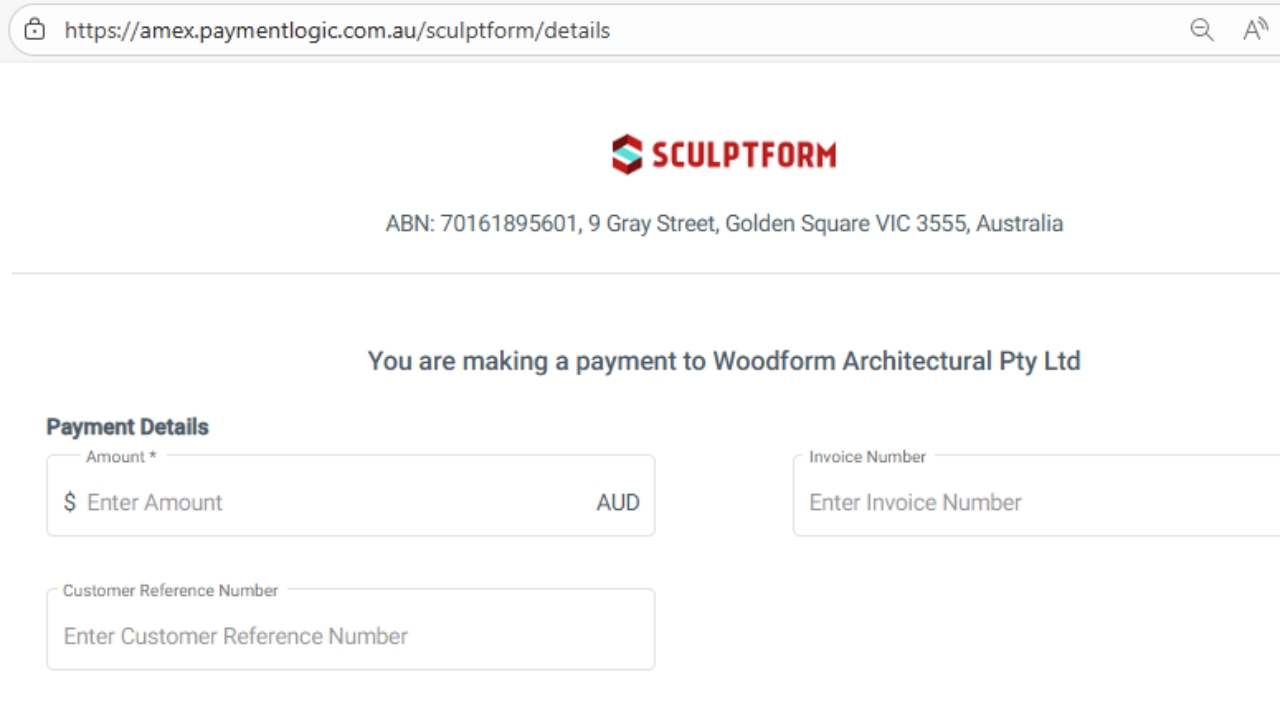
You can now process Amex card payments using the following link: amex.paymentlogic.com.au/sculptform
User Id- a8214314817
Passport- 2023Timber#
Enter the following information needed:
-Customer information
-Card Details
>>Next
A new page will open showing the AMEX surcharge
-Confirm and approve the payment
After submitting, the system will indicate whether the payment is successful or unsuccessful.
If the payment is unsuccessful, call the customer back and verify the card details again.

An email receipt will be sent to AccountsAR confirming the transaction.
Record the payment in the “Direct Deposit – EFT” file.
Note that the funds will appear in the bank account the following day.
Record on ff day
Invoice amount
Add a note: “AMEX & $Surcharge”.
MYOB Process:
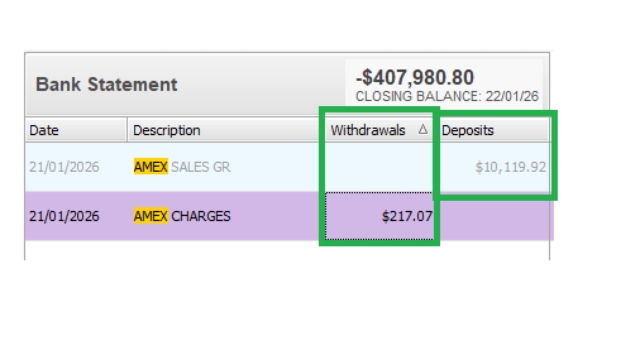
Two transactions will appear in the bank feed:
-AMEX withdrawal charge
-AMEX deposit payment for the invoice which also includes the surcharge amount.
example:
SO/Invoice: $9,902.85
Surcharge: $217.07
Total Deposits: $10,119.92
AMEX Deposit Transactions — Processing Type, either:
Received Money → for SO-Balance/Deposit amounts not yet invoiced in SF
Received Payment → for Invoice amounts already invoiced in SF(Debtors)

To record AMEX withdrawal charge
>>New
>>Spend Money

Spend Money - AMEX Withdrawal
-Update the Memo: AMEX Charges
-Record to 6-7017(Bank Fees)
Check date & amount matches the bank feed.
>>Ok

then
>>Approve

To record AMEX Deposit: Received Money → for SO-Balance/Deposit amounts not yet invoiced in SF
To process:
>>New
>>Received Money

Receive Money — AMEX Deposit (Not Yet Invoiced in SF)
-Update the Memo: Copy & paste the note created in the Direct Deposit – EFT file.
-Date:Ensure it matches the bank feed(day funds received)
-Record the SO/Deposit amount (net of surcharge) to 2-8832 (SF Customer Deposit)
-Record the Surcharge amount to 6-7017 (Bank Fees). This will offset the AMEX withdrawal charge.
-Verify that the total matches the bank feed amount.
>>OK

To record AMEX Deposit: Received Payment → for Invoice amounts already invoiced in SF(Debtors)
To process:
Right click the transaction, then
>>Hide Transaction
-Go to MYOB dashboard

To record AMEX Deposit: Received Payment → for Invoice amounts already invoiced in SF(Debtors)
Go to
>>Sales
>>Receive Payments

Received Payment — For AMEX Invoice Amounts (SF Invoiced)
System opens a blank Receive Payment page:
Deposit to Account: Select 1‑1550 (Cheque Account)
Customer: Enter the Company Name (Open invoices will appear automatically)
Amount Received: Enter the actual invoice amount (net of surcharge)
Date: Ensure it matches the bank feed(day funds received)
Then:
Enter the Amount Applied to the correct invoice
>> Record

To record AMEX Deposit Surcharge: for Invoice amounts already invoiced in SF(Debtors)
Received Money— For AMEX Surcharge
Go to:
>>Banking
>>Receive Money

Received Money— For AMEX Surcharge
System opens a blank Receive Money page:
Deposit to Account: Select 1‑1550 (Cheque Account)
Amount : Surcharge Amount
Memo: Amex charges
Date: Ensure it matches the bank feed(day funds received)
Record the Surcharge amount to 6-7017 (Bank Fees). This will offset the AMEX withdrawal charge.
>> Record