
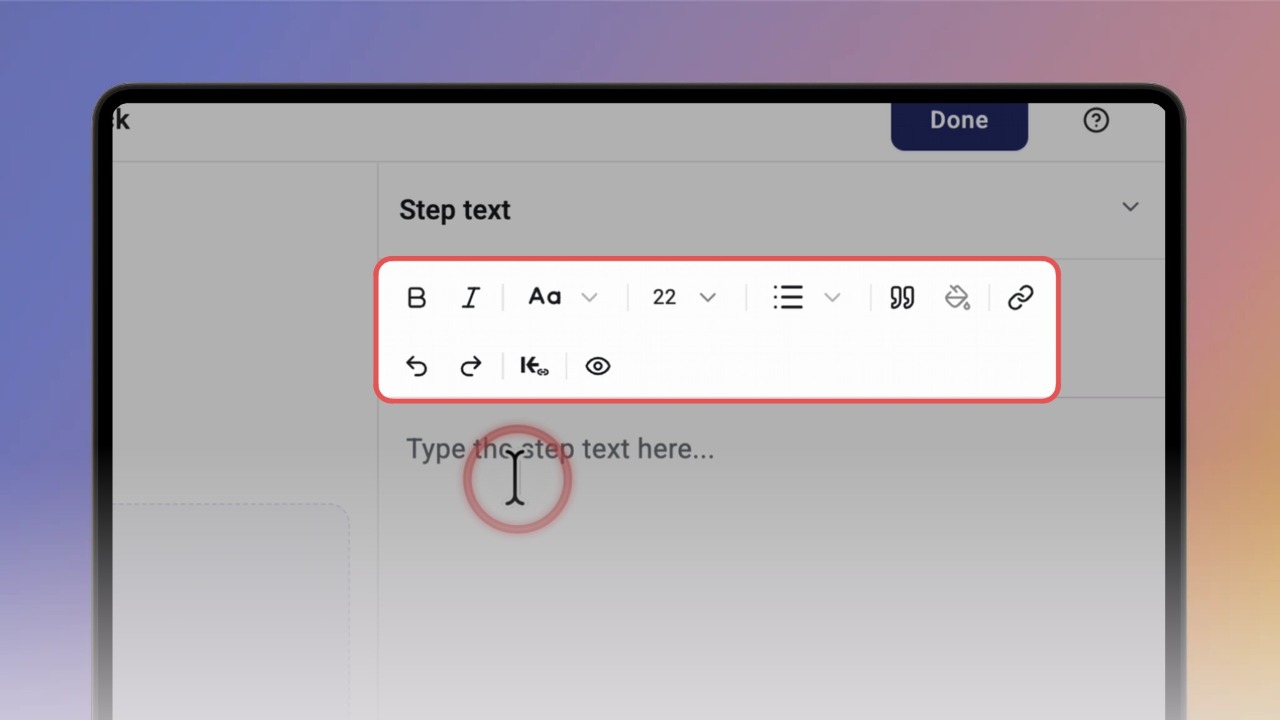
Type your text in Step text. To make words stand out, select them and click B for bold or I for italic.
To turn text into a heading, click Aa and choose a heading level. To change the font size, use the size menu next to it.
Click the list button to add a bulleted or numbered list. To put text in a highlighted block, click the quote button, then pick a colour.
Tip: Use highlighted blocks for tips and warnings, so they stand out from the main instruction.
To link to another knowby or a specific step in it, select the text and click the knowby link button. Choose the knowby and the step, then click Link.
Good to know: See “
Linking to other knowbys inside a step ” for more on knowby links.
To add a web link, select the text and click the link button. Enter the URL and click Save. The selected text now shows as a link.