
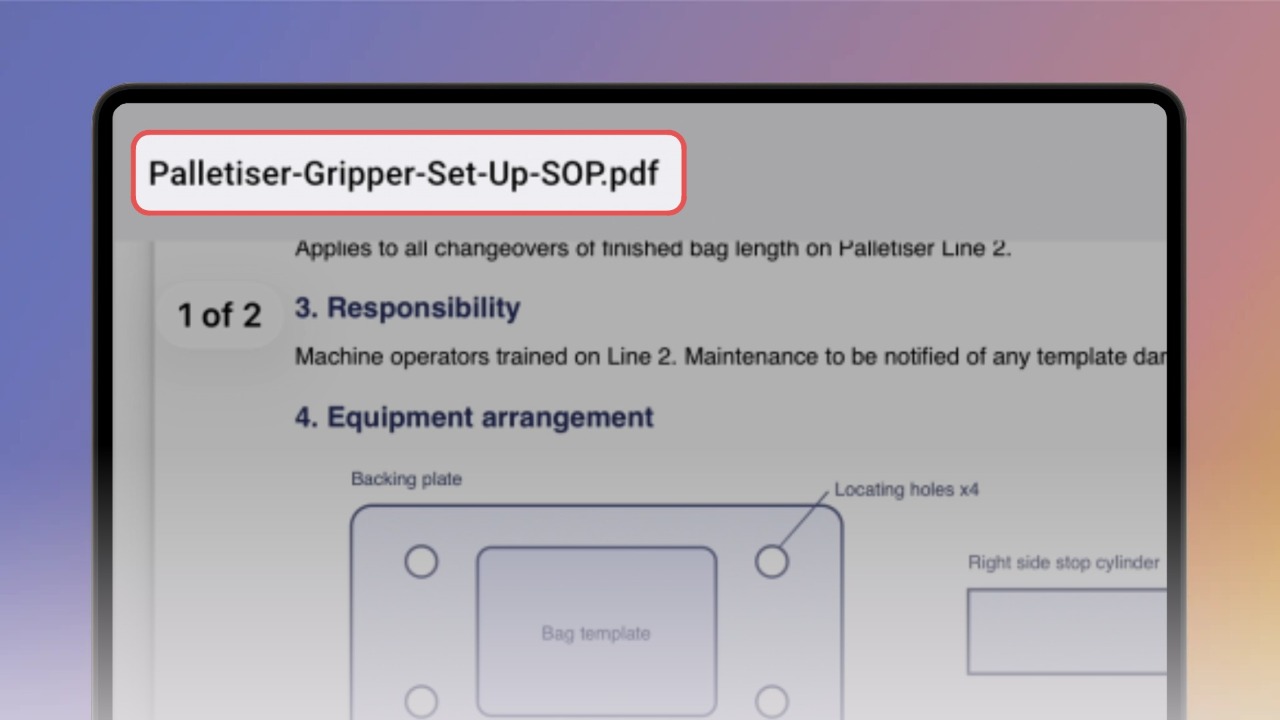
A document step shows a file right inside the step. On a computer, it opens and scrolls in place — pages, zoom, everything.
Use it for SOPs, spec sheets, safety documents — anything your team needs next to the instructions.
Go to the Create/Edit screen and switch to the Steps tab.
Drag your file into the upload area, or click Browse. That's it — Knowby recognises the file type and sets up the step for you.
Tip: your team sees the file's name on the step — a clear name like Site-Safety-Checklist.pdf beats scan_0042.pdf.
Give it a quick check. Scroll the pages, zoom in.
Expand — view it bigger.
Replace — picked the wrong file? Swap it in one click.
The viewer toolbar comes from your browser, so it looks slightly different in Chrome, Firefox, and Safari. That's normal.
On a computer, your team reads the document right in the step — scroll the pages, zoom in, or expand it to full screen.
In public knowbys, documents work too. Anyone with the link can open them — no login, no account.
On a phone or tablet, the step shows an Open document button. Tapping it opens the document full screen.

Good to know:
Document steps need an internet connection — unlike photos and videos, they aren't available offline.
The file doesn't update itself — when the document changes, upload the new version with Replace.
Words inside the file aren't searchable. Put the key terms in your step text so people can find the knowby.
Want to see it live?
Open the demo knowby and try each format yourself.