
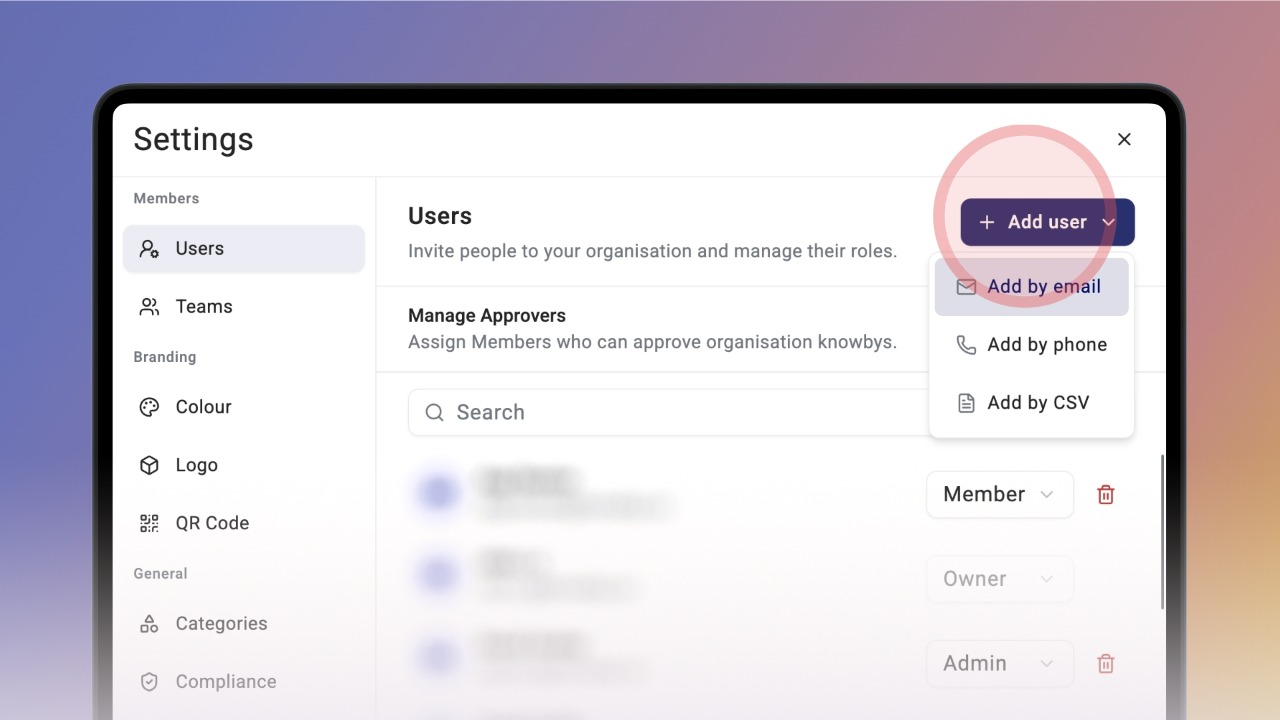

To add users, you need to be an Admin.
Open Settings (cog icon in the top right corner) and select Users.
In the top right corner of the dialog, click Add User.
Knowby offers three ways to add users — by email, by phone number, or by CSV, for adding many users at once.
To add someone by email, enter their First and Last name and email address.
You'll also need to choose a role for the user:
Member — can create, edit, and delete their own knowbys, and review others' if selected as an approver
Admin — full access to all knowbys, users, settings, and analytics, including approving and moderating guides
See the
You can add several people at once by clicking Add Another.
Once you've filled in all the details, click Add in the top right corner of the dialog.
Note: users are added to the organisation immediately, and they'll receive an email to set up sign-in via SSO or a password.
Adding by phone works the same way as email, except you'll choose a country code and enter the phone number instead.
Once filled in, click Add in the top right corner of the dialog to add them.
The Add by CSV feature has a few requirements.
First, download the template below and fill it in.
The CSV needs these columns: First Name, Surname, Contact, MembershipType.
Contact can be either an email address (e.g. jane@example.com) or a phone number in E.164 format — starting with + and the country code, no spaces, dashes, or parentheses (e.g. +61412345678).
MembershipType must be Member, Admin, or Owner.
Once your CSV is ready, save it, then on the screen click Choose File and select your document.
After uploading, click Upload in the top right corner.
The system will check the rows and validate the data. If everything looks good, it will add the users straight away.
Click Done when you're finished.