
Knowby
Create and assign categories to a knowby
Create categories to group your knowbys together, assign them during publishing, and filter by category from the home screen.
1
Step 1 of 6

Categories let you group related knowbys together, so people can browse, filter, and find the right guide faster.

Here's the catch, though: categories don't exist by default.

If you haven't created one yet in Settings, you won't see a Categories tab at all when publishing a knowby, and there'll be no way to filter your knowbys by category on the home screen. The next step walks you through creating your first one.

2
Step 2 of 6

To create or edit categories, you need to be an Admin.

Go to Settings, then Categories, and click Add Category. Enter a name for the new category and click Add.

💡 Think of a category as a label for grouping related guides — for example, Onboarding, HR, Sales, or IT.

3
Step 3 of 6

Once added, your category appears in the list. From here you can add a subcategory underneath it, edit it, or delete it.

You can keep nesting subcategories as deep as you need.

Keep in mind a subcategory works just like a regular category — you can select it separately from its parent.

4
Step 4 of 6

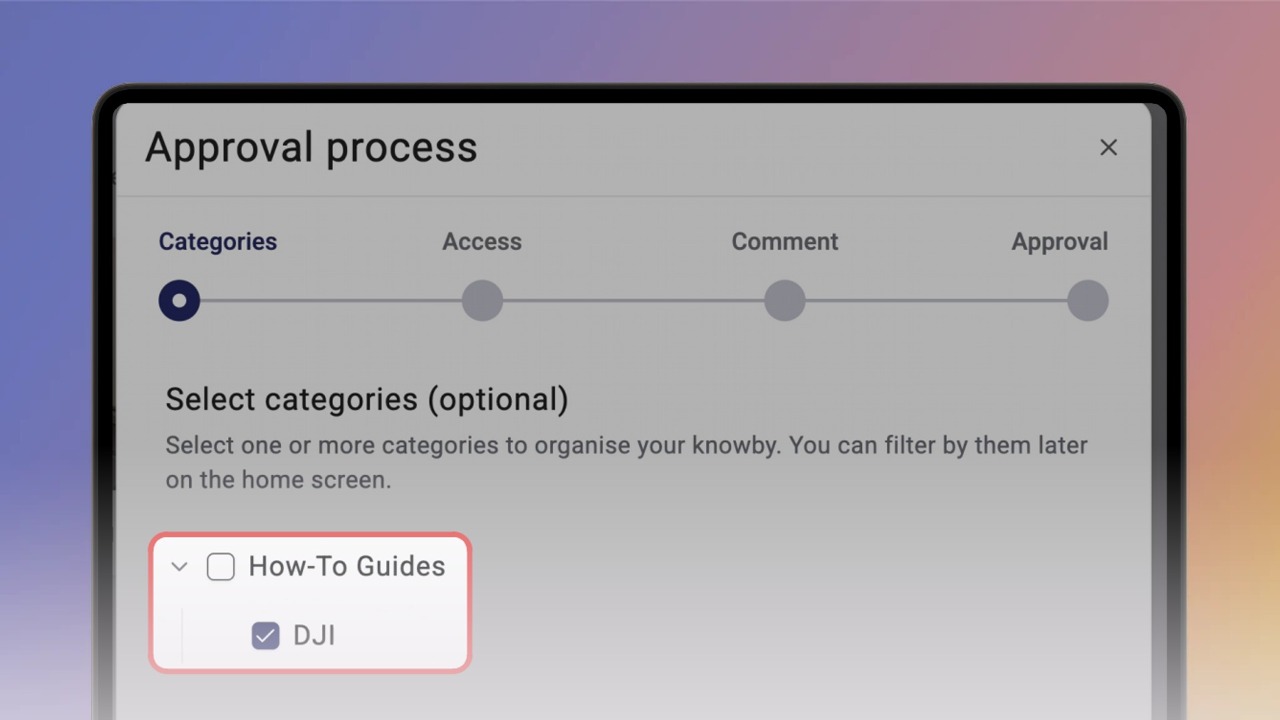
If your knowby's a Draft, head straight to the approval process. If it's already published, click the three-dot menu and select Unpublish first. Either way, on the Categories step of approval, select the category or subcategory you want — your choice saves automatically.

You can pick a category with its subcategories, or just a subcategory alone.

Picking a category doesn't automatically select all its subcategories.

Once you're happy with your selection, continue and complete the approval to publish it.

5
Step 5 of 6

Once published, you can filter knowbys on the home screen using the Category button, next to the sorting options in the top-left corner.

Pick a category, and only matching knowbys will show up — this way you can move quickly between the categories you care about.

💡 If nothing shows up, it just means there are no knowbys in that category on the screen you're viewing.

6
Step 6 of 6

To clear your category filter, deselect it in the Category menu, or click Clear in that same menu.