
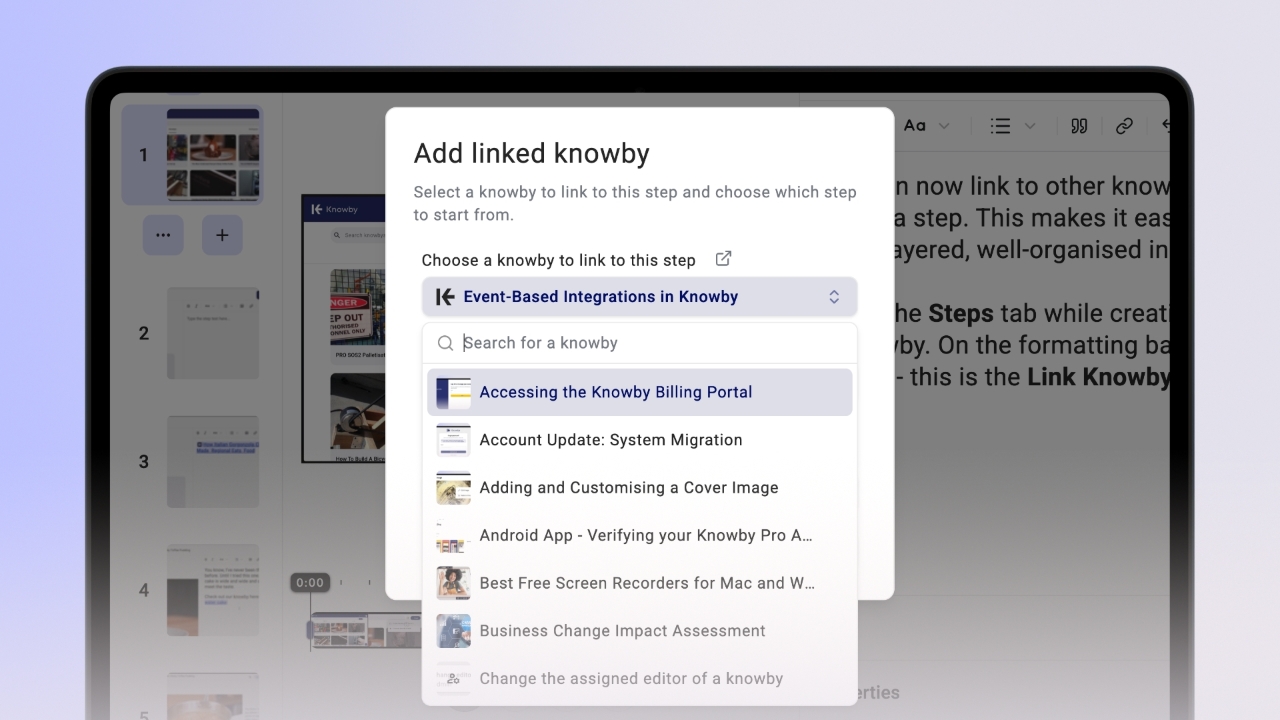
You can now link to other knowbys directly inside a step. This makes it easy to create multi-layered, well-organised instruction flows.
Go to the Steps tab while creating/editing a knowby. On the formatting bar, click the K icon – this is the Link Knowby button.
Clicking the icon opens a popup. In it:
Select a knowby you want to link to,
Choose a step within that knowby,
Optionally set custom display text (if you want to replace the knowby title in the link).
After adding, the linked knowby appears as a clickable link.
To link a knowby to an existing text, highlight the desired word or phrase, click the K icon, and the selected text will be used as display text in the pop-up.
Search or choose your knowby, select the step, and click Link. The highlighted text will now be a link.
The text inside the linked knowby container is editable. Any changes you make are reflected in both the visible link and the display text shown in the editing popup.
To edit a Link Knowby, simply click it, then click the K icon again – the popup will reopen with all the current values.
When viewing a knowby you worked on, the linked knowby is in a step text exactly where you put it during creation process. Clicking the link takes you to the selected step of the linked knowby.
Note, there is an easy navigation at the top – showing you both the current knowby and the one you came from. By clicking a knowby name or using the back arrow, you will return to a previous knowby.
You can add as many linked knowbys to a step as you like.
They can be part of a paragraph, bullet or numbered list, or start from a new line - there’s no limit!
Link Knowby also works in Public View (if the knowby is shared publicly).
If the linked knowby is also public, users will be taken directly to that knowby.
If the linked knowby is not public, users will see a 404 page, since they don’t have permission to view private knowbys.