
How to export a knowby to PDF
Export any knowby as a PDF and have it emailed straight to an inbox – yours or anyone else's.
Export any knowby as a PDF and have it emailed straight to an inbox – yours or anyone else's.
1
Step 1 of 5You can export any knowby as a PDF and have it emailed straight to an inbox — handy for printing, archiving, or sharing outside Knowby.
Find the knowby you want, click the three-dot menu on its card, and select Details.
2
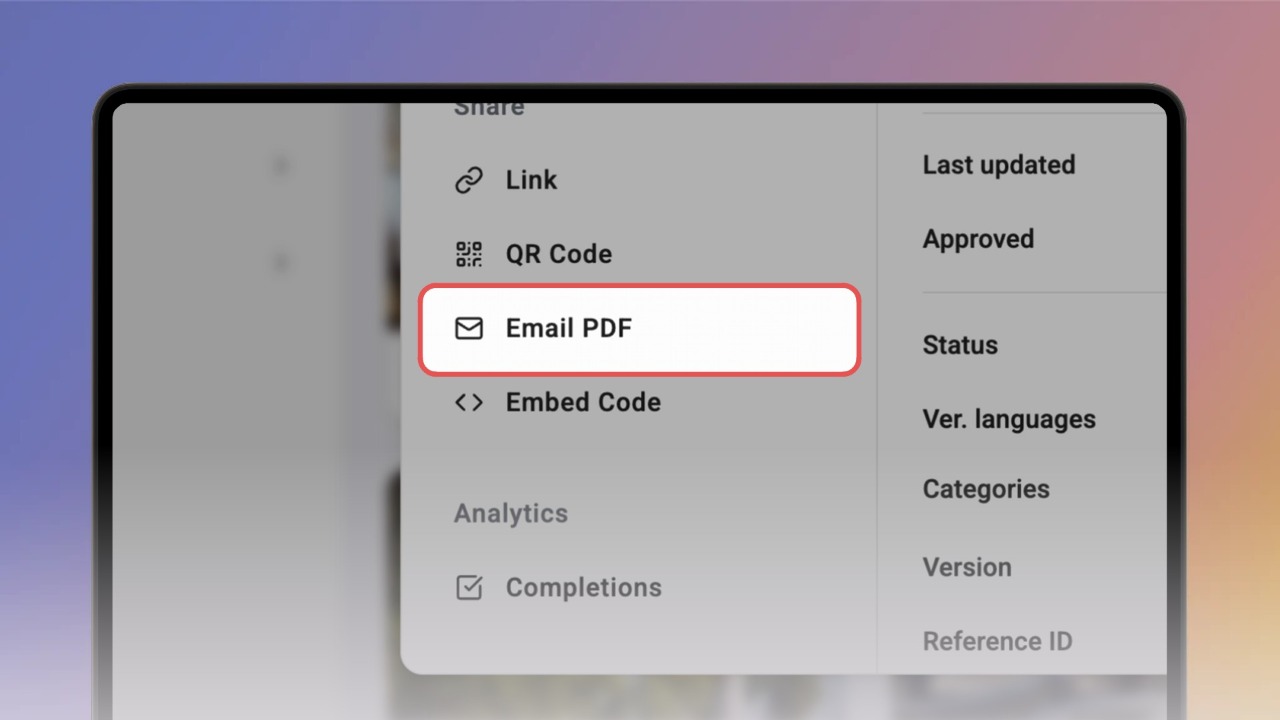
Step 2 of 5In Details, click Email PDF.
3
Step 3 of 5Your own email address is added automatically as a recipient.
To add more, click the text field and type in as many as you need, separated by spaces.
Once you're done, click Send.
4
Step 4 of 5Once the PDF's ready, it'll land in the inbox — click OK to close the dialog.
5
Step 5 of 5The PDF might not land straight away — it can take a couple of minutes, depending on the size of your knowby.
You'll find it as a PDF attachment in the email.