
Knowby
Use Auto-Translation
Instantly translate your knowby into more than 140 languages with Auto-Translation — quick and automatic, just keep in mind the result may not always be perfectly accurate.
1
Step 1 of 5

To start translating your knowby, click the language icon in the top-right corner.

You'll see two options — Verified translation, which is manually added and confirmed by the author during creation or editing, and Auto-translation, powered by machine translation.

Keep in mind auto-translated text may not always be perfectly accurate.

2
Step 2 of 5

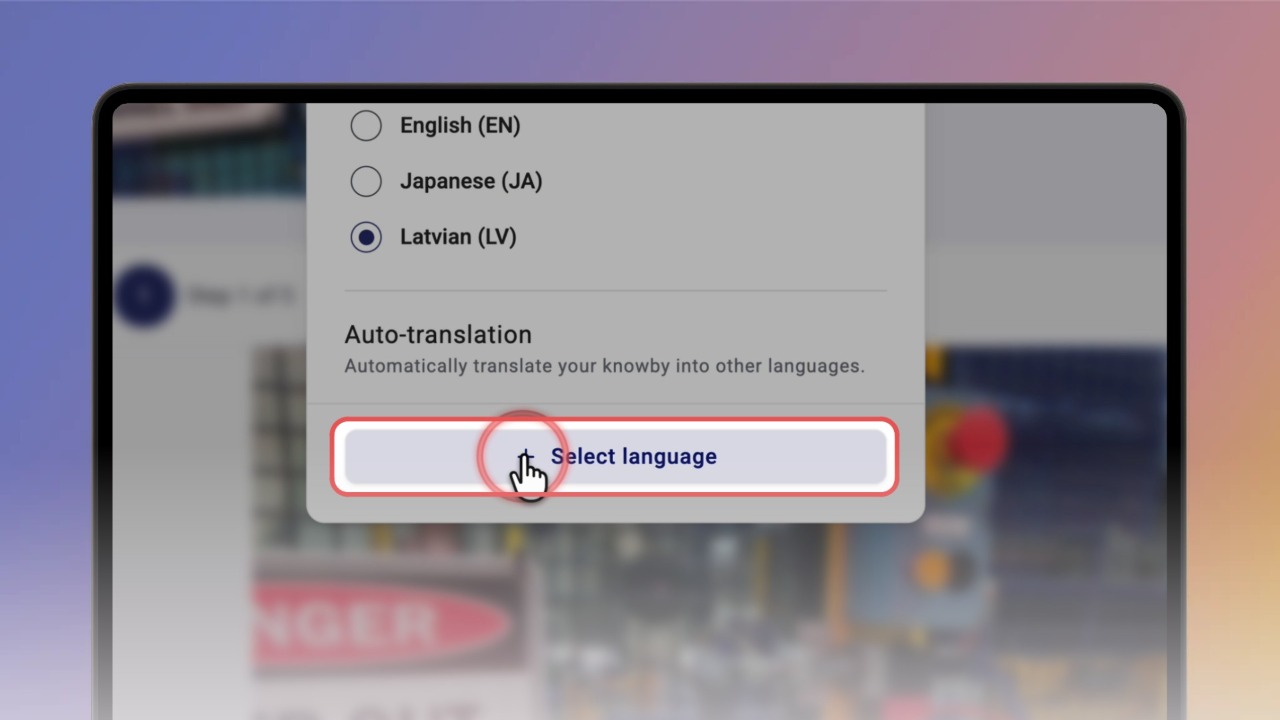
To add an auto-translation, click Select language in the Auto-translation section.

Choose from more than 140 languages — scroll through the list or search for the one you need.

3
Step 3 of 5

Auto-translation covers the step text, title, description, and any forms within your steps.

While viewing a knowby in auto-translation, an orange banner appears at the top letting you know the content was auto-translated and may contain inaccuracies.

4
Step 4 of 5

Once you've picked a language, it stays quick to access for a few days before it's removed — though you can always select it again anytime. There's no limit to how many auto-translations you can create.

To go back to the original language, click the language icon again and select the language you need.

5
Step 5 of 5

Alongside auto-translation, Knowby also supports verified translations — where you personally check and confirm a translation's accuracy while creating or editing a knowby.

Once verified, that language appears on the knowby's details screen, shown as a language chip next to the title and description.

💡 Want to learn how to create a verified translation? See the Verified Translations guide →