Knowby
Tyre Doctor
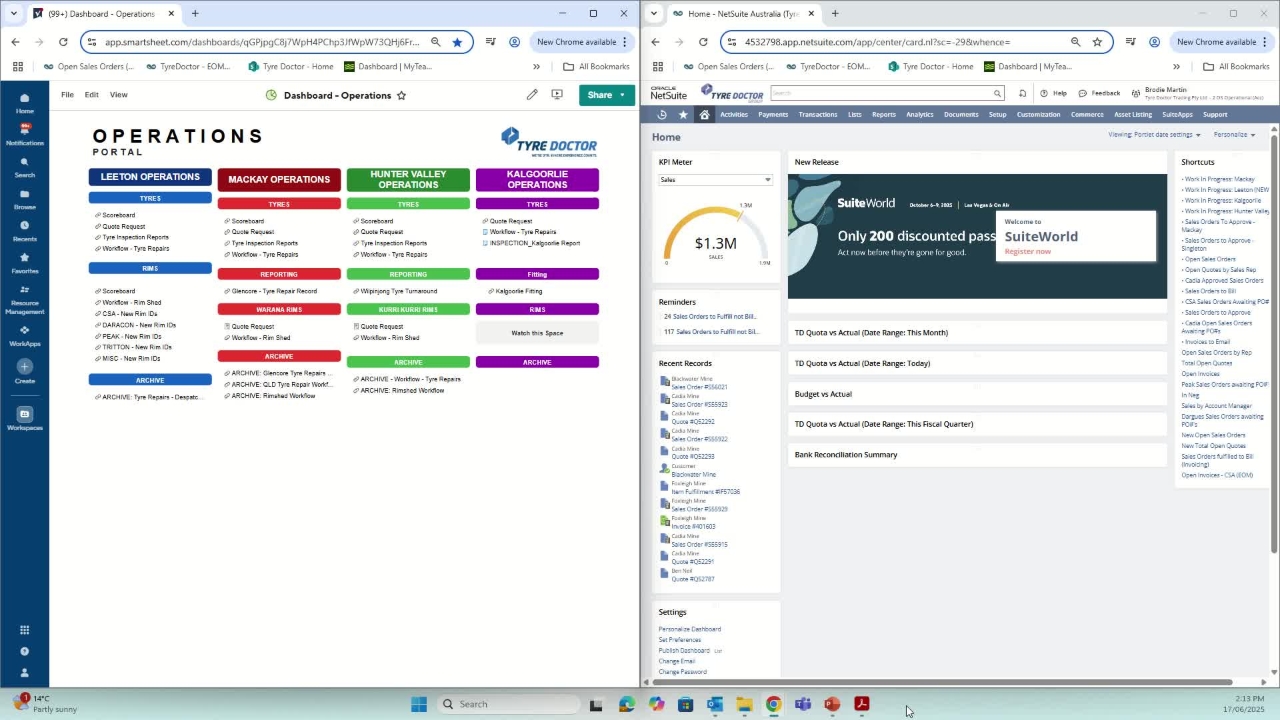
Creating Jobcards from Quote Request - Training
How to create a Jobcard from a Quote Request through Netsuite and Smartsheet.
How to create a Jobcard from a Quote Request through Netsuite and Smartsheet.
1
Step 1 of 6Creating a Jobcard📝 - Step 1
- Head to "Quote Request"
- Go to the bottom of the Page
(Where the latest Request's will be)
2
Step 2 of 6Creating a Jobcard📝 - Step 2
- Head to Top Panel on Netsuite.
- Go to "Quote"
3
Step 3 of 6Creating a Jobcard📝 - Step 3
- Change Custom Form to "1 TD Tyre & Rim Jobcard"
- Copy & Paste Customer/Site into Quote
- Change 'Status' from Quoted to WIP
- Match Department to "Customer Department"
- Change Location to suit Quote Request. (i.e. Singleton = Hunter Valley)
4
Step 4 of 6Creating a Jobcard📝 - Step 4
- Enter Tyre S/N from Smartsheet into Quote.
If the tyre isn't already in the system add it in.
2. Hit the <Add> to create a new tyre.
3. Place Serial Number into Name.
4. Enter Brand.
5. Enter Tyre Size.
6. Add in Customer.
5
Step 5 of 6Creating a Jobcard📝 - Step 5
- Head down to *Item* - Add in the following Code:
TR Holding
2. Go to notes and add (Tyre Size & Brand)
3. Save Quote.
4. Copy & Paste Q# into Smartsheet.
5. Hit Save (Or "CTRL & S")
6
Step 6 of 6Creating a Jobcard📝 - Step 6
- Head to "TyreDr Workflows"
- Open "WORKFLOW : SINGLETON Tyre Repairs"
- Scroll to the Bottom (Where latest entries are)
- Confirm "CARD HEADER" has Collated all the information, If not... follow the next step. (i.e. following example has not collated.)
- Drag the last column's Formula into the Cell.
Task Completed!