Knowby
Sculptform
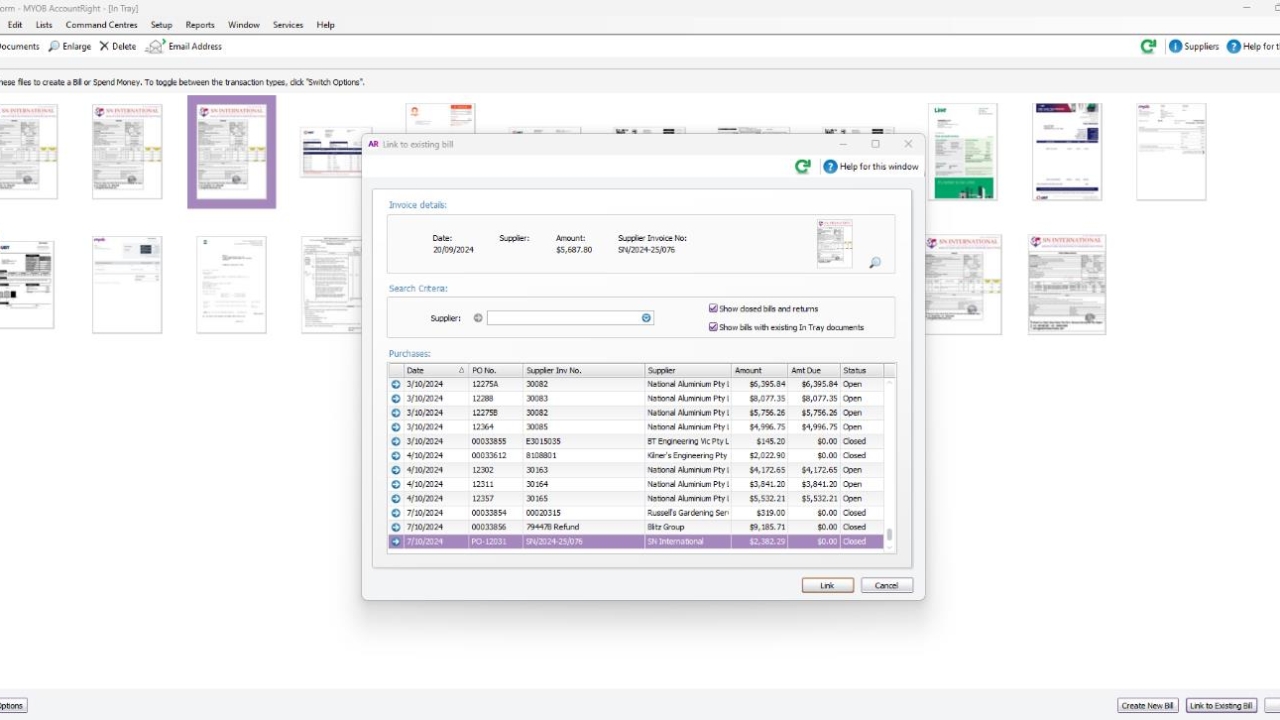
Bank Feeds processes for international PO/Invoice payment
Bank Feeds processes for international PO/Invoice payment
Bank Feeds processes for international PO/Invoice payment
1
Step 1 of 11
MYOB Procedures for international payment – How to apply payment through bank feed
Go to bank feed
2
Step 2 of 11
Click New
Click on pay Bill
3
Step 3 of 11
Search suppliers by name
4
Step 4 of 11
Match the order number or invoice and select that order or invoice to pay bill (Sometimes there are multiples POs)
5
Step 5 of 11
We need to update the exchange rate by clicking on currency which is highlighted blue as per screenshot below. The correct exchange rate can be found in ANZ or Covera confirmation letter
Copy and paste the rate, .
6
Step 6 of 11
click custom and insert the exchange rate and then OK
7
Step 7 of 11
Fill up the applied amount pertaining to international amount.
8
Step 8 of 11
Click Ok
9
Step 9 of 11
Click the x error for the amount to appear.
10
Step 10 of 11
Click record
11
Step 11 of 11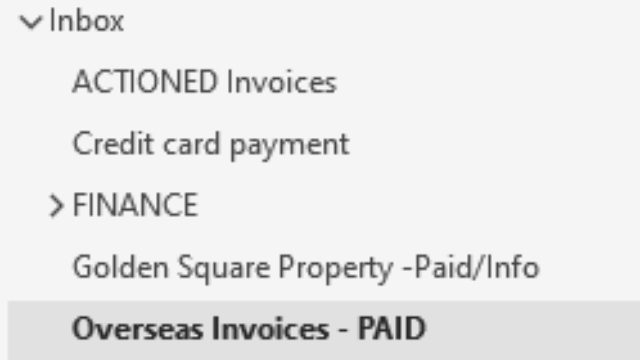
Put all email related to this PO to
Overseas Invoices – PAID folder