Knowby Sculptform
Knowby
Customer Credit Applications & PPSR Registration
1
Step 1 of 28
<p></p><p>Each region maintains its own <strong>Credit Application Form</strong>, located in the corresponding folder:</p><p>• SFM-AU</p><p>• SFM-NZ</p><p>• SFM-USA</p><p>• SFM-UK (not yet available, may use AU)</p><p></p><p>Notes:</p><p></p><p>End‑of‑Month (EOM) accounts are limited to the NZ, USA, and UK regions, taking into consideration regional credit policies.</p><p></p><p></p><p></p><p></p>

Each region maintains its own Credit Application Form, located in the corresponding folder:

• SFM-AU

• SFM-NZ

• SFM-USA

• SFM-UK (not yet available, may use AU)

Notes:

End‑of‑Month (EOM) accounts are limited to the NZ, USA, and UK regions, taking into consideration regional credit policies.

2
Step 2 of 28
<p><strong>Completed Account/Credit Application</strong> <strong>Form</strong> may be received from the <strong>Salesperson or the Customer</strong>.</p><p></p><p>Upon receipt, ensure all required information is <strong>fully completed and properly signed</strong> by the <strong>directors (Guarantor section), trustees, or an authorized representative</strong> (e.g. CFO or Accountant).</p><p></p><p>If any information is missing or incomplete, <strong>request the customer to complete the application</strong> before proceeding.</p><p></p>

Completed Account/Credit Application Form may be received from the Salesperson or the Customer.

Upon receipt, ensure all required information is fully completed and properly signed by the directors (Guarantor section), trustees, or an authorized representative (e.g. CFO or Accountant).

If any information is missing or incomplete, request the customer to complete the application before proceeding.

3
Step 3 of 28
<p>AU &amp; NZ Credit Limit Requirements:</p><p></p><p>If a customer requests a credit limit of $90,000.00 or above, the “<strong>Guarantor Section</strong>” must be completed and SIGNED by <strong>the Sole Trader, Partners, Directors, or Trustees.</strong></p><p></p><p>Maximum Credit Limits:</p><p>– New Customers: $100,000.00</p><p>– Existing Customers: $300,000.00</p><p></p><p>Maximum credit limit allowed without PPSR:</p><p>AU- $90,000.00</p><p>NZ- $80,000.00</p><p></p><p></p>

AU & NZ Credit Limit Requirements:

If a customer requests a credit limit of $90,000.00 or above, the “Guarantor Section” must be completed and SIGNED by the Sole Trader, Partners, Directors, or Trustees.

Maximum Credit Limits:

– New Customers: $100,000.00

– Existing Customers: $300,000.00

Maximum credit limit allowed without PPSR:

AU- $90,000.00

NZ- $80,000.00

4
Step 4 of 28
<p><strong>SFM AU:</strong><br><br>Log in to CreditorWatch&nbsp;</p><p></p><p>Search for the company using the ABN.</p><p></p><p>Generate the CreditorWatch Report</p><p></p><p>On the&nbsp;right side of the screen under Monitoring Active, click the FF:</p><p>&gt;&gt;Generate Report</p><p>&gt;&gt;Customized Report</p><p>&gt;&gt;tick three boxes</p><p>&gt;&gt;Download</p>

SFM AU:

Log in to CreditorWatch 

Search for the company using the ABN.

Generate the CreditorWatch Report

On the right side of the screen under Monitoring Active, click the FF:

>>Generate Report

>>Customized Report

>>tick three boxes

>>Download

5
Step 5 of 28
<p>Review the credit application information and ensure it matches the CreditorWatch report.</p><p></p><p></p><p>Details to be checked in CreditorWatch:</p><p>• Review Director, Officeholder, and Company details.</p><p>• Check for payment defaults and cross‑directorships.</p><p>• Review credit exposure.</p><p>• Review average days overdue.</p><p>• Review the risk score.</p><p></p><p>Additional Checks:</p><p>• If the applicant is an existing customer, review payment history in Salesforce.</p><p>• If the CreditorWatch risk score is low, follow up on the provided trade references.</p><p></p>

Review the credit application information and ensure it matches the CreditorWatch report.

Details to be checked in CreditorWatch:

• Review Director, Officeholder, and Company details.

• Check for payment defaults and cross‑directorships.

• Review credit exposure.

• Review average days overdue.

• Review the risk score.

Additional Checks:

• If the applicant is an existing customer, review payment history in Salesforce.

• If the CreditorWatch risk score is low, follow up on the provided trade references.

6
Step 6 of 28
<p>Send the CreditorWatch report together with the credit application and supporting documents to Ken.</p><p></p><p>In the email, include your initial assessment:</p><p>-the Guarantor Section is signed,</p><p>-the Director has crossed out or amended any part of the Acknowledgement and Execution or the Credit Terms and Conditions</p><p>-CreditorWatch Risk Score</p><p>-Cross‑directorships.</p><p><br>If the customer is an existing customer, review the company profile in Salesforce, including sales orders and any account notes relating to payment behaviour and CreditorWatch history. history.<br><br>Ken will then<strong> approve, decline, or discuss</strong> the application with the Debtor Management Team.<br><br>If the application is declined, advise the customer of the outcome and clearly explain the reason for the rejection.</p>

Send the CreditorWatch report together with the credit application and supporting documents to Ken.

In the email, include your initial assessment:

-the Guarantor Section is signed,

-the Director has crossed out or amended any part of the Acknowledgement and Execution or the Credit Terms and Conditions

-CreditorWatch Risk Score

-Cross‑directorships.


If the customer is an existing customer, review the company profile in Salesforce, including sales orders and any account notes relating to payment behaviour and CreditorWatch history. history.

Ken will then approve, decline, or discuss the application with the Debtor Management Team.

If the application is declined, advise the customer of the outcome and clearly explain the reason for the rejection.

7
Step 7 of 28
<p>If Ken approves the application<br><br>On the right side of the screen under Action, click the ff:</p><p>&gt;&gt;Actions</p><p>&gt;&gt;Add an Account ID</p><p>&gt;&gt;input: "Debtor"</p><p>&gt;&gt;Assign</p><p></p><p>Click "Remove" if the account was previously set as Prepaid.<br><br>This allows the account to be monitored as a Debtor through CreditorWatch email alerts.</p>

If Ken approves the application

On the right side of the screen under Action, click the ff:

>>Actions

>>Add an Account ID

>>input: "Debtor"

>>Assign

Click "Remove" if the account was previously set as Prepaid.

This allows the account to be monitored as a Debtor through CreditorWatch email alerts.

8
Step 8 of 28
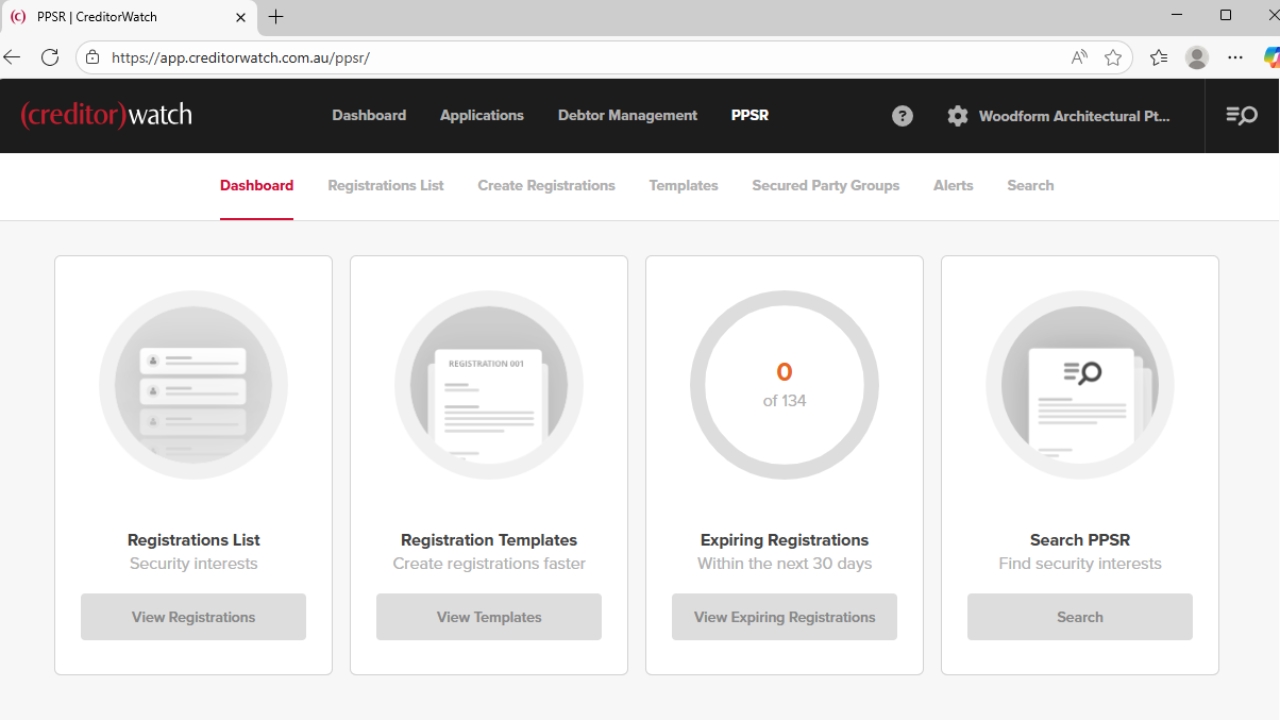
<p>If Ken approves the application with customer agreed to <strong>Guarantor </strong>&amp;&nbsp;<strong>PPSR registration</strong>:</p><p></p><p>To register PPSR, click the ff:<br>&gt;&gt;Actions<br>&gt;&gt;Create PPSR Registration<br>&gt;&gt;tick: Woodform Architecture<br>&gt;&gt;Add Organisation Grantor<br>&gt;&gt;Choose: ACN<br>&gt;&gt;Register</p><p></p><p>in few minutes: AccountsAR will receive emails for Token &amp; Verification Statement.</p>

If Ken approves the application with customer agreed to Guarantor PPSR registration:

To register PPSR, click the ff:
>>Actions
>>Create PPSR Registration
>>tick: Woodform Architecture
>>Add Organisation Grantor
>>Choose: ACN
>>Register

in few minutes: AccountsAR will receive emails for Token & Verification Statement.

9
Step 9 of 28
<p></p><p>Move all related emails to the AccountsAR folder titled “<strong>Customer Credit Application – PPSR/Others</strong>”.</p><p></p><p>Edit the subject line of CreditorWatch emails (Token and Verification Statements) to include the "<strong>company name</strong>", so the emails can be easily located when required.</p><p></p><p>Send a Credit Approval Letter to the customer.</p><p></p>

Move all related emails to the AccountsAR folder titled “Customer Credit Application – PPSR/Others”.

Edit the subject line of CreditorWatch emails (Token and Verification Statements) to include the "company name", so the emails can be easily located when required.

Send a Credit Approval Letter to the customer.

10
Step 10 of 28
<p>Create Credit Approval Letter for the customer.<br><br>Save in PDF File.</p><p></p><p></p>

Create Credit Approval Letter for the customer.

Save in PDF File.

11
Step 11 of 28
<p>Create a folder for the customer in the Credit Application files and save all related documents.</p><p></p>

Create a folder for the customer in the Credit Application files and save all related documents.

12
Step 12 of 28
<p>In Salesforce, update the following details:</p><p></p><p>-Company Name: Ensure it matches the credit application and CreditorWatch record.&nbsp;</p><p>-Payment Terms: 30‑Day Account (EOM).&nbsp;</p><p>-Deposit: 33%.&nbsp;</p><p>-Line of Credit: Enter the approved credit limit.&nbsp;</p><p>-[Tick] Sent Credit Approval Confirmation</p><p>-ABN: Enter the customer’s ABN.&nbsp;</p><p>-Accounts Contact: Create the accounts contact.&nbsp;</p><p>-Account Notes: Record the ACN and any other important notes provided by Ken or the Debtor Management Team.&nbsp;</p><p>Billing Address: Update as per the credit application.</p><p></p><p>If PPSR is registered:</p><p>-[Tick]PPSR – Personal Guarantee”.&nbsp;</p><p>-PPSR registration date.&nbsp;</p><p>-PPSR expiry date (7 years from the registration date).</p>

In Salesforce, update the following details:

-Company Name: Ensure it matches the credit application and CreditorWatch record. 

-Payment Terms: 30‑Day Account (EOM). 

-Deposit: 33%. 

-Line of Credit: Enter the approved credit limit. 

-[Tick] Sent Credit Approval Confirmation

-ABN: Enter the customer’s ABN. 

-Accounts Contact: Create the accounts contact. 

-Account Notes: Record the ACN and any other important notes provided by Ken or the Debtor Management Team. 

Billing Address: Update as per the credit application.

If PPSR is registered:

-[Tick]PPSR – Personal Guarantee”. 

-PPSR registration date. 

-PPSR expiry date (7 years from the registration date).

13
Step 13 of 28
<p>Check MYOB for any duplicate company cards.</p><p></p><p> If duplicates are identified, combine the records as required.</p><p></p><p>Once completed, proceed to edit and update the company card with the approved details.</p>

Check MYOB for any duplicate company cards.

If duplicates are identified, combine the records as required.

Once completed, proceed to edit and update the company card with the approved details.

14
Step 14 of 28
<p>Update MYOB Card Information:<br><br>Profile section:<br>-Company name</p><p>-Billing address</p><p>-Phone No.</p><p>-Account's Email</p><p>-Account's Contact name</p><p></p><p>Selling Details Section</p><p>-ABN</p><p>-Customer Terms Information</p><p>&nbsp; &nbsp; Day of Month after EOM</p><p>&nbsp; &nbsp; 1st to EOM</p><p></p><p>&gt;&gt;OK</p>

Update MYOB Card Information:

Profile section:
-Company name

-Billing address

-Phone No.

-Account's Email

-Account's Contact name

Selling Details Section

-ABN

-Customer Terms Information

    Day of Month after EOM

    1st to EOM

>>OK

15
Step 15 of 28
<p>New Zealand CreditorWatch Report</p><p></p><p><a target="_blank" rel="noopener noreferrer nofollow" href="https://creditorwatch.com.au/page/nzreports">https://creditorwatch.com.au/page/nzreports</a> <br>The report can be generated by searching the company using the NZBN and click “Purchase”.</p><p></p><p>Once generated, the CreditorWatch report will be sent via email to the Accounts AR inbox.</p><p></p><p>We can check &amp; download directors name and address on these sites.</p><ul><li><p>Home | New Zealand Business Number (<a target="_blank" rel="noopener noreferrer nofollow" href="http://nzbn.govt.nz">nzbn.govt.nz</a>)</p></li></ul><ul><li><p>New Zealand Companies Register (<a target="_blank" rel="noopener noreferrer nofollow" href="http://companiesoffice.govt.nz">companiesoffice.govt.nz</a>)</p></li></ul><p>Create company folder and save all files.</p><p>Credit Application - NZ Customer</p>

New Zealand CreditorWatch Report

https://creditorwatch.com.au/page/nzreports
The report can be generated by searching the company using the NZBN and click “Purchase”.

Once generated, the CreditorWatch report will be sent via email to the Accounts AR inbox.

We can check & download directors name and address on these sites.

Create company folder and save all files.

Credit Application - NZ Customer

16
Step 16 of 28
<p><strong>REGISTER SFM NZ CUSTOMER TO PPSR</strong></p><p></p><p>Log in to PPSR and the construction industry | PPS Register</p><p><br>Secured Party Group was already registered under the name of SFM NZ SPG ID 773096</p><p></p><p>&gt;&gt; PPSR Registrations</p><p>&gt;&gt; Create (For your default SPG)</p><p></p><p>&gt;&gt;Next Step: Debtor Details</p><p></p>

REGISTER SFM NZ CUSTOMER TO PPSR

Log in to PPSR and the construction industry | PPS Register


Secured Party Group was already registered under the name of SFM NZ SPG ID 773096

>> PPSR Registrations

>> Create (For your default SPG)

>>Next Step: Debtor Details

17
Step 17 of 28
<p>&gt;&gt; +Add Debtor </p><p>&gt;&gt; Organization</p><p></p><p>Enter the <strong>NZBN or Company Name</strong>, double check if it matches because it is automatically filled by LookUp.</p><p><br>In Debtor Reference enter </p><p>&gt;&gt;company name&lt;&lt; this will serve as reference code in the List.</p><p>&gt;&gt;Address &amp; Postal address then &gt;&gt;Save&lt;&lt;</p>

>> +Add Debtor

>> Organization

Enter the NZBN or Company Name, double check if it matches because it is automatically filled by LookUp.


In Debtor Reference enter

>>company name<< this will serve as reference code in the List.

>>Address & Postal address then >>Save<<

18
Step 18 of 28
<p>Job Title or Person’s Name, both can’t be fill-up at the same time.</p><p></p><p>Enter only the Job Title: <strong>Director,</strong> then </p><p>&gt;&gt; <strong>tick</strong>&lt;&lt; Copy Organization Contact Details. It will automatically pick-up above details. </p><p></p><p>&gt;&gt;Save</p><p></p>

Job Title or Person’s Name, both can’t be fill-up at the same time.

Enter only the Job Title: Director, then

>> tick<< Copy Organization Contact Details. It will automatically pick-up above details.

>>Save

19
Step 19 of 28
<p>May Edit or Remove. </p><p></p><p>Double check and </p><p></p><p>&gt;&gt;Next Step: Collateral Details</p>

May Edit or Remove.

Double check and

>>Next Step: Collateral Details

20
Step 20 of 28
<p>&gt;&gt;Please Select, choose</p><p></p><p>&gt;&gt; All Present and After Acquired Personal Property</p><p></p><p>Collateral Description, <strong>leave it blank</strong> so it won’t limit the scope.</p><p></p><p>&gt;&gt;Save</p><p></p><p>&gt;&gt; Next Step: Secured Party Details<br></p><p></p>

>>Please Select, choose

>> All Present and After Acquired Personal Property

Collateral Description, leave it blank so it won’t limit the scope.

>>Save

>> Next Step: Secured Party Details

21
Step 21 of 28
<p>Secured Party Details is automatically filled.</p><p></p><p>&gt;&gt;Next step: Review</p><p></p>

Secured Party Details is automatically filled.

>>Next step: Review

22
Step 22 of 28
<p><strong>Unfinished PPSR registration </strong></p><p><strong>(SAVE &amp; EXIT),</strong> goes here at </p><p>&gt;&gt;My Unfinished Business&gt;&gt; Click to continue.</p><p></p><p>&gt;&gt;Discard&lt;&lt; if you want to delete.</p>

Unfinished PPSR registration

(SAVE & EXIT), goes here at

>>My Unfinished Business>> Click to continue.

>>Discard<< if you want to delete.

23
Step 23 of 28
<p>Double check Details </p><p></p><p>&gt;&gt; Register</p>

Double check Details

>> Register

24
Step 24 of 28
<p></p><p>&gt;&gt;Credit or Debit<br>&gt;&gt;tick&lt;&lt; Retain Card for future payment<br></p><p>&gt;&gt; Company name &lt;&lt; for reference<br></p><p>Change Details: Address </p><p>&gt;&gt; 107 St Georges Bay Road, Parnell, Auckland, 1052, New Zealand<br></p><p>-Then this will proceed with entering card no.<br>-Pop out message will appear saying that Tax invoice has been sent to AccountsAR </p><p></p><p>&gt;&gt;Complete Transactions&lt;&lt;</p>

>>Credit or Debit
>>tick<< Retain Card for future payment

>> Company name << for reference

Change Details: Address

>> 107 St Georges Bay Road, Parnell, Auckland, 1052, New Zealand

-Then this will proceed with entering card no.
-Pop out message will appear saying that Tax invoice has been sent to AccountsAR

>>Complete Transactions<<

25
Step 25 of 28
<p>PPSR registration/Financing statement will go here:<br>&gt;&gt;Manage My Portfolio</p><p>&gt;&gt;My Financing Statement</p><p></p><p>In the green box will list all PPSR registrations, click the Financing statement registration number</p>

PPSR registration/Financing statement will go here:
>>Manage My Portfolio

>>My Financing Statement

In the green box will list all PPSR registrations, click the Financing statement registration number

26
Step 26 of 28
<p>View Financing Statement </p><p>&gt;&gt;Request a Copy of the Verification Statement via Email&lt;&lt;<br></p><p>-if not sending through AccountsAR </p><p>&gt;&gt;Download/Print&lt;&lt; &amp; </p><p>&gt;&gt;Request a Copy of the Verification Statement as PDF&lt;&lt; to file.</p>

View Financing Statement

>>Request a Copy of the Verification Statement via Email<<

-if not sending through AccountsAR

>>Download/Print<< &

>>Request a Copy of the Verification Statement as PDF<< to file.

27
Step 27 of 28
<p>If invoice is not received, go through </p><p>&gt;&gt;My Tools</p><p>&gt;&gt;My invoices</p><p></p><p>Enter</p><p>&gt;&gt; Date range&gt;</p><p>&gt; Search&gt;&gt; Invoice number</p>

If invoice is not received, go through

>>My Tools

>>My invoices

Enter

>> Date range>

> Search>> Invoice number

28
Step 28 of 28
<p><strong><u>USA &amp; UK Credit Application – Facility</u></strong></p><p><strong>Credit max Limit</strong> – New customer $90,000.00</p><p></p><p><strong>As per Ken’s email confirmation.</strong></p><p>“Let’s stick with this one for now then if it becomes a bigger thing eg. we end up with 10 accounts we can go with the monitoring through Credit safe.</p><p>However, as per the attached email from Teagon Scott of CreditWatch, they partner with CreditSafe and can provide scored <strong>credit reports for US and UK companies at a cost of $199.00</strong> each”.</p><p></p><p><strong>Scored Credit Reports will be ordered to CreditorWatch</strong>: Email &amp; Request to</p><p>Teagan Scott teagan.scott@creditorwatch.com.au</p><p>Alexandra Norman alexandra.norman@creditorwatch.com.au</p>

USA & UK Credit Application – Facility

Credit max Limit – New customer $90,000.00

As per Ken’s email confirmation.

“Let’s stick with this one for now then if it becomes a bigger thing eg. we end up with 10 accounts we can go with the monitoring through Credit safe.

However, as per the attached email from Teagon Scott of CreditWatch, they partner with CreditSafe and can provide scored credit reports for US and UK companies at a cost of $199.00 each”.

Scored Credit Reports will be ordered to CreditorWatch: Email & Request to

Teagan Scott teagan.scott@creditorwatch.com.au

Alexandra Norman alexandra.norman@creditorwatch.com.au