
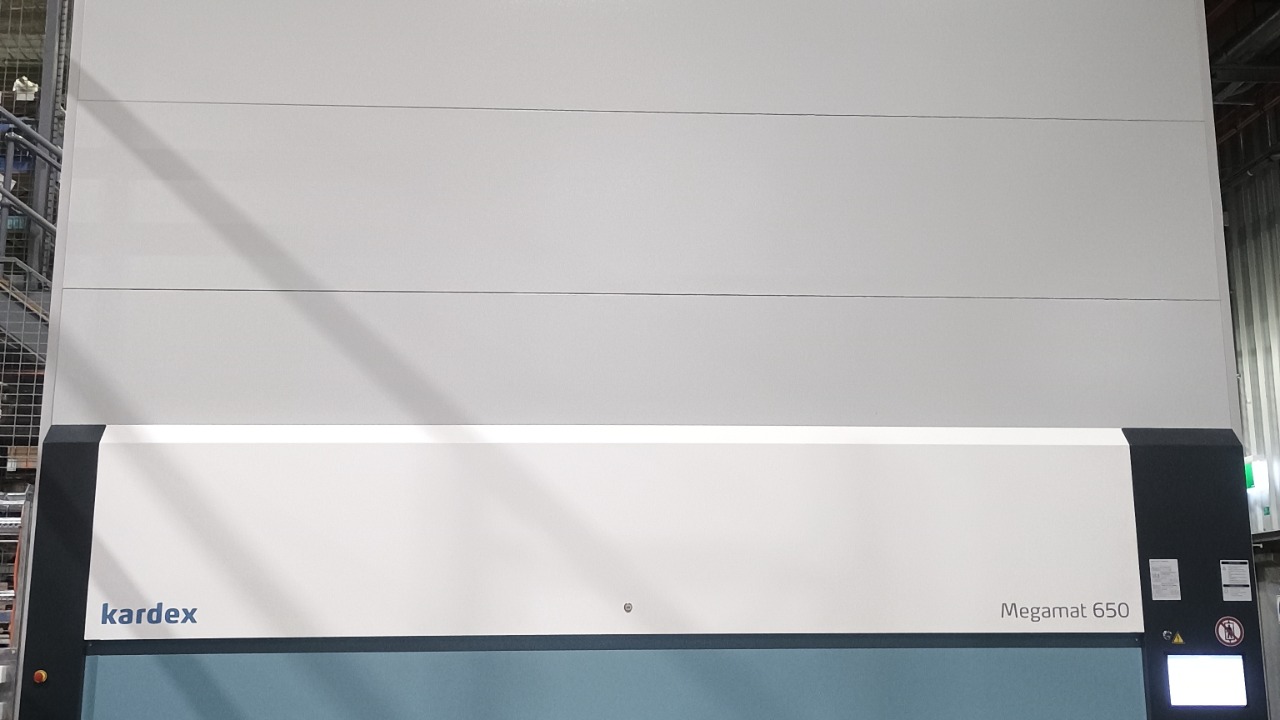

Navigate to: Kardex Power Pick System
Your log in is as below
Workstation: W1(Computer)
Username: CFB User (casellaj)
Password: 1234
You can access Power Pick System (PPS) on the Computer or HMI.

VCM Activation
Once Logged in make sure the Ready light is ON.

VCM Activation
If the unit is in standby mode.
Press STAND-BY button on the OP0 panel for 2 seconds. (The VCM lights will turn ON)
The Ready button will flash when ready to start, "Press" to start VCM.
•The STANDBY button will continue flashing until VCM is ready.
•If VCM has been put into standby you need to wait 30sec before reactivating.
Taking VCM out of "Standby Mode"
Activating VCM using Ready Button.

Click or Press "Manual pick" tab.

Search Item
Enter Item MEX Catalogue Number in Search TAB.
•You can search details from the below MEX Columns
•Part Name.
• Site.
•Area of Plant.
•Keywords. (may also include machine number)

Select Item
As you enter the item detail the list will automatically filter the list.
Once you have found the correct part in the list Press or Select on item to highlight.

Quantity Required
Once you have selected the item required it will appear in the RH side of the page.
If this is the correct item.
Add Qty required in Quantity TAB.
Press or Click "Add to list"

Cost Center
Enter details in "Cost Center" TAB of asset the items are used for or WO Number if available.
Press or Click "Add to list"
Details Mandatory in Manual Pick operation.

Process
Press or Click "Process".
VCM will drive to location of the item and display item detail and location on the navigation Bar.
VCM driving to location
Stand clear of VCM
Ensure light barrier is not broken.
VCM Safety Trip Reset

Navigation LED Bar
The Led-Navigator will show the items location BLUE Section.

Navigation LED Bar
BIN location is displayed as below example.
BIN: 17/A
17 = Bin Number on that Shelf
A = Cell location in specific BIN
1Each = Qty required

Pick item
Once the VCM has arrived at the correct location you can Pick the item.
Once the item has been Picked press or Click "Confirm".

Confirmation Bar
You can also use the confirmation bar to confirm the operation is complete.
If you have multiply items on your list the VCM will proceed to the next item.

Log Out
Remember to logout once you have finished putting items away.
Please close the door on the VCM