
Knowby
TV Controls
1
Step 1 of 10
<p>Press WATCH on black remote</p>

Press WATCH on black remote

2
Step 2 of 10
<p>Press the centre button to select APPLE TV</p>

Press the centre button to select APPLE TV

3
Step 3 of 10
<p>TV will turn on with this screen. Wait about 20 seconds. The screen will automatically change to the APPLE TV screen saver.&nbsp;</p>

TV will turn on with this screen. Wait about 20 seconds. The screen will automatically change to the APPLE TV screen saver. 

4
Step 4 of 10
<p>When the screen saver is showing (something like this or maybe a different image), proceed to the next step.&nbsp;</p>

When the screen saver is showing (something like this or maybe a different image), proceed to the next step. 

5
Step 5 of 10
<p>Press the MENU button as many times as you need to get to a Home Screen that looks like the screen in the next step</p>

Press the MENU button as many times as you need to get to a Home Screen that looks like the screen in the next step

6
Step 6 of 10
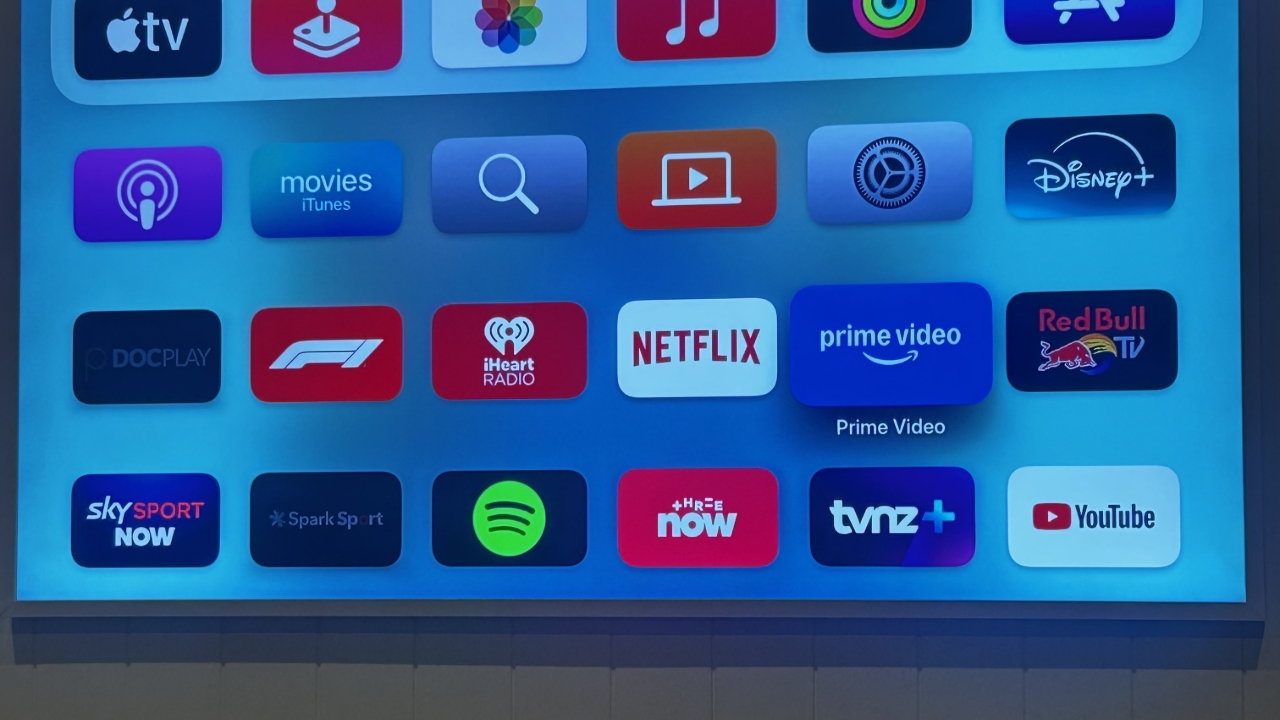
<p>This is the Apple TV Home Screen. Go to the next step&nbsp;</p>

This is the Apple TV Home Screen. Go to the next step 

7
Step 7 of 10
<p>Use the outer circle button to navigate around the Apple TV Home Screen (up, down, left, right).&nbsp;<br>use the centre button to select (OK).&nbsp;<br>Pressing the MENU button takes you back one step.&nbsp;<br>Use the VOL button the black remote for volume adjustment.&nbsp;</p>

Use the outer circle button to navigate around the Apple TV Home Screen (up, down, left, right). 
use the centre button to select (OK). 
Pressing the MENU button takes you back one step. 
Use the VOL button the black remote for volume adjustment. 

8
Step 8 of 10
<p>Use the power button on the white remote to turn the TV off. Press and hold until the TV screen goes black.&nbsp;</p>

Use the power button on the white remote to turn the TV off. Press and hold until the TV screen goes black. 

9
Step 9 of 10
<p>OFF</p>

OFF

10
Step 10 of 10