
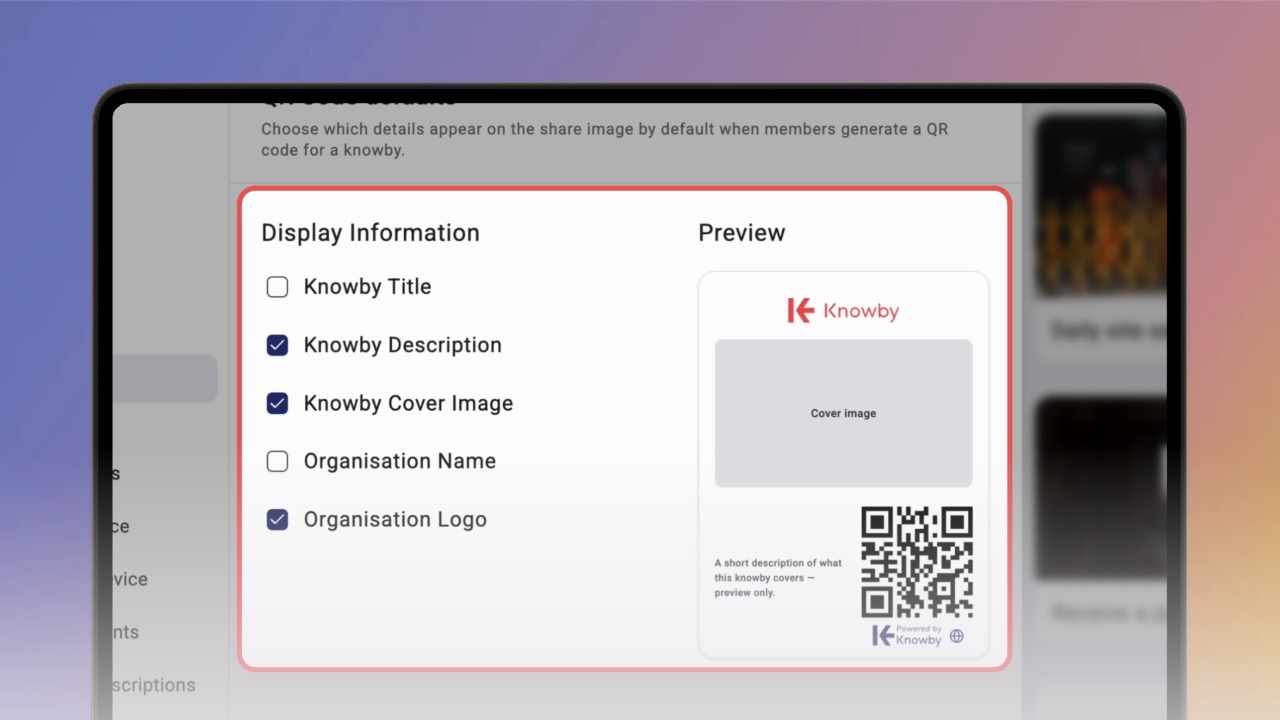
When sharing a QR code, you can customise how it looks. Click the share icon on the knowby card and select Share QR Code.
Tick whichever you'd like to include — Organisation name, Logo, Knowby Title, Description, Cover image — then click Download to save your QR code.
Every QR code shows a small icon underneath it, so you can tell its access level at a glance:
Globe icon — Public, accessible to anyone who scans it.
Lock icon — Internal, accessible only to members of your organisation.
To apply the same QR code options across your whole organisation, so people don't have to set them each time, go to Settings, then click into QR code.
Keep in mind only Admins can access and change these settings.
As you tick each option, a preview shows roughly how the QR code will look — keep in mind it's only approximate, since the actual result depends on the content in each knowby.
Your choices save automatically and become the default whenever someone shares a QR code, though it can still be customised for each individual knowby.