
Hexagon Xalt Sales Quoting
Hexagon's Xalt apps for sales quoting in the field make it easier than ever to provide accurate, competitive sales quotes in a flash.
Hexagon's Xalt apps for sales quoting in the field make it easier than ever to provide accurate, competitive sales quotes in a flash.
1
Step 1 of 47Hexagon's Xalt apps for sales quoting in the field make it easier than ever to provide accurate, competitive sales quotes in a flash.
2
Step 2 of 47Here you'll see how Hexagon technologies help increase win rates and margins by providing actionable data from anywhere and seamless connectivity across the enterprise.
3
Step 3 of 47In this video, I'll show you an example from the concrete and aggregate industry.
4
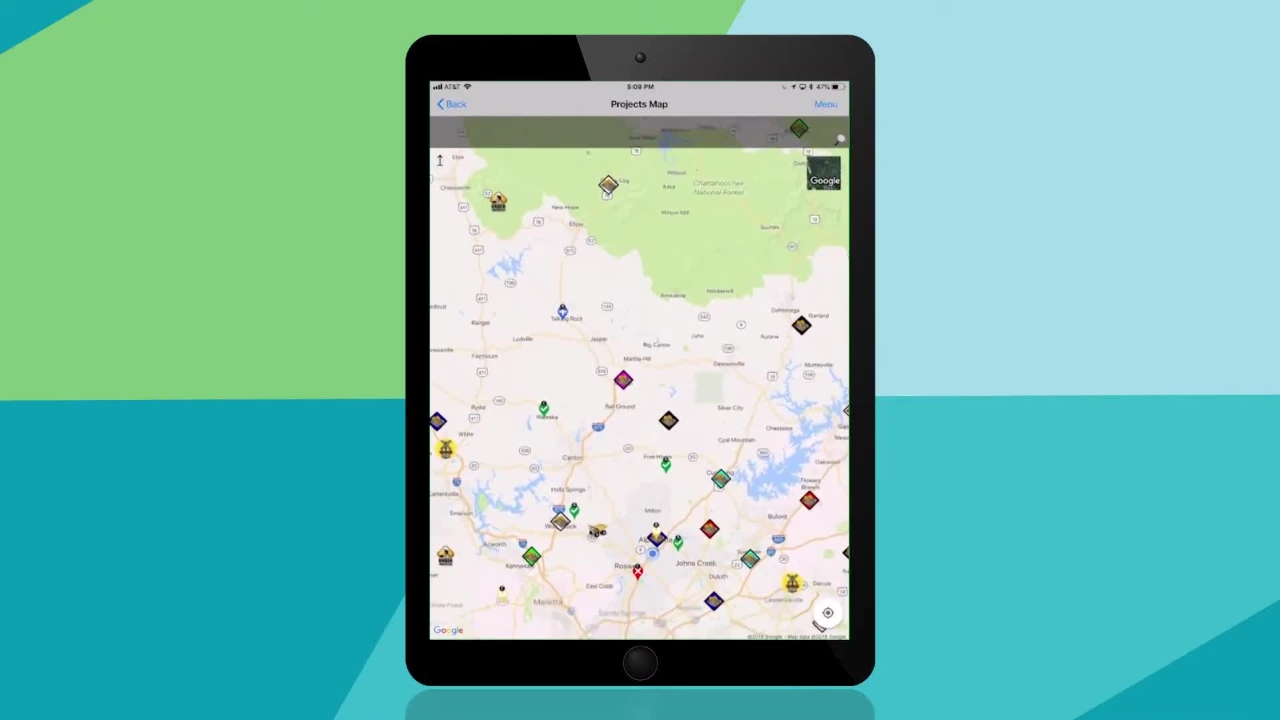
Step 4 of 47Here we begin the quote process in an active project map. At first glance, there's a lot going on in this map.
5
Step 5 of 47Let's zoom in to take a closer look.
6
Step 6 of 47Notice the white diamonds. These represent your plant and quarry locations, while the other colors represent your competitors.
7
Step 7 of 47Selecting the location, you'll see specifics about that site, product mix and utilization, for example.
8
Step 8 of 47Now, note the vehicles on the map. By accessing the telemetric system on your vehicles, we can show vehicle locations to everyone, not just dispatch.
9
Step 9 of 47And as with locations, selecting a vehicle can display specifics, maybe from asset management systems, to show mileage or oil change history.
10
Step 10 of 47Further, you can see green checks and red Xs for won and lost projects, for as far back as you wish.
11
Step 11 of 47Selecting the project will allow you to review it, copy it, and even create a new quote from it.
12
Step 12 of 47Let's drop a pin on the map. That becomes your project job site, including an address and a geolocation, latitude and longitude.
13
Step 13 of 47We know that sometimes you're delivering to new road construction that has no address.
14
Step 14 of 47Next, let's click from the job site to our plant location.
15
Step 15 of 47Note that drive distance is automatically calculated, 6.1 miles in this instance.
16
Step 16 of 47For comparison, let's select a job site of a competitor's plant or quarry.
17
Step 17 of 47Notice that the mileage is 16.6 miles, giving us nearly a 10-mile haul rate advantage.
18
Step 18 of 47From the job site, let's now create a new opportunity.
19
Step 19 of 47Notice this configurable form. Exalt gives you complete ability to modify this to meet your policies and procedures and your best practices.
20
Step 20 of 47Let's enter project information. This will be a parking lot job site.
21
Step 21 of 47We'll help you select a customer from your customer list, likely held in your financials.
22
Step 22 of 47Let's select a plant location first, although we can modify this to choose the product first if you wish.
23
Step 23 of 47Now let's enter tons and price of that first product.
24
Step 24 of 47Price will come from your pricing sheets, including multipliers based on competitive advantages that you have, such as haul distance.
25
Step 25 of 47Price will come from your pricing sheets, including multipliers based on any competitive advantages you have, such as that haul distance.
26
Step 26 of 47It might be that at the same time you're creating the quote, you learn some competitive information.
27
Step 27 of 47You can capture that right now for future analysis.
28
Step 28 of 47And finally, let's take a picture or two of the job site.
29
Step 29 of 47Creating a project is that easy. When you save this, you're also going to create a quote.
30
Step 30 of 47Note that this quote will look exactly like your current paper based processes.
31
Step 31 of 47It will contain your logos and your disclaimers and terminology.
32
Step 32 of 47You can also immediately get a signature from your customer to execute this quote, or you can email or print a quote right from your Android, iOS device or browser.
33
Step 33 of 47Next, to help your team quote better, Exalt provides project review features for analysis.
34
Step 34 of 47Here you can see the pins showing that north of the city, you're winning a lot of jobs, but southeast of the city, you're losing.
35
Step 35 of 47Now you can drill into these jobs to see why, including financial information and project specifics.
36
Step 36 of 47It might mean that you need to be more aggressive to win these deals against a competitor that might have a plant or quarry closer to the job than yours.
37
Step 37 of 47You can also look at customer accounts and add some contact components.
38
Step 38 of 47It's not likely that you need a full CRM to sell to your existing customer base, but there are some aspects of CRM that are powerful.
39
Step 39 of 47Exalt can provide these. For example, notice the last contact date for these customers.
40
Step 40 of 47If they're buying a lot from you, you might want to contact them more frequently.
41
Step 41 of 47Selecting one customer, you can now see specific financial information.
42
Step 42 of 47You can review and add events around sales, meetings, phone calls, and even complaints.
43
Step 43 of 47You can review contact information, because sometimes knowing the office manager is how you can get to that company president.
44
Step 44 of 47You can also view all job history from that account.
45
Step 45 of 47Your sales reps can now be more knowledgeable to keep those important customers happy to nurture and grow your business.
46
Step 46 of 47Exalt can help your sales team quote faster and better in the field, maximizing your win rates and margins.
47
Step 47 of 47To learn more, visit www.hexagonexalt.com