
Go to: Sharepoint/Working documents/Logistics/Frieght document templates/ Mondiale/ Container Load Sheet and Container Tax Invoice Material List. Download both to the downloads folder.
'Copy/paste' the documents from Downloads folder into the current Load folder of the Job.
Amend the file name as per the file naming protocol (i.e. follow prompts in the file name)
Insert the relevent information from the written load sheet into the Container Load sheet excel file.
Update the highlighted fields - Load Date, Contract #, Site (location), Container #, Seal #, Tare weight, Load Weight and Total weight.

Copy the Booking number from Booking/ Shipper Confirmation pdf file received from the freight provider.(Look for the number that starts with H)
Go to: Main Job folder/ open the 04EST folder (Estimates)/ open the Estimation excel file/ open the Partitions tab
Navigate to the Partitions Tab which usually will be in Green color.
Ensure all information from the written Container Load sheet goes into the Main Load table in Excel (add weight, quantity, length). For the Unit cost, go to Estimate file -> Partitions tab and find the unit cost for the respective items.Copy paste them to the Load Table in Excel

For each stillage loaded, create a separate line in Main Load Table (ie; 3 stillages = 3 lines). Where the stillage has multiple products, you must create a separate line per Product (ie; 3 products = 3 lines), same for same product/different length (ie; 2mtr SG/1mtr SG=2 line)
The cost of Roller Doors on the Estimate file includes everything except for latches.so, Remove the cost of RD kits, RD track, and RD straps from the unit cost of a Roller Door. For example, Formula is =350-AK$9-AK$10-AK$11.
Go to the Job Tracker to view all Fixings sent for that load. Fill out the 'Fixings table' in the Container Load Sheet excel file.
Copy the TOTAL fixings cost into the 'Main cost table' after ALL the fixing values have been added.
Select the columns required and double click the TOTAL VALUE. The formula is i.e =Sum(AA26:AA55) Ensure all the CELLS required are selected to calculate the Total. If (#REF!) is shown, delete it and write the Sum forumula and hit enter on the keyboard. This will TOTAL that column
You have now completed the Container Load Sheet component.
Open the 'PIVOT' tab in the Continer Load Sheet Excel file. Select the 'Source Data Table' (see Ribbon; Pivot Table Analyze/Change source Data/click and Highlight the 'Main Cost Table' except for the TOTAL row, click OK, the Pivot Table will be updated.
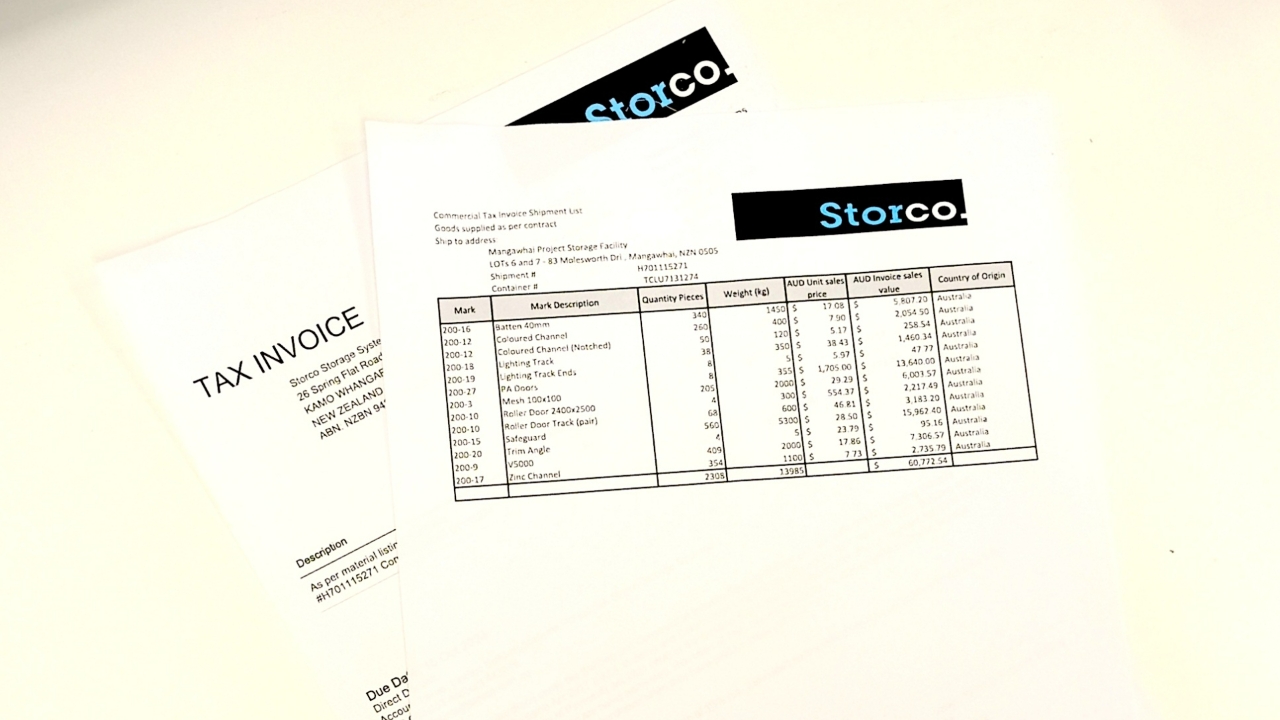
Go to the Load folder and open the excel file, 'Container Tax Invoice Material List', at the top of the page amend the nameas per the file naming protocol - Job name, Job #, Date, etc...

Fill out the highlighted areas. The shipping address can be found in Strumis (contract # - Site Details). The Shipment/ Booking Number can be found in the Booking/ Shipper Confirmation pdf file, and the Container number can be found on the Container Load sheet.
Copy all the entries from PIVOT tab of the Container Load sheet excel file and paste into the Material List Excel file. Repeat for every item you have.
Filter just the rows with 'AUD Invoice sales values', click the [-] to truncate the table, and hide columns. Save this truncated table as a Pdf file in the same Load folder.
Print 1 x copy
File it in the Export Checklist clip board along with other paperwork for that container.

Email the newly created Material List.pdf to Accounts Officer for 'Invoicing'. Account Officer will reply with a copy of the Tax Invoice.

Forward the Tax Invoice and Material List attachments to the Shipping Agent.