Knowby
Tyre Doctor
Cadia Delivery - Invoicing & Reports
How to generate the delivery reports / invoices for Cadia.
How to generate the delivery reports / invoices for Cadia.
1
Step 1 of 10Find & Save Invoices📥 - Step 1
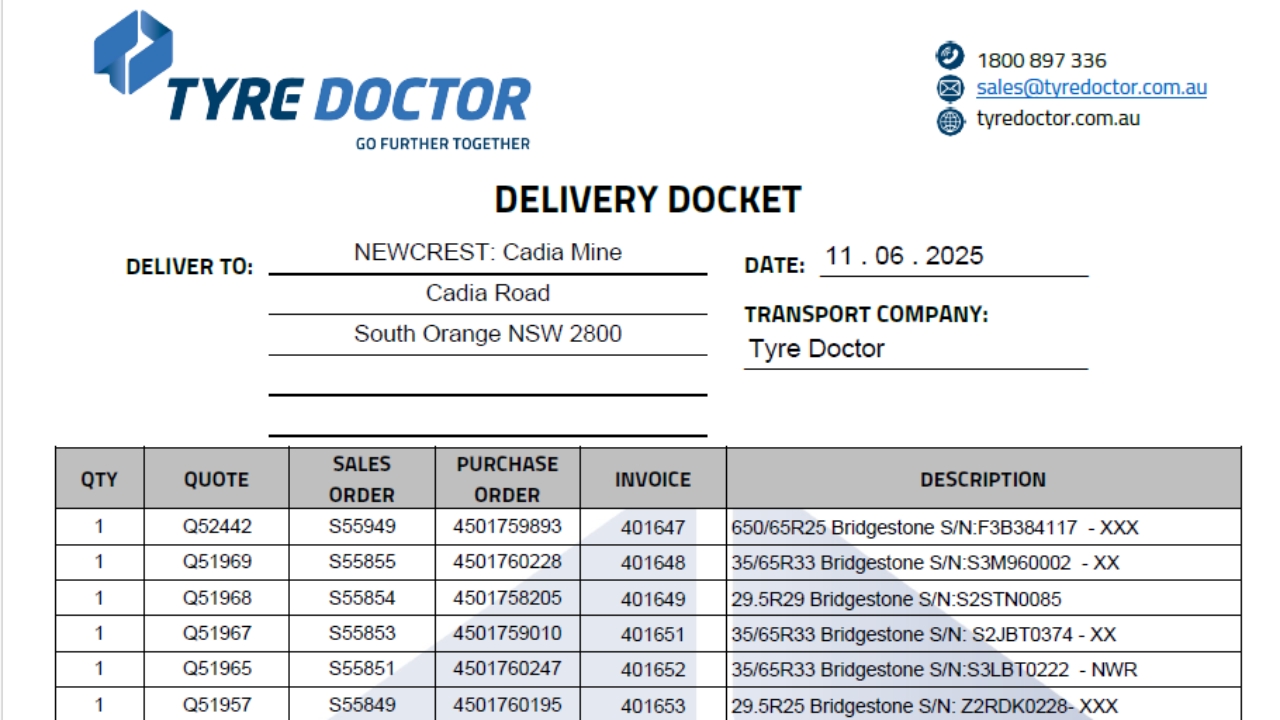
- Open up the Cadia Delivery Docket.
- Note the Invoice's for Earthmover Tyres and Wheels only.
P.S. The bottom line's with "-" in the Invoice column are not Earthmover and are excluded from this Task!
2
Step 2 of 10Find & Save Invoices📥 - Step 2
- Open Netsuite and head to Mass Updates.
- Generate Update - Send all Cadia Invoices to your email address.
3
Step 3 of 10Find & Save Invoices📥 - Step 3
- Head to your Inbox, Save invoices into the folder.
- Create a Folder designated to the Delivery Date.
- Create subfolders for Invoices & Reports.
Save all Invoices!
4
Step 4 of 10Find & Save Reports📝 - Step 1
- Open Docket and Operations Folder.
- Copy & Paste Quote N.1 into Operations folder to bring up the Repair Report.
5
Step 5 of 10Find & Save Reports📝 - Step 2
- Confirm Report is completed.
- All details are entered.
- All photos are attached.
2. Compress all PDF Reports!
(This is to ensure all the report's will fit on an Email)
Click on the below to Compress PDF Files.
6
Step 6 of 10Find & Save Reports📝 - Step 3
- Open "Reports" Folder
- Copy & Paste Reports (PDF) into the folder.
Complete for all Repair Reports.
7
Step 7 of 10Finalising & Sending📩 - Part 1
- Open up Email Template Provided.
- Update details (i.e. Date, Heading and Email language)
- Take a Snip of the Docket (Only of EM Repairs)
- Upload onto the email.
8
Step 8 of 10Finalising & Sending📩 - Part 2
- Attach all Invoices relating.
- Send Email!
9
Step 9 of 10Finalising & Sending📩 - Part 3
- Respond to previous email to Client.
- Change Heading/Email to suit for Reports.
- Attached Tyre Repair Reports.
10
Step 10 of 10Finalising & Sending📩 - Part 4
- Respond to previous email to Client.
- Change Heading/Email to suit for Reports.
- Attached Rim Repair/New Rim Reports.
Task Completed!
More Examples can be found: