
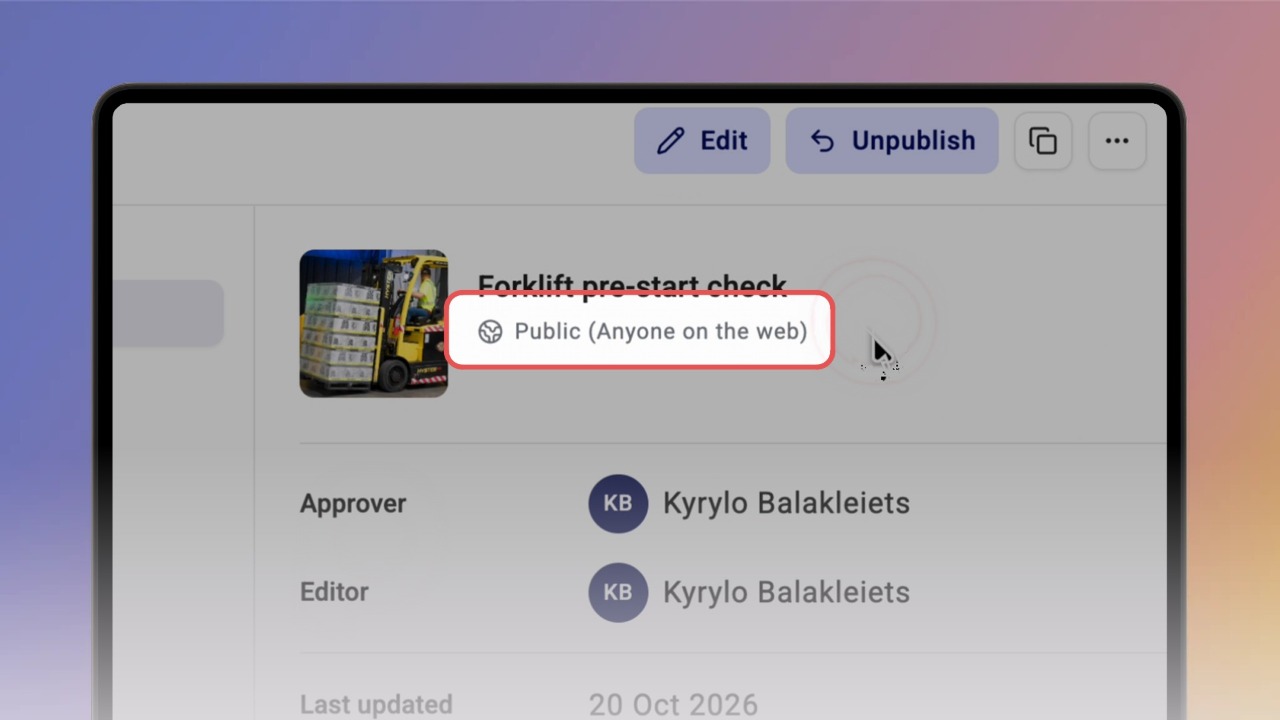
A Public knowby opens for anyone with the link – no Knowby account, no sign-in (an Internal knowby only opens for people signed in to your organisation). To share a public knowby, open Knowby Details – you'll see Public (Anyone on the web) under the title – go to Link, choose Public Link and click Copy. Paste the link into any browser and the knowby opens straight away.
Good for: customer instructions, contractor inductions, guides on your website, QR codes stuck on machines.
Watch out: anyone who has the link can see it, so don't make a knowby public if it contains internal or sensitive information. Public views are charged per view.
Public knowbys have a Public label on their card, so you can spot them on the home screen.
Access is set when you publish. If the knowby is already published, open Knowby Details and click Unpublish, then confirm. It moves to My drafts.
On the draft card open ⋯ > Publish. In the Access step choose Public (Anyone on the web), click OK in the pop-up, then Next and Publish. The card shows Processing... while it publishes.
Tip: it can take up to 15 minutes before the knowby appears on the public website.
Open Knowby Details. Under the title you'll see Public (Anyone on the web). In Link and QR Code you can now switch to Public Link / Public QR Code, and Embed Code becomes available.
To share, click the share icon on the card > Share Link > Public link. The link is copied — send it to anyone.