
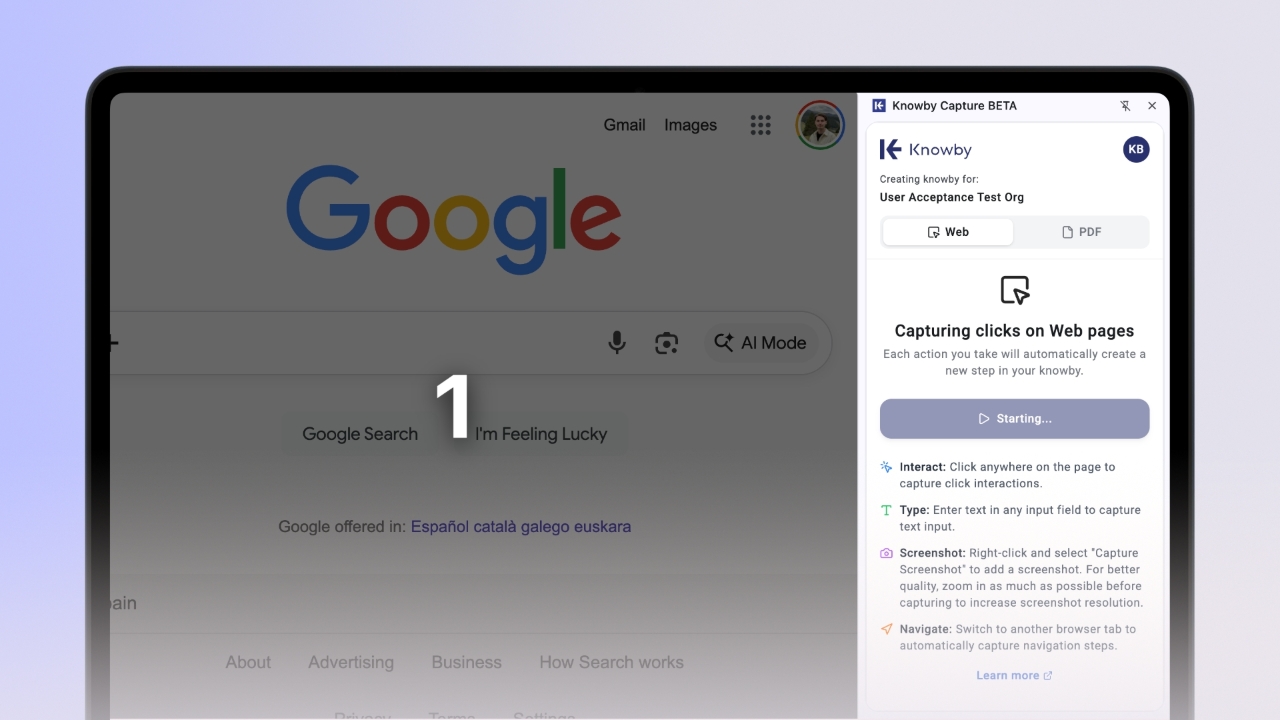

Open the Knowby Capture extension and ensure the "Web" tab is selected.
Click the "Start capture" button. Your screen will briefly dim for a countdown, and recording will begin once the screen returns to normal.
Interact with the webpage normally. The extension will automatically record your clicks, even if you navigate across different browser tabs.
Each click generates a step card in the plugin window, displaying the step number, a description, and a screenshot with the clicked area highlighted in red.
To zoom in on the highlighted object, hover over the image inside the step card and use the "+" and "-" controls.
Use the icons on the top bar of any step card to easily reorder or delete that specific step.
You can the step text by typing directly into the text field.
To replace a screenshot, hover over the image and click "Remove media," then use the "Add screenshot" button to manually select a new area on your screen.
Note: Increasing your browser's zoom level produces clearer screenshots.
Scroll to the bottom of the plugin window and click "Add Blank Step" to insert a completely new, empty card where you can manually add media and text.
You can also right-click directly on the webpage and select "Capture Screenshot" to manually select an area. This action automatically adds a new step card with your custom image.
At the top of the plugin window, fill in the "Knowby Details" to set knowby's title, description, and capture a cover image.
You can edit it all later, once the knowby is saved from the plugin.
Click "Pause" during your session to temporarily stop recording clicks, and hit "Resume" whenever you are ready to continue.
If you need to start over, you can discard the entire capture session. This action is permanent and cannot be undone.
Click "Done" when you are finished. Please keep the plugin open while it saves.
Once completed, you will be automatically redirected to the Knowby Studio to manage your draft knowby.