Knowby Sculptform
Knowby
Reconcile - 2-8832 Customer Deposit Account (AU, US, UK & NZ)
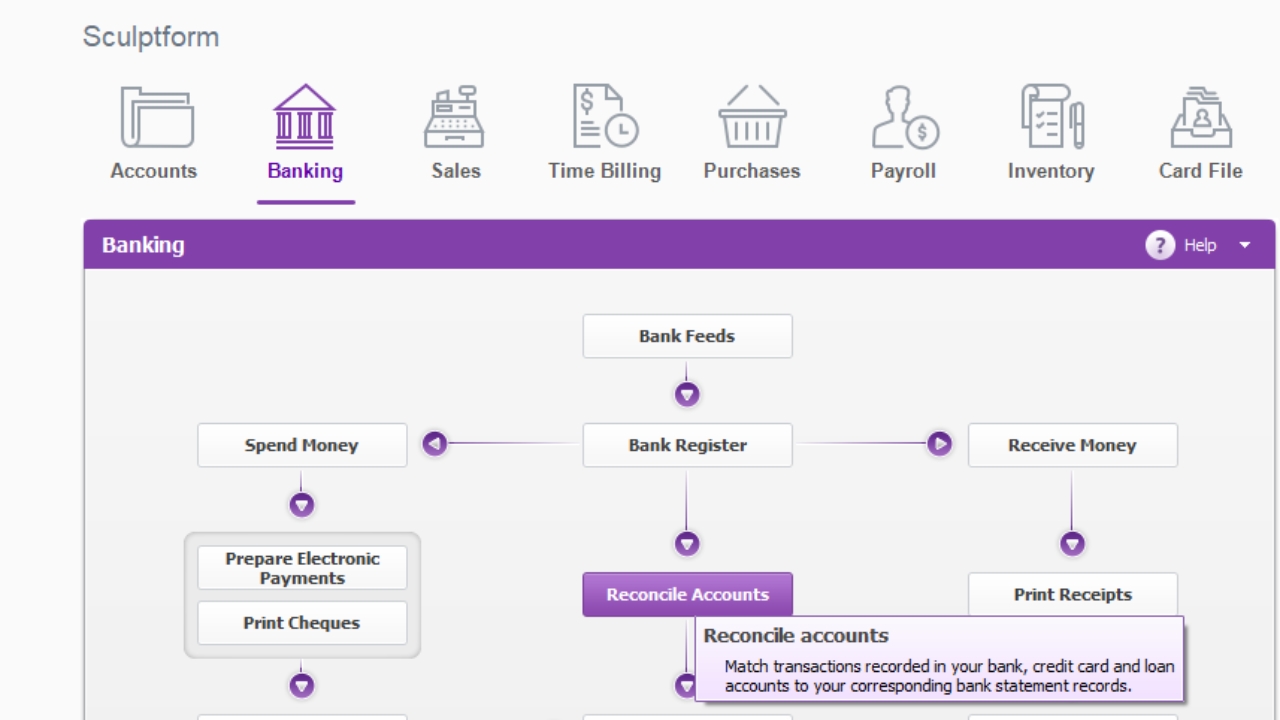
Reconcile Accounts 2-8832 Salesforce – Customer Deposits (When Rebecca issues the invoices then we must reconcile this account mostly EOM but check weekly • Select the Reconcile Accounts tab in Banking icon •
1
Step 1 of 11
<ul><li><p>Reconcile Accounts 2-8832 Salesforce – Customer Deposits - MYOB AU &amp; NZ</p></li><li><p>When Rebecca issues the invoices then we must reconcile this account mostly EOM but check weekly</p></li><li><p>Select the Reconcile Accounts tab in Banking icon</p></li></ul><p></p><p></p>
  • Reconcile Accounts 2-8832 Salesforce – Customer Deposits - MYOB AU & NZ

  • When Rebecca issues the invoices then we must reconcile this account mostly EOM but check weekly

  • Select the Reconcile Accounts tab in Banking icon

2
Step 2 of 11
<ul><li><p>Once the Reconcile Accounts is selected a pop-up screen will appear, the default account will be the first one in the list, but for Sales reconciliation purposes we need to look at account 2-8832 Salesforce – Customer Deposits </p></li></ul><p></p>
  • Once the Reconcile Accounts is selected a pop-up screen will appear, the default account will be the first one in the list, but for Sales reconciliation purposes we need to look at account 2-8832 Salesforce – Customer Deposits

3
Step 3 of 11
<ul><li><p>Click in the Account: box and start typing 2-8832, then just select that account</p></li><li><p></p></li></ul><p></p>
  • Click in the Account: box and start typing 2-8832, then just select that account

4
Step 4 of 11
<ul><li><p>Enter the Bank Statement Date (Today’s Date) Change the Closing Statement Balance: to zero and then hit the tab button.</p></li><li><p>The Closing Statement, Calculated Statement and Out of Balance should all be zero.</p></li><li><p>Click on the Memo tab and that will put everything into alpha order. Note: Deposits = Invoices Note: Withdrawals = Payments</p></li><li><p>To reconcile a customer’s payment against an invoice, you must match the correct invoice with the correct payment. Refer to screenshot below</p></li></ul><p></p>
  • Enter the Bank Statement Date (Today’s Date) Change the Closing Statement Balance: to zero and then hit the tab button.

  • The Closing Statement, Calculated Statement and Out of Balance should all be zero.

  • Click on the Memo tab and that will put everything into alpha order. Note: Deposits = Invoices Note: Withdrawals = Payments

  • To reconcile a customer’s payment against an invoice, you must match the correct invoice with the correct payment. Refer to screenshot below

5
Step 5 of 11
<p>To reconcile a customer’s payment against an invoice, you must match the correct
invoice with the correct payment. Refer to screenshot below</p>

To reconcile a customer’s payment against an invoice, you must match the correct invoice with the correct payment. Refer to screenshot below

6
Step 6 of 11
<p>Scenario one - When the project is completed, and all the invoice is issued.</p><p></p>

Scenario one - When the project is completed, and all the invoice is issued.

7
Step 7 of 11
<p>DR &amp; CR is matching </p><p>Then Click Reconcile</p><p></p>

DR & CR is matching

Then Click Reconcile

8
Step 8 of 11
<p>Scenario two - When the project is partially complete, and all the invoice has not been issued yet The out of balance figure on the below screenshot is 17,148.52. So go and check in SF So- 16068. The status is partially complete so we will have to wait until 16068B is issued in SF to do the reconciliation.</p>

Scenario two - When the project is partially complete, and all the invoice has not been issued yet The out of balance figure on the below screenshot is 17,148.52. So go and check in SF So- 16068. The status is partially complete so we will have to wait until 16068B is issued in SF to do the reconciliation.

9
Step 9 of 11
<p></p>

10
Step 10 of 11
<p>In this case,we will have to wait until 16068B is issued in SF to do the reconciliation.</p>

In this case,we will have to wait until 16068B is issued in SF to do the reconciliation.

11
Step 11 of 11
<p><strong>For US &amp; UK - Xero</strong></p><p>We don't have this option to do it, so we do it in a excel file, but process is the same matching the DR &amp; CR (means payment received &amp; payment applied on the invoice)</p><p></p><p>Refer below locations </p><p>Sculptform UK - Sculptform\Finance - Documents\General\Finance\Sculptform US, UK &amp; NZ\Sculptform UK Ltd\Reconciliation</p><p></p><p>Sculptform US- Sculptform\Finance - Documents\General\Finance\Sculptform US, UK &amp; NZ\Sculptform USA LLC\Reconciliation</p>

For US & UK - Xero

We don't have this option to do it, so we do it in a excel file, but process is the same matching the DR & CR (means payment received & payment applied on the invoice)

Refer below locations

Sculptform UK - Sculptform\Finance - Documents\General\Finance\Sculptform US, UK & NZ\Sculptform UK Ltd\Reconciliation

Sculptform US- Sculptform\Finance - Documents\General\Finance\Sculptform US, UK & NZ\Sculptform USA LLC\Reconciliation