
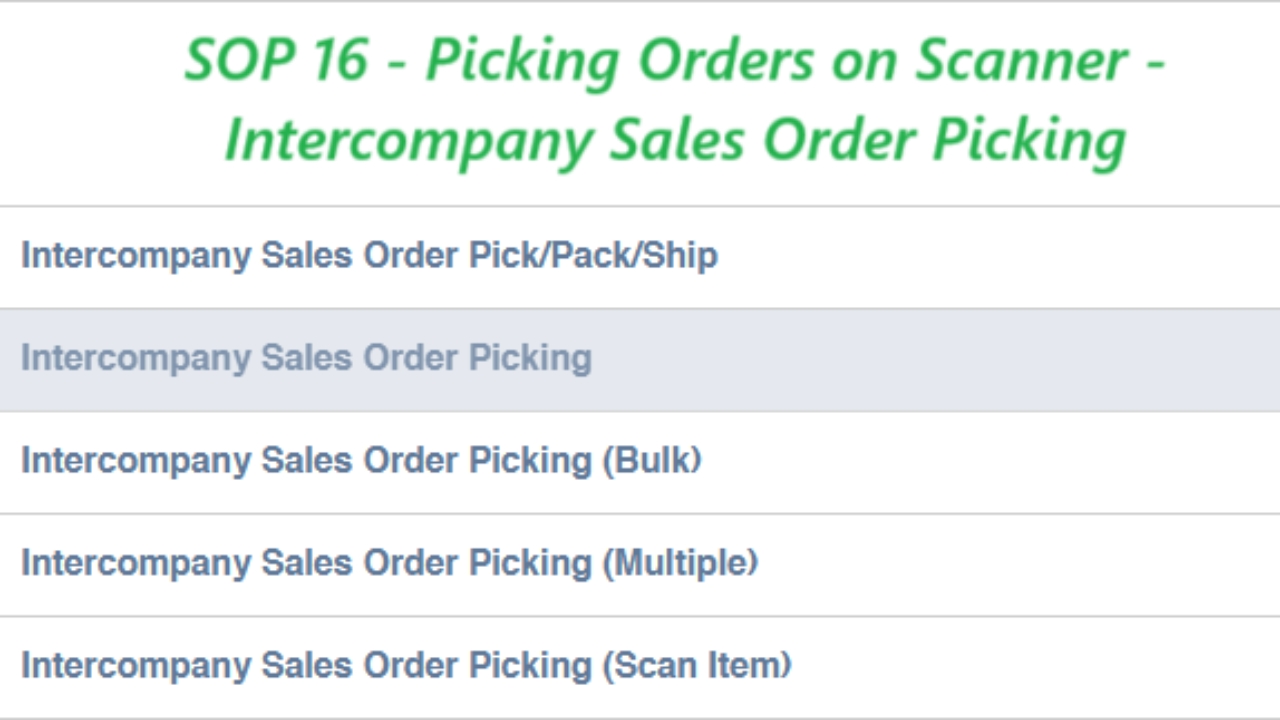

From the main screen of the scanner, select Intercompany Sales Order Picking
Press the scan button on the side of the scanner and scan the barcode at the bottom right of the Picking Ticket
Go to the first location on the list, scan the item you are looking for, scan the Bin Location they are taken from and enter the quantity taken followed by the blue arrow

The picked item will now appear GREEN and you can move onto the next location and item
Some locations can appear a bit differently like this one in the BULK area on the floor
For 'Serialized' items, go to the location, then manually select the item and scan the barcode on the item, scan as many as required for the order

Once everything is GREEN, the picking is complete!
Press the 'SUBMIT' button in the top right to submit the order ready for checking and packing.