Knowby
Sculptform
Best practice contact follow up SF view
Welcome to this Knowby of changing the contact follower card to split view.
Welcome to this Knowby of changing the contact follower card to split view.
1
Step 1 of 16Welcome to this Knowby of changing the contact follower card to split view.
2
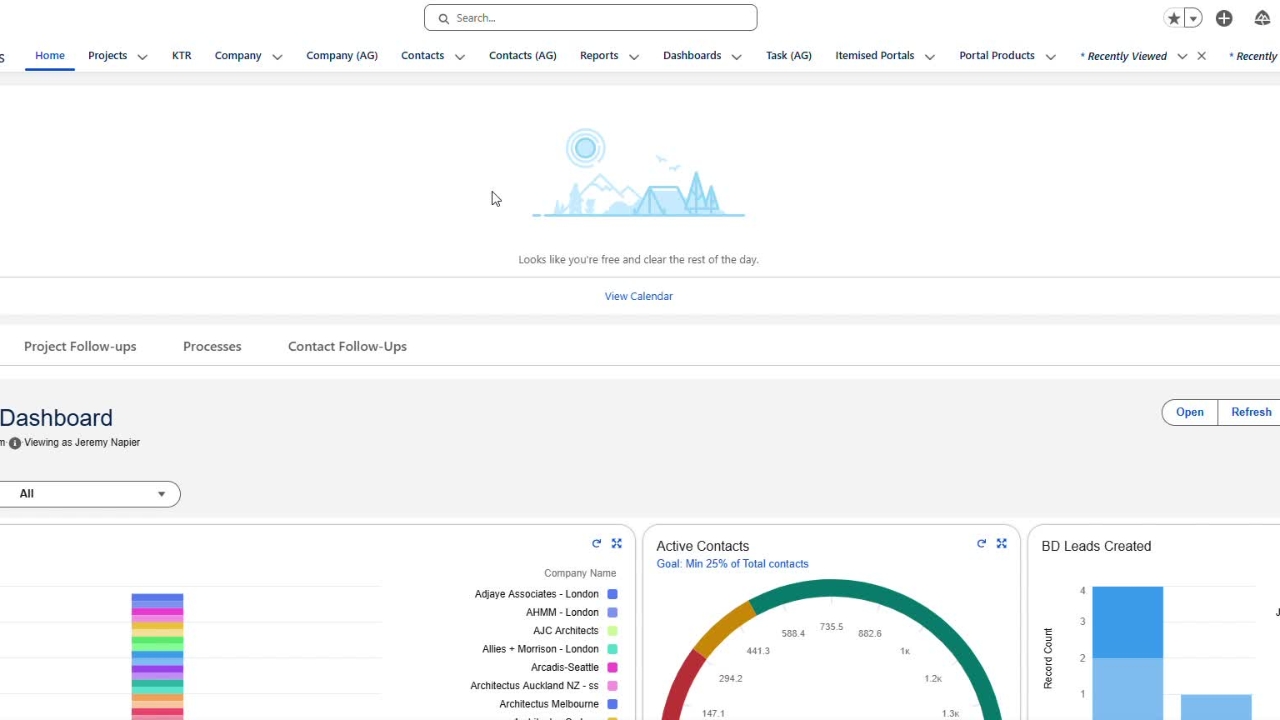
Step 2 of 16First of all, this is the main home dashboard.
3
Step 3 of 16You'll need to come across up to your top tab called Contacts.
4
Step 4 of 16Select that contact field or name.
5
Step 5 of 16Then come straight across the top to this icon here which pops up Select List Display.
6
Step 6 of 16Selecting that, dropping down to Split View.
7
Step 7 of 16Selecting Split View. And then coming back across to the list that should be selected.
8
Step 8 of 16Selecting that list. Then searching My Contacts to Follow Up.
9
Step 9 of 16Selecting that list which will automatically bring up all contacts to be followed up in that contact.
10
Step 10 of 16My follow ups behind, in the search bar.
11
Step 11 of 16Then you can from there select the contact, review where the contact is at.
12
Step 12 of 16When the follow update needs to be updated to.
13
Step 13 of 16You can see what previous calls you've made to that contact.
14
Step 14 of 16And then you can also set the next step in the contact.
15
Step 15 of 16What should be developed next with that contact.
16
Step 16 of 16Hopefully this all makes sense. Thank you very much.