
To zoom into a step's screenshot, hover over the image and use the + and - buttons.
Use the icons on the top bar of a step card to move the step up or down, or the bin icon to delete it.
To replace a screenshot, hover over the image and click Remove media. Then click Add screenshot and drag over the area you want.
Tip: zoom in your browser first for a sharper screenshot.
Click Add Blank Step at the bottom of the panel to add an empty step for your own text and media.
Right-click on the page and choose Capture Screenshot, then drag over an area. A new step with that image is added.
Open Knowby Details at the top of the panel to set the title (for example "Order supplies from the supplier portal") and capture a cover image. You can change these later in Studio.
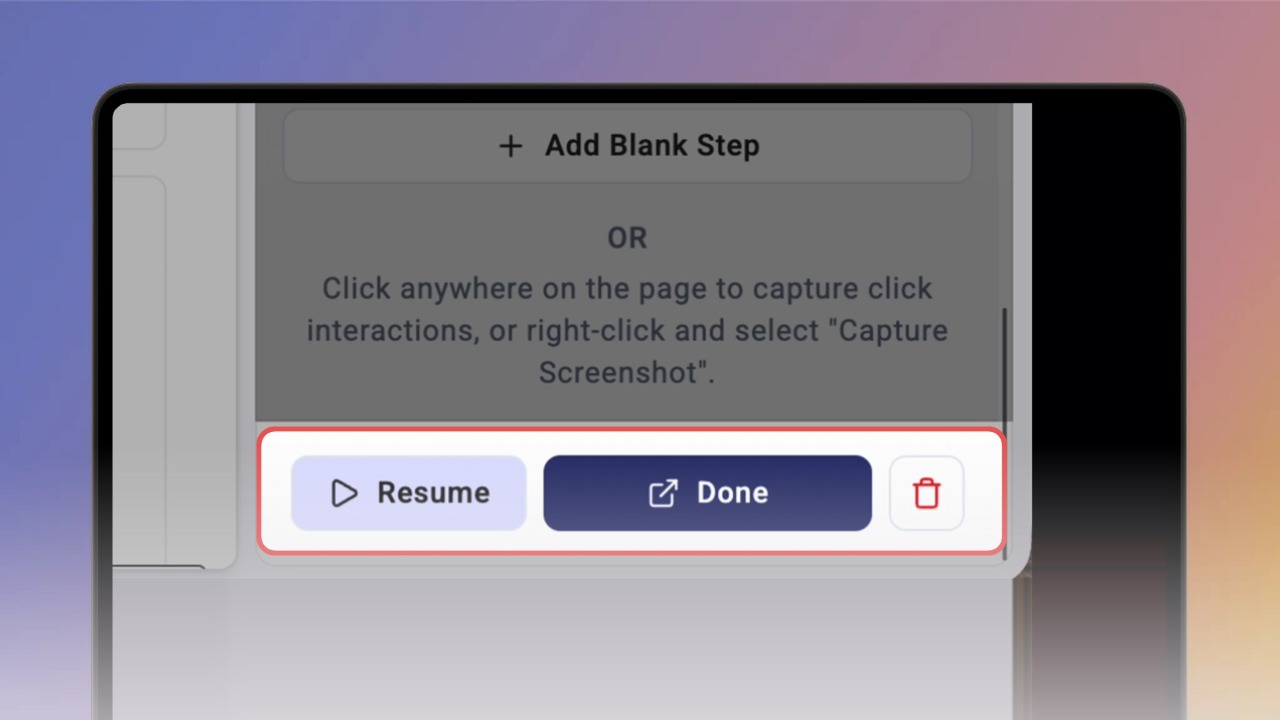
Click Pause to stop recording clicks for a moment. Click Resume to continue.
To start over, click the bin icon next to Done. You'll be asked to confirm Discard capture? - this can't be undone. Click Cancel to keep your steps.