
How to Share Screen on Google Meet
How to share screen on Google Meet. Hello everyone. I am Vishaka and welcome to our channel.
How to share screen on Google Meet. Hello everyone. I am Vishaka and welcome to our channel.
1
Step 1 of 10How to share screen on Google Meet. Hello everyone. I am Vishaka and welcome to our channel.
2
Step 2 of 10I will take you through step-by-step process on how to share screen on Google Meet.
3
Step 3 of 10Let's get started. Firstly, open your preferred browser and go ahead and join a meeting or simply create a meeting in Google Meet.
4
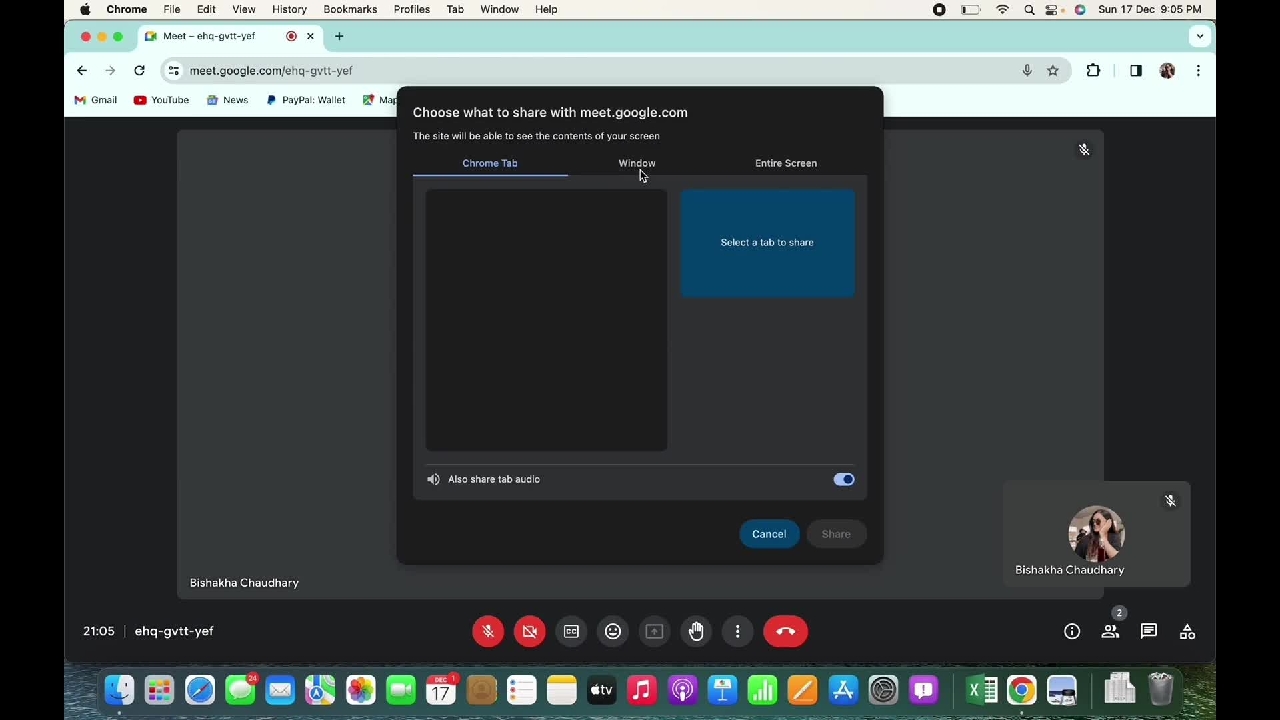
Step 4 of 10Once you are in the meeting in order to share a screen, tap on the arrow icon you see in the toolbar on the bottom center of your screen.
5
Step 5 of 10You will now be asked about how you want to share the screen.
6
Step 6 of 10You can choose to share a chrome tab, a window or the entire screen.
7
Step 7 of 10I will share entire screen here. Tap on the share option now and as you can see my screen is being shared in the meeting.
8
Step 8 of 10So this is how you can share screen in Google Meet. Also in order to stop sharing the screen, tap on the stop sharing option there and the screen sharing will stop.
9
Step 9 of 10If you find this tutorial helpful, do subscribe to our channel.
10
Step 10 of 10Thank you for staying with us until the end.